Flashing firmware on an Android phone can fix software problems, remove bugs, or upgrade the system. But flashing also wipes data in most cases. That’s why knowing how to backup Android phone before flashing (no root) is critical—especially for beginners.
This complete guide explains all safe, non-root backup methods in simple. You’ll learn what data you can back up, what cannot be backed up without root, and which method works best for your situation. We also include practical tips, common mistakes, and preparation steps that many article skip.
Important: This guide focuses on legitimate, non-root backup methods suitable for beginners and everyday users worldwide.
What Does “Flashing” Mean on Android?
Before backing up, it’s important to understand flashing.
Flashing means installing:
- Official stock firmware
- Custom firmware (ROM)
- System images or updates
Flashing can:
- Fix boot loops
- Remove malware
- Downgrade or upgrade Android
- Restore a dead phone
Most flashing processes erase user data, including apps, contacts, photos, and settings.
Why You MUST Backup Before Flashing

Flashing without a backup is risky. You may permanently lose:
- Contacts and call logs
- Photos, videos, and downloads
- App data (WhatsApp, games, notes)
- SMS and chat history
- Device settings
A proper backup ensures you can restore your phone exactly or partially after flashing.
What Can Be Backed Up Without Root?
Let’s clear a common confusion.
Data You CAN Backup (No Root)
- Contacts
- SMS (with apps)
- Photos and videos
- Documents and downloads
- Music files
- Call logs
- App APKs (not full app data)
- Some cloud-synced app data
Data You CANNOT Fully Backup (No Root)
- Complete system image (Nandroid)
- Internal app data (most apps)
- System partitions
That’s normal. Root is required for full system backups—but most users don’t need that.
Best Ways to Backup Android Phone Before Flashing (No Root)
Below is a numbered, beginner-friendly list of the best and safest methods. You can use one or combine multiple methods for maximum safety.
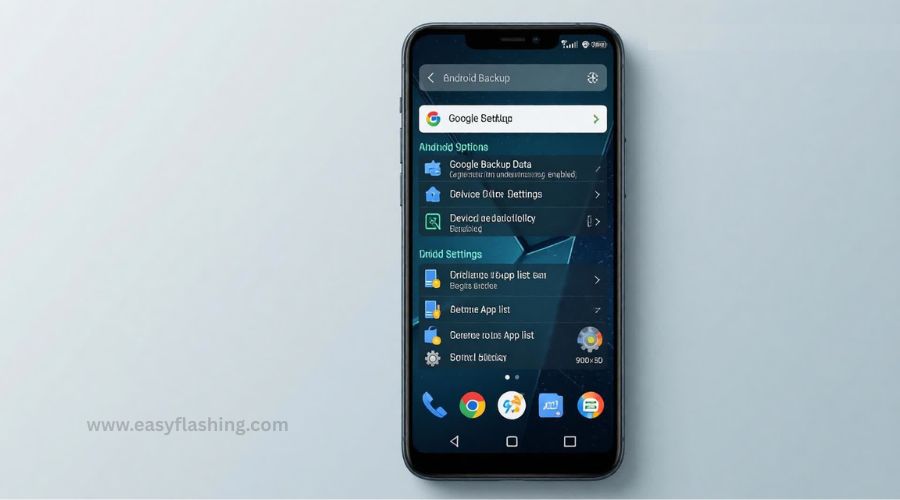
1. Backup Using Google Account (Recommended for Beginners)
What It Is
Google’s built-in backup system automatically saves important data to your Google account.
What It Backs Up
- Contacts
- SMS (on supported devices)
- Call history
- App list
- Device settings
- Wi-Fi passwords
How to Use It
- Open Settings
- Go to Google
- Tap Backup
- Turn on Backup by Google One
- Tap Back up now
Benefits
- Free and easy
- No PC required
- Automatic restore after flashing
Limitations
- Does not back up photos in original quality unless Google Photos is enabled
- App data restore varies by app
2. Backup Photos & Videos with Google Photos

Why This Matters
Media files take the most space and are often most valuable.
How It Works
Google Photos syncs your images and videos to the cloud.
Steps
- Install Google Photos
- Open the app
- Turn on Backup & sync
- Choose upload quality
- Wait until sync completes
Benefits
- Automatic
- Accessible on any device
- Safe even if phone is damaged
Beginner Tip
Check that “Backup complete” appears before flashing.
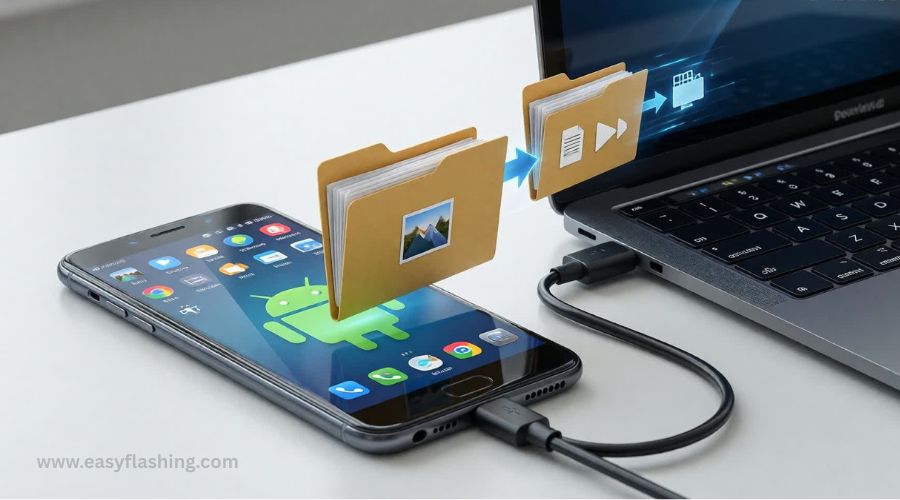
3. Manual Backup to PC (Simple & Reliable)
What It Is
Copying your files directly to a computer using a USB cable.
Data You Can Save
- DCIM (photos & videos)
- Downloads
- Documents
- Music
- WhatsApp media
How to Do It
- Connect phone to PC via USB
- Select File Transfer (MTP)
- Open phone storage on PC
- Copy important folders to your computer
Benefits
- No internet needed
- Full control over files
- Works on any Android version
Limitation
Does not back up apps or settings.
4. Backup Contacts to Google or VCF File
Option A: Google Sync
- Enable contact sync in Google account
- Contacts restore automatically after flashing
Option B: Export Contacts File
- Open Contacts
- Go to Settings
- Tap Export
- Save as .vcf file
- Copy file to PC or cloud
Why This Is Useful
You can restore contacts even without internet access.
5. Backup SMS & Call Logs (No Root Apps)
Recommended Apps
- SMS Backup & Restore
- Super Backup (free version)
What They Backup
- SMS messages
- Call history
How It Works
- Creates a local or cloud backup file
- Restores after flashing
Benefits
- Beginner-friendly
- No root required
Tip
Save backup file to Google Drive or PC, not only phone storage.
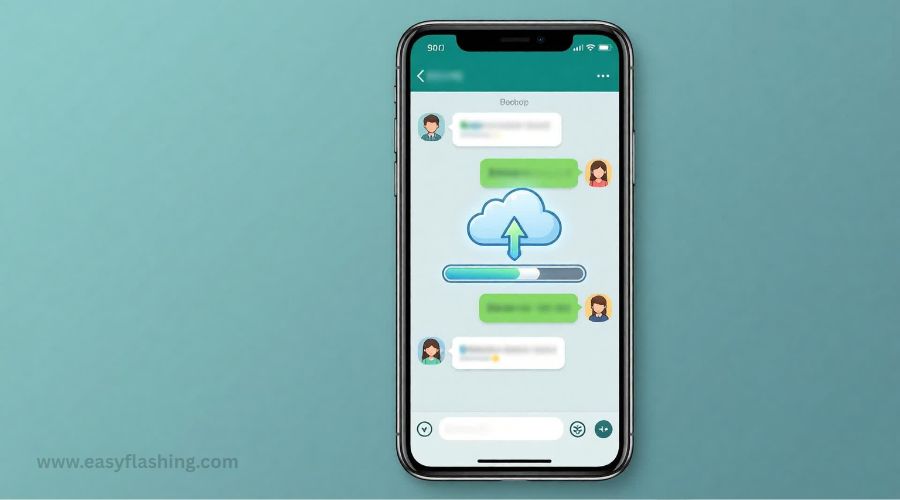
6. Backup WhatsApp and Messaging Apps
WhatsApp (Most Important)
- Open WhatsApp
- Go to Settings → Chats → Chat Backup
- Back up to Google Drive
- Verify backup date and time
Telegram & Others
- Telegram stores chats in the cloud automatically
- Some apps require manual export
Common Mistake
Flashing before the backup finishes.
7. Backup Apps Without Root (APK Backup)
What This Means
You can save app installers (APK files), not full app data.
Tools You Can Use
- APK Extractor
- ML Manager
Benefits
- Reinstall apps quickly after flashing
- Useful when Play Store access is limited
Limitation
You’ll need to log in again and reconfigure apps.
8. Backup Files to External SD Card (If Supported)
Why This Helps
Flashing usually wipes internal storage but not SD cards.
What to Move
- Photos
- Videos
- Documents
- Music
Steps
- Use File Manager
- Move important folders to SD card
Tip
Remove SD card before flashing for extra safety.
9. Manufacturer-Specific Backup Tools (No Root)
Some brands offer official backup tools.
Examples
- Samsung Smart Switch
- Xiaomi Mi PC Suite (older models)
What They Can Backup
- Contacts
- Messages
- Media
- Some settings
Benefits
- Official and safe
- Designed for your device
Limitation
PC required, limited model support.
10. Cloud Storage Services (Extra Safety Layer)
You can also use:
- Google Drive
- OneDrive
- Dropbox
Best For
- Documents
- Photos
- Important PDFs
Pro Tip
Don’t rely on one backup only. Combine methods.
How To Backup All Data On Android Before Factory Reset
What NOT to Do Before Flashing (Common Mistakes)
- Flashing without checking backup completion
- Backing up only to internal storage
- Forgetting WhatsApp chat backup
- Ignoring contacts export
- Assuming apps will restore automatically
Avoiding these mistakes can save hours of frustration.
Pre-Flashing Backup Checklist (Beginner-Friendly)
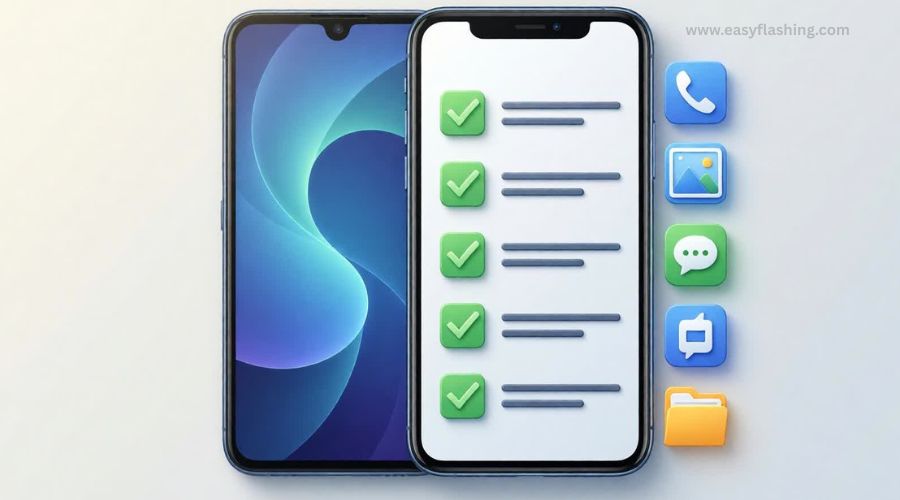
Before flashing, confirm:
- Google backup completed
- Photos synced
- Files copied to PC or cloud
- Contacts exported or synced
- SMS backed up
- WhatsApp backup verified
This checklist alone prevents 90% of data loss cases.
After Flashing: How to Restore Your Backup
Once flashing is complete:
- Sign in with the same Google account
- Choose Restore from backup during setup
- Install WhatsApp and verify number
- Restore media and files
- Reinstall apps
Restoration depends on how complete your backup was.
Security & Privacy Notes
- Use trusted backup apps only
- Avoid modded or cracked tools
- Protect backup files with passwords if possible
- Do not share backup data publicly
For official Android backup and data protection guidance, refer to Google’s trusted documentation:
https://support.google.com/android/answer/2819582
(FAQ)
Q1: Can I fully backup Android without root?
No. Full system image backups require root. But you can safely back up most personal data without root.
Q2: Will flashing delete everything?
In most cases, yes. That’s why backup is mandatory before flashing.
Q3: Is Google backup enough before flashing?
For basic users, yes. But combining Google backup with manual file backup is safer.
Q4: Can I backup apps without root?
You can back up app APKs, but not full app data for most apps.
Q5: Which backup method is best for beginners?
Google backup + Google Photos + manual PC copy is the safest combination.
Final Thoughts
Knowing how to backup Android phone before flashing (no root) is not optional—it’s essential. Flashing can solve many Android problems, but only if your data is safe first.By using the methods in this guide, beginners can flash their devices with confidence, knowing their contacts, memories, and important files are protected. Always remember: backup first, flash later.

1 thought on “How to Backup Android Phone Before Flashing (No Root)”