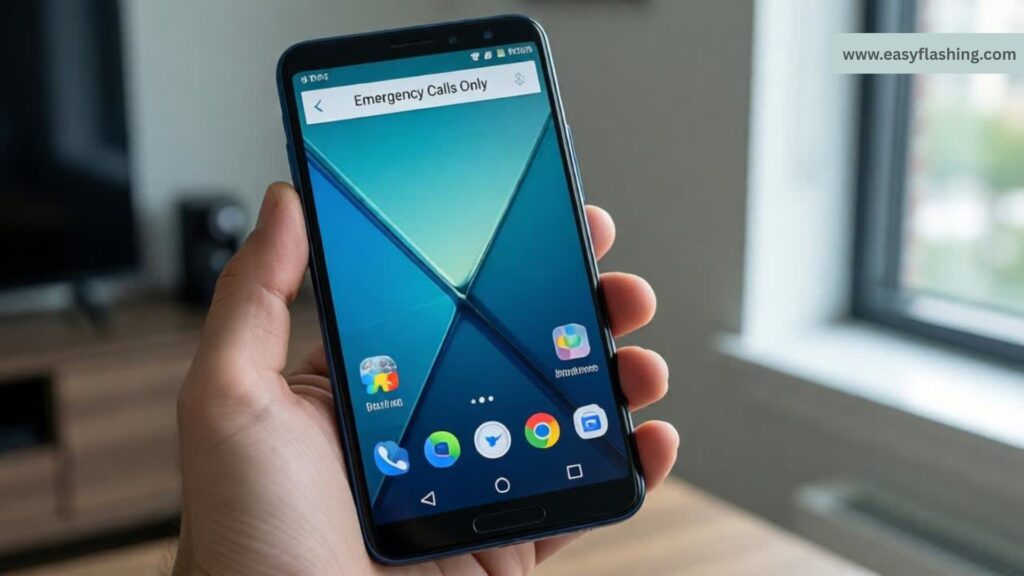
When your Android shows “Emergency Calls Only”, it means the phone can’t connect to your mobile network as usual. Instead, it only allows calls to emergency services (like 911 in the US). This can happen even if you see signal bars, and it’s one of the most frustrating connectivity issues Android users face worldwide.
In this detailed listicle, you’ll learn why this happens including AUTO (automatic network mode) issues and how to fix it using simple, reliable steps. We cover everything from basic checks to advanced troubleshooting so you don’t have to search elsewhere.
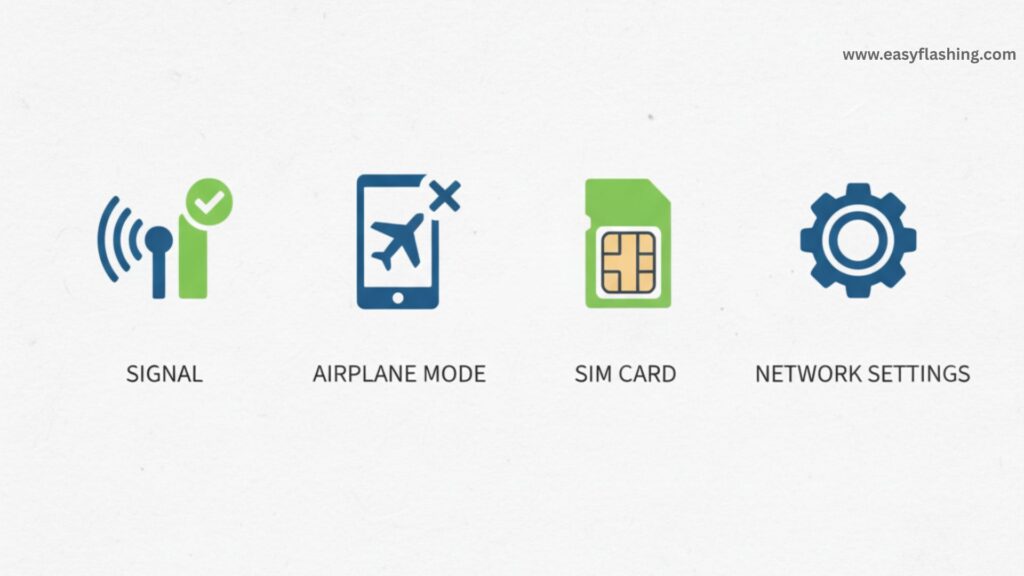
Check Your Network Coverage First
What it means:
You might be outside your carrier’s service area or in a weak signal zone. Even if your phone shows bars, the data might be unreliable or unable to register properly with the network.
How to check:
- Look at the signal bars in the status bar.
- Move to an open area like near a window or outside.
- Avoid basements, underground garages, and remote locations.
Why it helps:
Phones sometimes display signal bars based on last known connection but fail to register with the network, causing the Emergency Calls Only message.
Turn Airplane Mode ON and OFF
What it does:
Airplane Mode disables all wireless communication and forces your phone to search for network connections when turned off again.
Steps:
- Swipe down from the top of the screen.
- Tap the Airplane Mode icon to turn it on.
- Wait ~10 seconds and turn it off.
Benefit:
This resets the network radio without rebooting the phone.
Perform a Full Restart
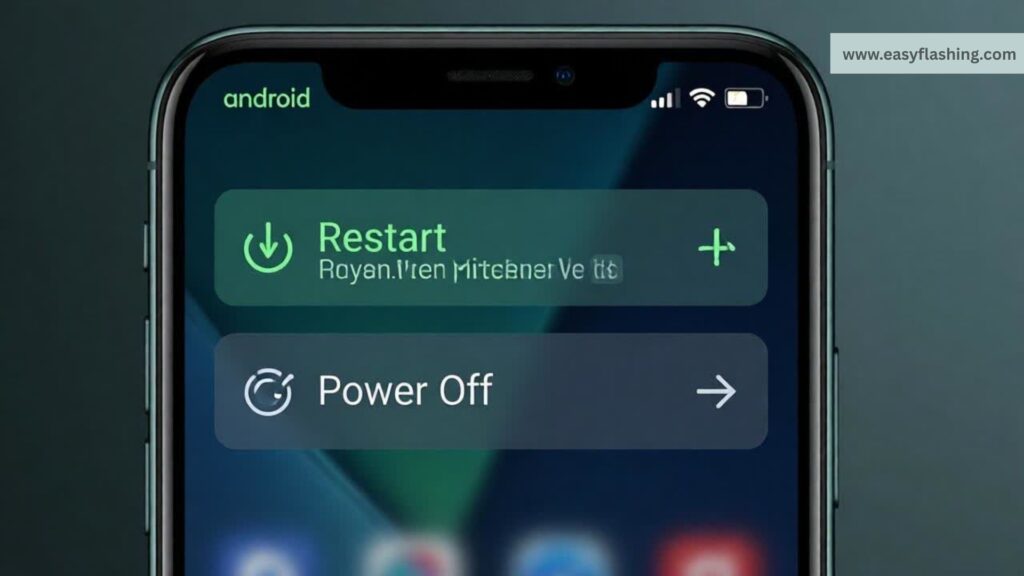
Explanation:
A restart clears temporary glitches or memory issues that might block network registration.
Steps:
- Press & hold the power button.
- Tap Restart (or Power Off then turn back on).
Why it’s useful:
Reboots reset the network services and background processes managing connectivity.
Reinsert or Check Your SIM Card
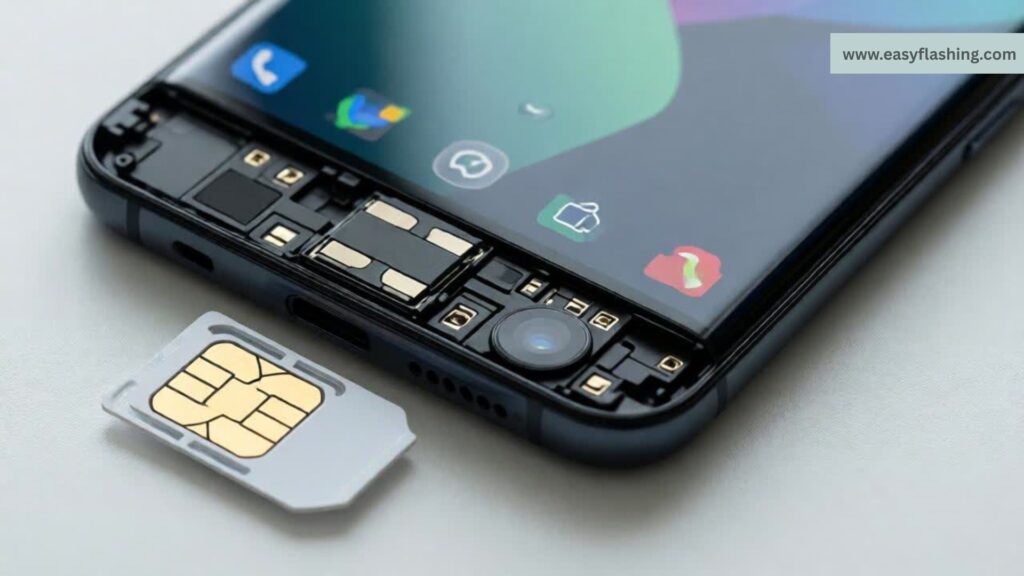
Explanation:
A poorly seated or dirty SIM can prevent your phone from reading network settings.
Steps:
- Turn off your Android phone.
- Use the SIM ejector tool to remove the SIM tray.
- Wipe the SIM gently with a soft cloth.
- Reinsert it properly and reboot.
Tip:
If the SIM looks damaged or bent, ask your carrier for a replacement.
Enable AUTO Network Mode
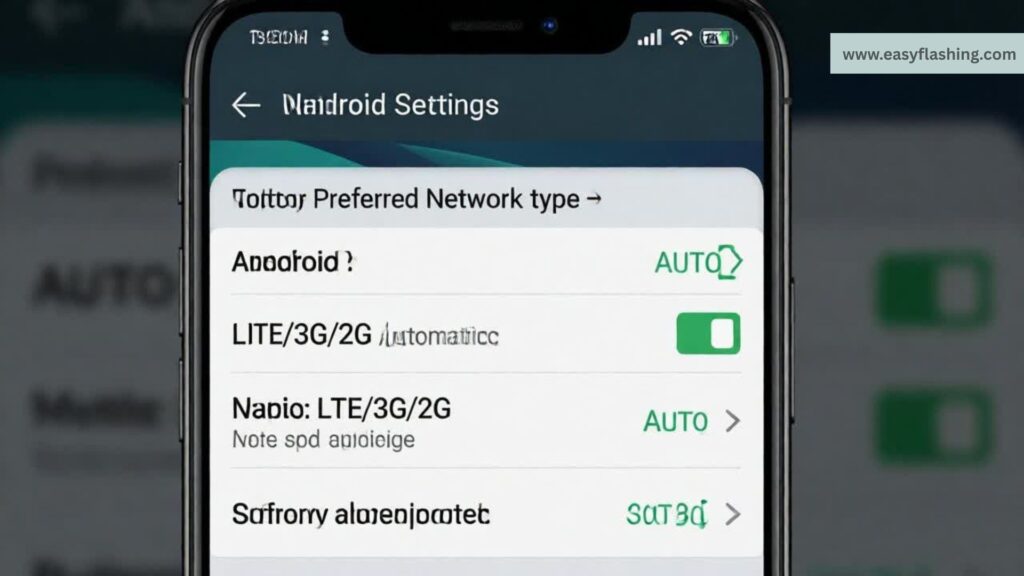
What AUTO mode means:
This allows your Android to automatically choose the best network type (2G/3G/4G/5G) based on availability and strength.
Why AUTO helps:
If you manually forced a single network (like only 5G), your phone might fail to connect if that network isn’t available. Setting AUTO lets the phone switch automatically.
Steps to set AUTO mode:
- Go to Settings > Network & Internet.
- Tap Mobile Network (or similar).
- Tap Preferred Network Type or Network Mode.
- Choose Automatic (often labeled LTE/3G/2G AUTO).
Change the Network Mode Manually
Why do this:
Some areas have weak 5G or LTE signals. Trying older modes like 3G or 2G can help the phone get registered.
Steps:
- Settings > Mobile Network > Network Mode > pick 3G or 2G only.
- Test your connection. If it works, switch back to AUTO or LTE.
Manually Select Your Network Operator
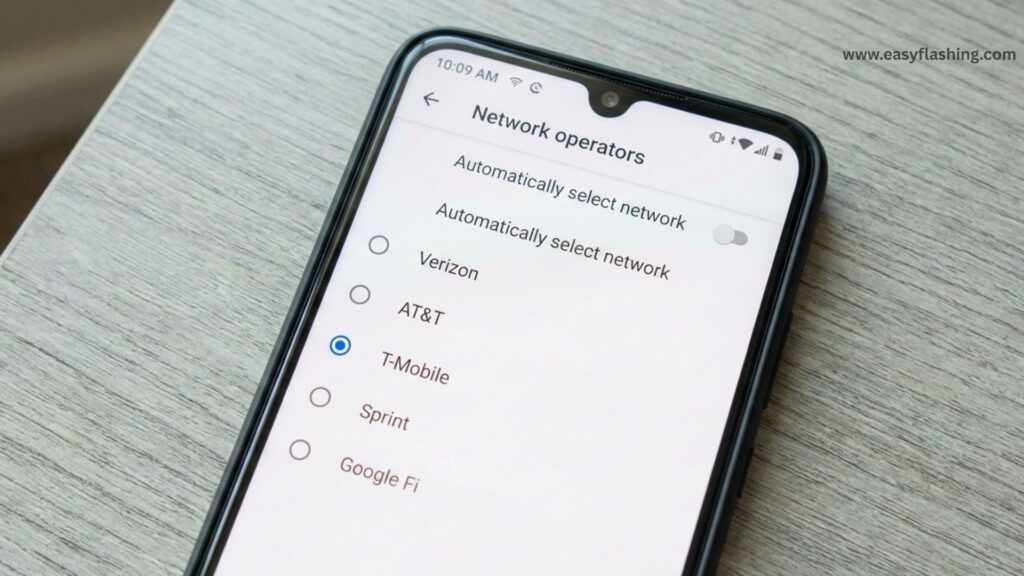
Why it matters:
Sometimes the phone looks for the wrong network (especially on dual SIM phones), showing Emergency Calls Only.
Steps:
- Settings > Mobile Networks.
- Tap Network Operators.
- Turn off Select Automatically.
- Choose your carrier from the list.
Result:
Forces your phone to register with the correct carrier.
Check That Your SIM Is Enabled
What it means:
On dual SIM Android phones, one SIM could be disabled by mistake.
Go to:
Settings > SIM & Network > tap SIM > ensure it’s Enabled.
Update Your Android System & Carrier Settings
Explanation:
OS bugs can cause connectivity issues. Updating your phone and carrier settings can fix them.
Steps:
- Settings > System > Software Update.
- Download & install any available updates.
Clear Network App Caches (SIM Toolkit)
What’s SIM Toolkit:
This system app handles carrier services and can become stuck or corrupt. Clearing its cache often resolves network issues.
Steps:
- Settings > Apps.
- Tap the three-dot menu and choose Show system apps.
- Find SIM Toolkit.
- Tap Force Stop > Storage & Cache > Clear Cache.
Reset Network Settings
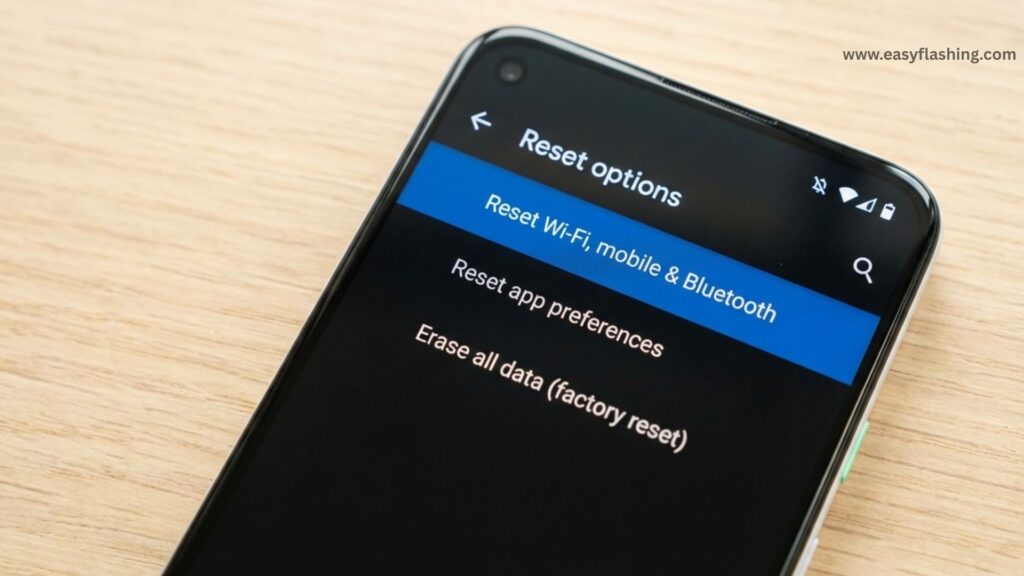
Why reset:
Network misconfigurations from other settings can trigger emergency only mode.
Steps:
- Settings > System > Reset Options > Reset Wi-Fi, mobile & Bluetooth.
Note:
This clears saved Wi-Fi networks and Bluetooth pairings but no personal files are lost.
Boot into Safe Mode (Check for App Interference)
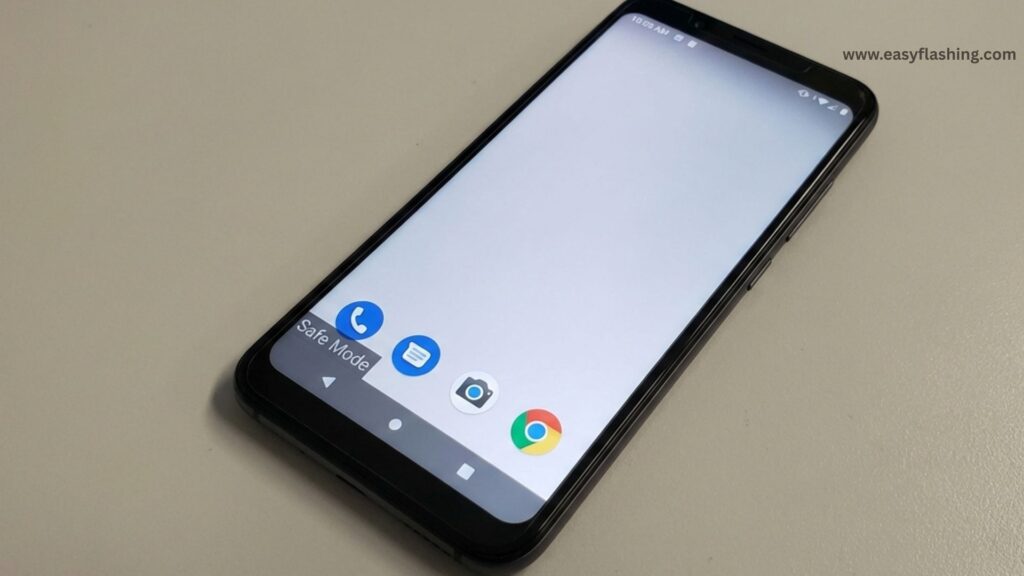
Why Safe Mode:
Third-party apps sometimes interfere with network services. Safe Mode disables them.
Steps:
- Turn off the phone.
- Turn it on and hold the volume down button until Safe Mode appears.
- Test the network.
- If fixed, uninstall recent apps.
Check for Carrier Issues or Account Problems
What to do:
- Ensure your plan is active and paid.
- Verify there are no outages in your area.
- Try your SIM in another phone to rule out carrier vs device problems.
Factory Reset (Last Resort)
When to use:
If none of the above works and you consistently see the message, a factory reset may fix corrupted system settings.
Warning:
This wipes all personal data, so back up before proceeding.
How to Fix Emergency Calls Only on All Android
Contact Your Manufacturer or Carrier Support
If even a factory reset fails, the issue might be hardware related (antenna or modem). Some users resolved this only by replacing parts at a repair center.
Quick Recap
| Fix | Easy | Effective |
| Airplane Mode toggle | Yes | ⭐⭐⭐⭐ |
| Restart | Yes | ⭐⭐⭐ |
| AUTO Network Mode | ⭐ | ⭐⭐⭐⭐⭐ |
| Manual network select | ⭐ | ⭐⭐⭐⭐ |
| Reset network settings | ⚠️ | ⭐⭐⭐ |
| Factory reset | No | ⭐⭐ |
(Q&A)
Q1: Why does my Android show Emergency Calls Onlyeven with full signal bars?
This often happens when the phone can’t register with your carrier’s network despite detecting signal strength a mismatch between physical signal and network registration can cause this.
Q2: Does enabling AUTOnetwork mode fix this issue?
Yes, AUTO mode lets your phone choose the best network type (2G/3G/4G/5G) instead of locking onto one that may not be supported or available.
Q3: Will resetting network settings delete my files?
No, it only resets Wi-Fi, Bluetooth, and cellular settings, not personal files or photos.
Q4: Why does the phone work after a restart but go back to Emergency Calls Only later?
This pattern suggests an underlying software or network registration bug, not permanent hardware damage. It might require deeper fixes like updating Android or reset network settings.
Q5: Could it be a hardware problem?
Yes, issues with the network antenna or modem chip can cause this, especially if software fixes fail. Consulting a repair shop may be necessary.
For deeper official guidance on Android network troubleshooting, visit the official Android support page:https://support.google.com/android.