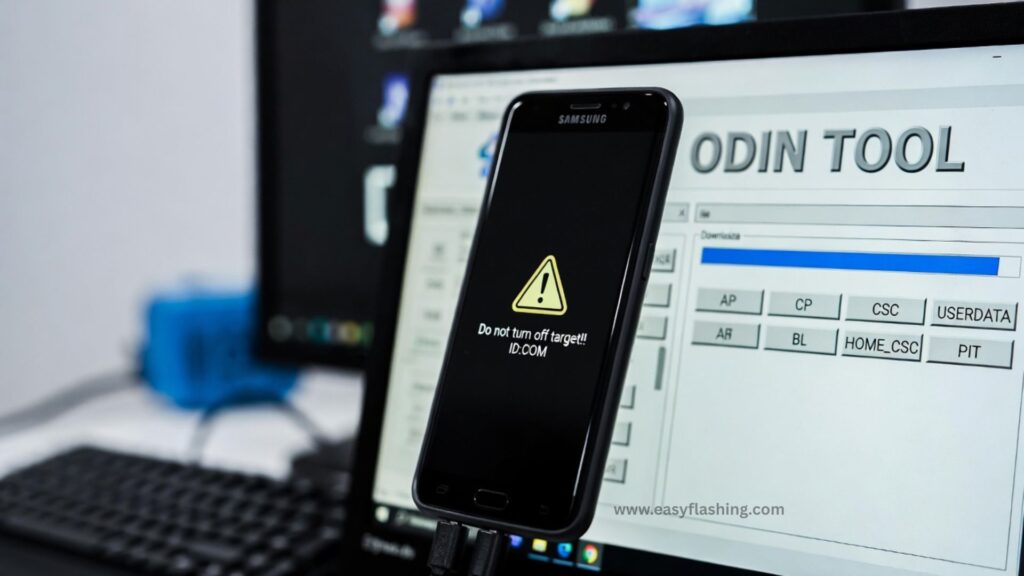
How To Unbrick Android Using Odin Tool is one of the most searched solutions when a Samsung Android phone suddenly stops booting, gets stuck on the logo, or shows a black screen. If your device feels “dead,” don’t panic. In many cases, your phone is not permanently damaged it is just soft bricked, and Odin can help recover it.
Within this article, I will try to explain everything in simple English, assuming you are a beginner. You too don’t need to be a developer or tech expert. If you carefully follow the steps, Odin can restore your phone to a working state safely.
What Does “Bricked Android Phone” Mean?
A bricked Android phone is a device that no longer works properly and feels as useful as a brick. It may not turn on, may not boot fully, or may get stuck in an endless loop.
Common signs of a bricked phone:
- Phone stuck on Samsung logo
- Bootloop (restarts again and again)
- Black screen but vibration present
- Stuck in Download Mode or Recovery Mode
- No response to power button
Types of bricking:
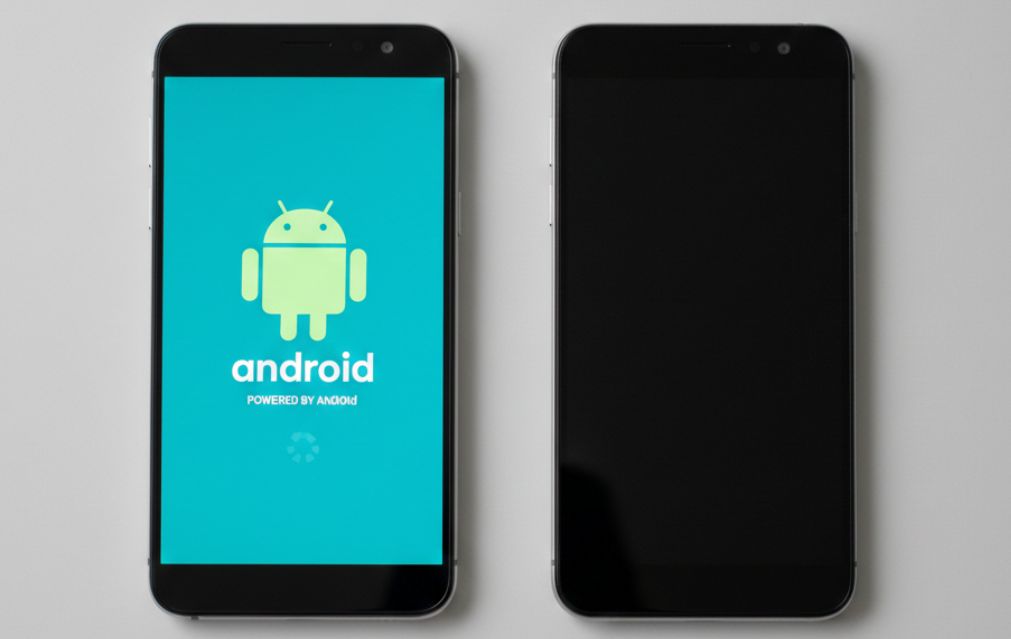
- Soft Brick: Fixable using software tools like Odin
- Hard Brick: Hardware-level damage (rare and usually not fixable)
Good news: Odin only works for soft-bricked Samsung devices, which is the most common case.
What Is Odin Tool and Why Is It Used?
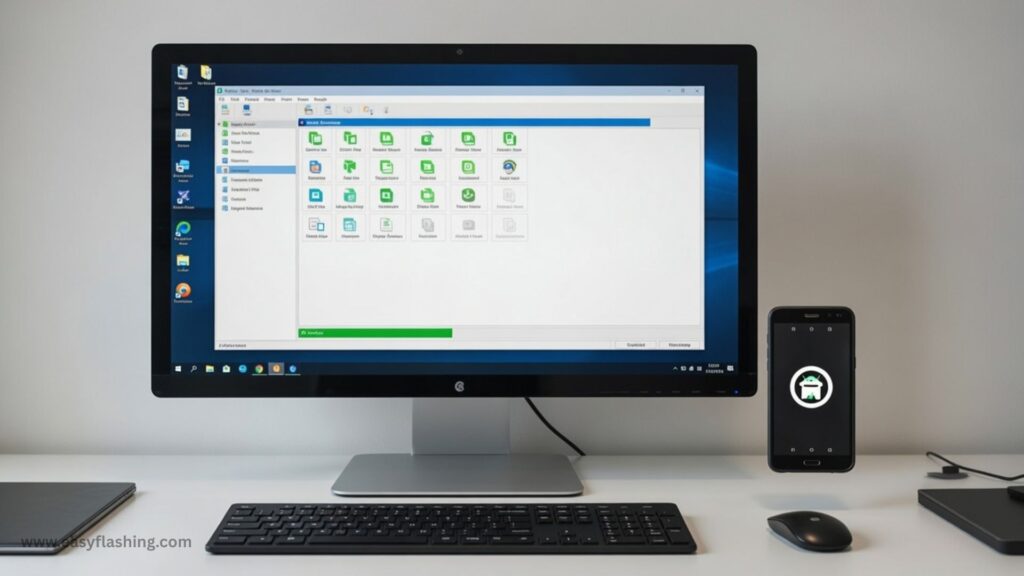
Odin Tool is an official internal Samsung firmware flashing utility used by Samsung engineers. Although not publicly released by Samsung, it is widely trusted and used worldwide.
What Odin can do:
- Flash official Samsung firmware
- Fix bootloops and soft bricks
- Restore stock ROM
- Unroot a device
- Fix failed updates
- Remove custom ROM issues
Why Odin is effective:
- Works at a low system level
- Rewrites corrupted system partitions
- Restores original firmware safely
You too can use Odin at home with a Windows PC and a USB cable.
When Should You Use Odin to Unbrick Android?
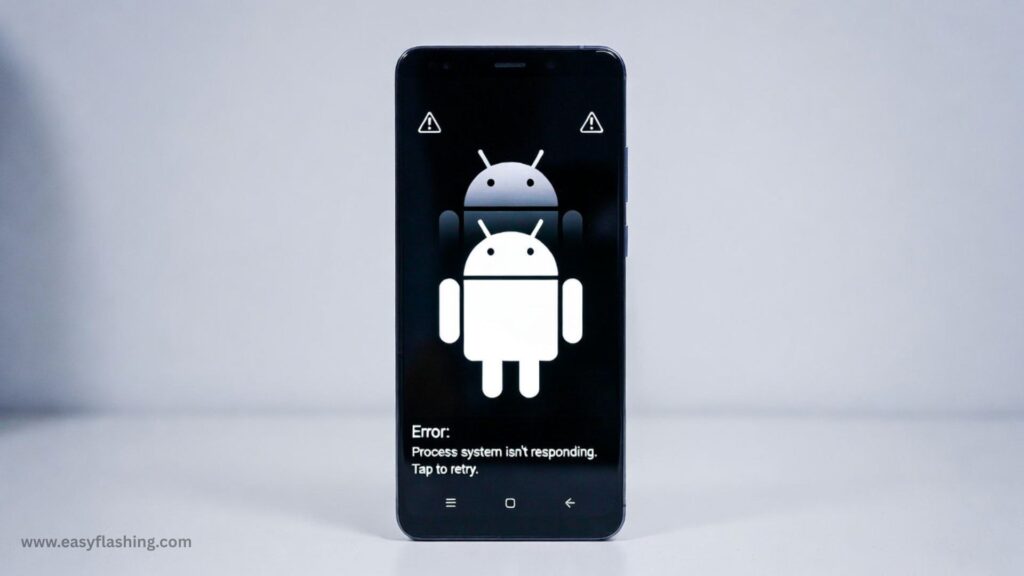
You should use Odin only in the following situations:
- Phone stuck on boot logo
- Android not starting after update
- Phone stuck in bootloop
- Custom ROM installation failed
- Rooting process went wrong
- Phone stuck in Download Mode
- Software crash after flashing
Odin is not for non-Samsung phones.
Things You Must Know Before Using Odin
Before flashing firmware, you must understand a few critical points.
Important warnings:
- Flashing firmware may erase your data
- Use firmware for your exact model number
- Do not disconnect USB cable during flashing
- Use a stable Windows PC or laptop
Within this article, I will try to minimize risks by explaining every step clearly.
Requirements to Unbrick Android Using Odin Tool
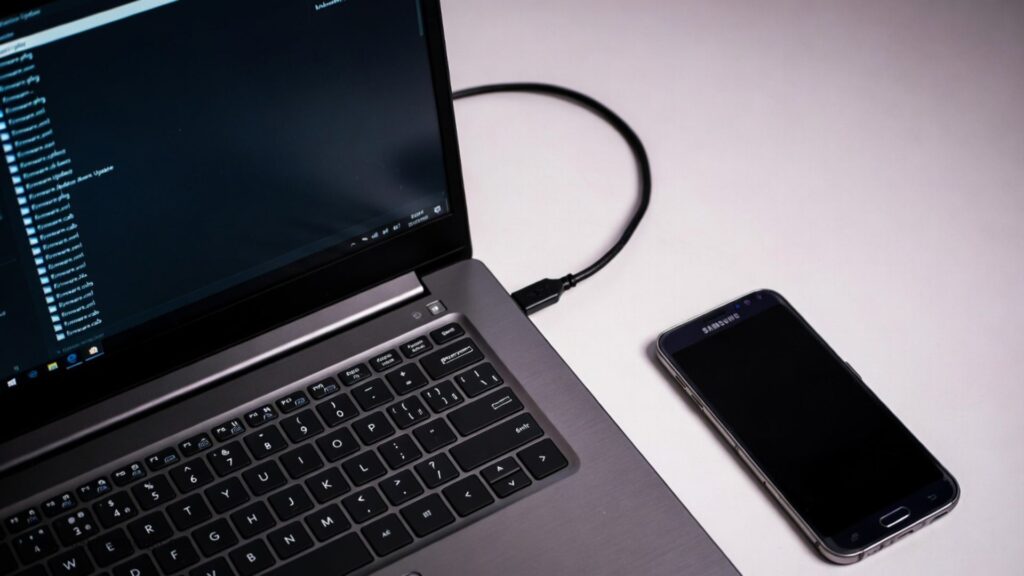
Before starting, gather these items:
What you need:
- Windows PC or laptop
- Original or good-quality USB cable
- Fully charged phone (at least 60%)
- Samsung USB drivers
- Odin Tool (latest version)
- Correct Samsung firmware (stock ROM)
How to Check Your Samsung Phone Model Number
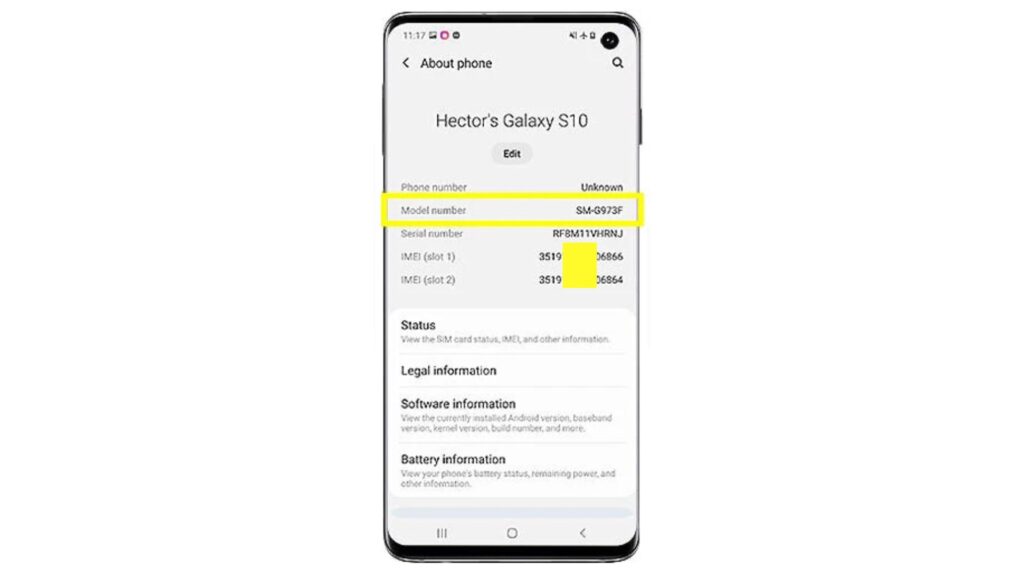
Using the wrong firmware can permanently damage your phone.
Ways to find model number:
- On phone box
- On SIM tray
- Printed on back of phone
- From Download Mode screen
- Google your phone name + storage variant
Example:
SM-G991B, SM-A125F, SM-N975U
Downloading the Correct Samsung Firmware
Firmware files usually come in .zip format and extract into multiple .tar.md5 files.
Trusted firmware sources:
- Samsung Firmware Database (SamFW)
- Samsung Updates archive
Trusted external link:
https://www.sammobile.com/firmwares/
(Used only as a reference, not promotional.)
Understanding Samsung Firmware Files (AP, BL, CP, CSC)
Many beginners get confused here, so let’s simplify.
Firmware file types:
- BL – Bootloader
- AP – System (largest file)
- CP – Modem / Network
- CSC – Country & carrier data
- HOME_CSC – Keeps user data
If your phone is badly bricked, use CSC (not HOME_CSC).
Download and Install Samsung USB Drivers
Your PC must detect your phone correctly.
Steps:
- Download Samsung USB Driver
- Install it on Windows
- Restart your PC
Without proper drivers, Odin will not detect your device.
Downloading and Setting Up Odin Tool
Odin comes as a small ZIP file.
Steps:
- Extract Odin ZIP
- Run Odin.exe as Administrator
- Do not change default settings
How to Boot Samsung Phone into Download Mode
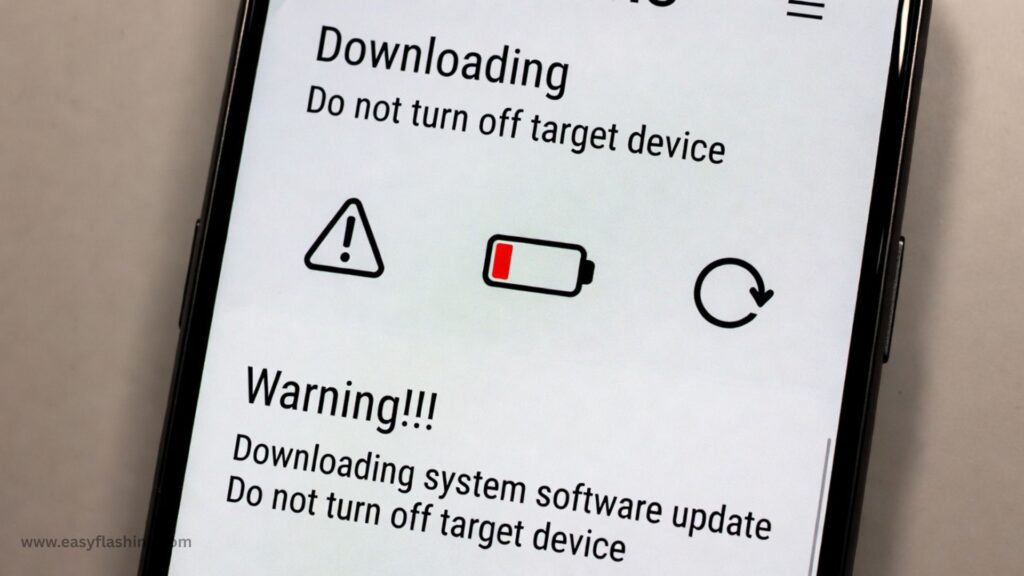
Download Mode is required for Odin flashing.
- Power + Volume Down + Home
- Power + Volume Down
- Power + Volume Down + Bixby
Once you see the warning screen, press Volume Up to continue.
Connecting Phone to Odin Tool Properly
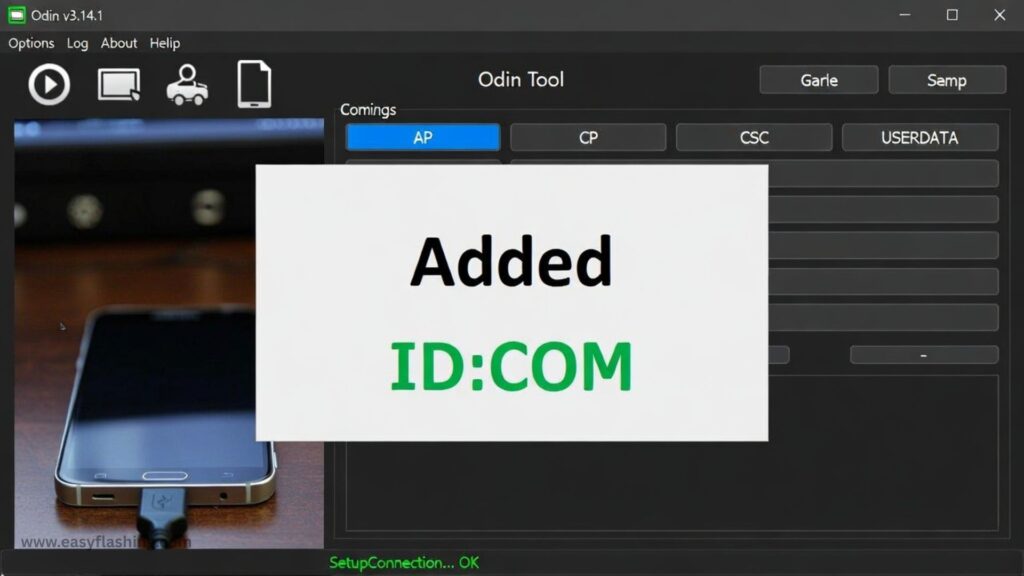
After connecting:
- Odin should show Added!!
- ID:COM port turns blue or green
If Odin does not detect your phone:
- Change USB port
- Reinstall drivers
- Try another cable
How To Unbrick Android Using Odin Tool (Step-by-Step)
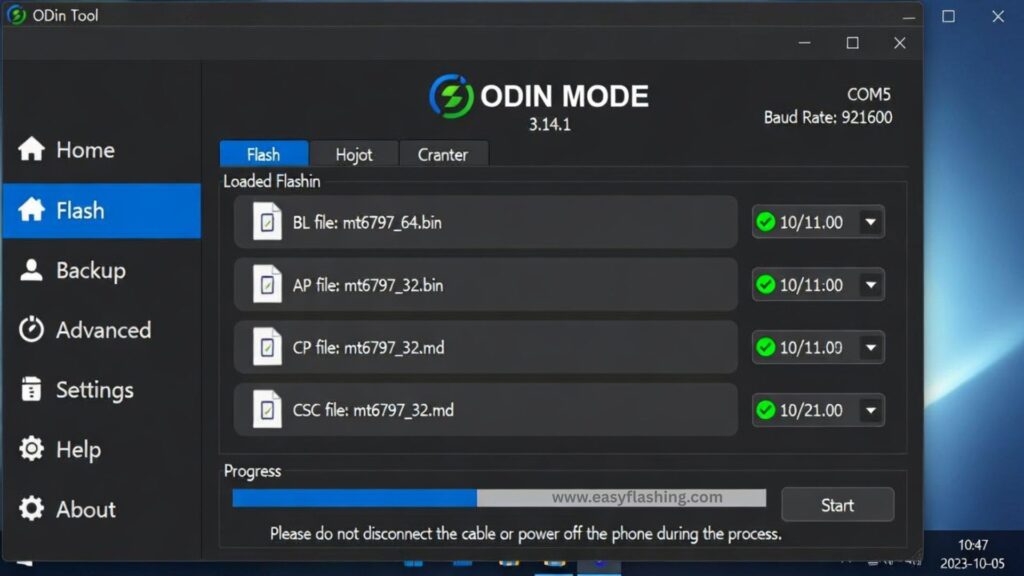
Now comes the main part.
Step 1: Load firmware files
- Click BL → select BL file
- Click AP → select AP file (wait patiently)
- Click CP → select CP file
- Click CSC → select CSC file
Step 2: Check Odin options
- Auto Reboot (check this)
- F. Reset Time (check this)
- Re-Partition (never check this)
Step 3: Start flashing
- Click Start
- Do not touch phone or cable
- Wait until you see PASS!
This process can take 5–10 minutes.
What to Do After Odin Shows PASS
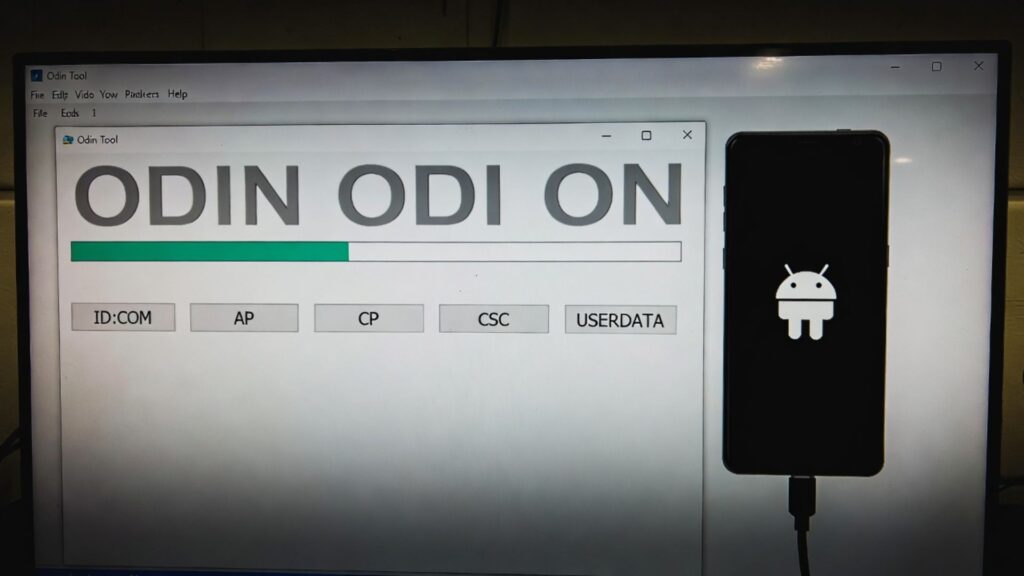
After flashing:
- Phone will reboot automatically
- First boot may take 10–15 minutes
- Do not panic
You too should be patient here.
15. Fixing Bootloop After Odin Flash
If phone still bootloops:
Try this:
- Boot into Recovery Mode
- Select Wipe cache partition
- Reboot system
If that fails:
- Perform factory reset (last option)
16. Common Odin Errors and Their Solutions
FAIL error:
- Wrong firmware
- Bad USB cable
- Antivirus interference
Stuck at SetupConnection:
- Change USB port
- Use USB 2.0 port
- Reinstall drivers
Odin not responding:
- Close and reopen Odin
- Restart PC
17. Can Odin Fix Hard Bricked Phones?
No. Odin cannot fix:
- No power
- No vibration
- No download mode
- Hardware damage
In such cases, service center repair is required.
How To Samsung Flash Using Odin Tool 2026
18. Is It Safe to Use Odin Tool?
Yes, if you use official firmware and follow steps correctly.
Odin is safer than most third-party flashing tools because:
- It uses Samsung’s flashing protocol
- It restores original system files
19. Odin vs Other Android Unbrick Methods
Odin advantages:
- Official-level tool
- Free
- Reliable
- No ads or malware
Other tools:
- Often paid
- Less reliable
- Limited device support
20. Tips to Avoid Bricking Your Android Again
- Never flash firmware for another model
- Avoid unofficial ROMs
- Keep battery charged
- Do not interrupt flashing
- Read guides fully before acting
Within this article, I will try to make sure you don’t repeat mistakes.
(FAQs)
Q1: Can Odin unbrick any Android phone?
No. Odin only works for Samsung Android devices.
Q2: Will Odin delete my data?
Yes, if you use CSC file. HOME_CSC may keep data, but not guaranteed.
Q3: Is Odin safe for beginners?
Yes. You too can use it safely if you follow instructions carefully.
Q4: My phone is stuck in Download Mode. Can Odin fix it?
Yes, flashing correct firmware usually fixes this issue.
Q5: How long does Odin flashing take?
Usually 5–10 minutes, depending on firmware size and PC speed.
Conclusion
How To Unbrick Android Using Odin Tool is one of the most reliable ways to recover a soft-bricked Samsung phone. With the right firmware, patience, and careful steps, you can bring your phone back to life without visiting a service center.
I will tell you today—most “dead” Samsung phones are not truly dead. They just need the right software fix. Within this article, I will try to ensure you have all the knowledge needed to do it safely. You too can fix your device if you follow this guide properly.
If done correctly, Odin is not just a tool it is a lifesaver for bricked Samsung Android phones.
2 thoughts on “How To Unbrick Android Using Odin Tool”