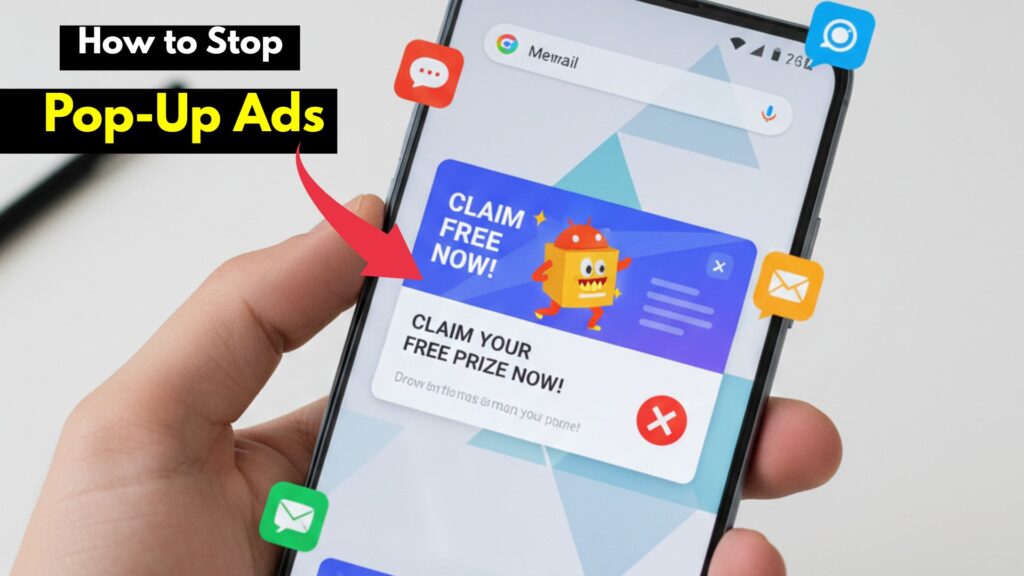
How to stop pop-up ads on Android phone home screen is one of the most frustrating questions Android users ask today. If random ads suddenly appear on your screen, cover your apps, or pop up even when you are not using a browser, you are not alone.
Within this article, I will try to explain why these ads appear, where they come from, and how you can stop them permanently without paying money or installing risky apps. You too do not need to be a tech expert. Every step is explained in simple English, keeping beginners in mind.
What Are Pop-Up Ads on Android Home Screen?
Pop-up ads on the Android home screen are unwanted advertisements that appear:
- On your home screen
- Over other apps
- On the lock screen
- When you unlock your phone
These ads are different from normal website ads. They usually come from:
- Malicious or ad-supported apps
- Browser notification abuse
- System apps with ads enabled
- Free launchers or wallpapers
Common signs:
- Ads appear without opening any app
- Ads redirect to Play Store
- “Congratulations” or “You won” messages
- Casino, betting, or fake antivirus ads
Why Do Pop-Up Ads Appear on Android Phones?
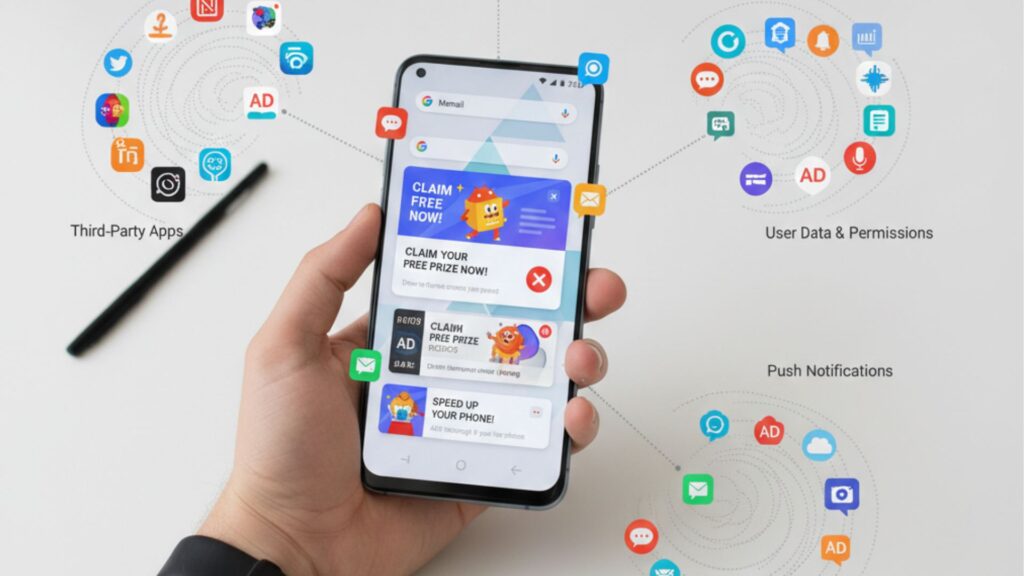
Understanding the cause helps you fix the problem permanently.
Main reasons include:
- Installed apps with aggressive ad permissions
- Allowing notification ads by mistake
- Ad-supported Samsung system apps
- Free launchers or themes
- Browser pop-up permissions
- Malware or adware apps
You too may have installed such an app unknowingly.
Are Pop-Up Ads Dangerous or Just Annoying?
Pop-up ads are not just annoying some are dangerous.
Possible risks:
- Data theft
- Fake virus alerts
- Accidental app installs
- Phishing scams
- Battery drain
- Slow phone performance
I will tell you today ignoring pop-up ads is not safe.
How to Identify the App Causing Pop-Up Ads
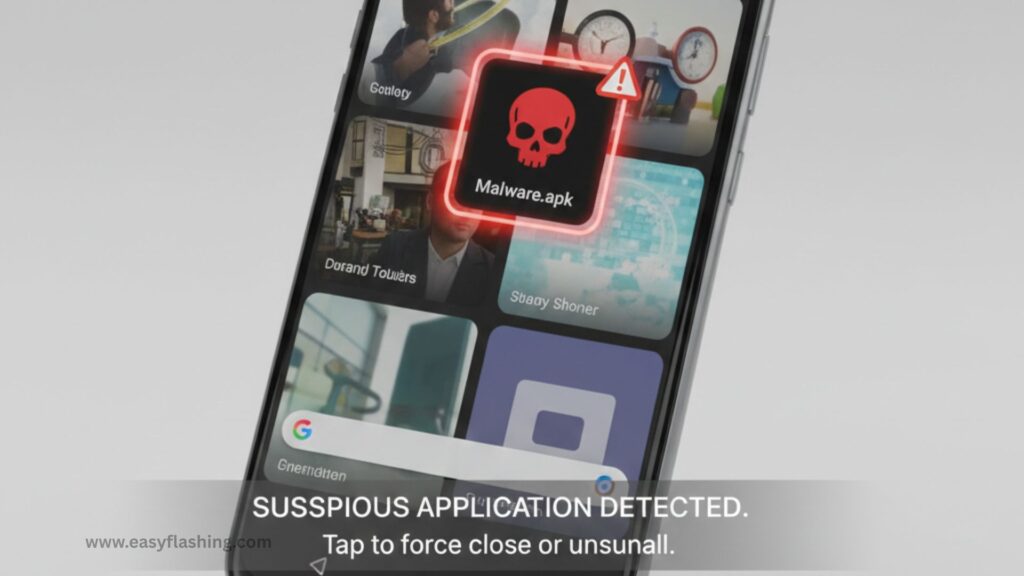
This is the most important step.
Method 1: Check “Last Used Apps”
- When an ad appears, press Recent Apps
- Look for an unfamiliar app
- Note its name
Method 2: Use Safe Mode
- Hold Power button
- Tap and hold Power Off
- Select Safe Mode
- If ads stop → a third-party app is responsible
Remove Suspicious Apps Immediately
Most pop-up ads come from recently installed apps.
Apps commonly responsible:
- Flashlight apps
- Wallpaper apps
- Cleaners and boosters
- Free VPN apps
- Launchers
- QR scanners
Steps:
- Go to Settings → Apps
- Sort by Installed
- Remove suspicious or unused apps
- Restart phone
Within this article, I will try to remind you: less apps = fewer ads.
How to Stop Pop-Up Ads Using App Permissions
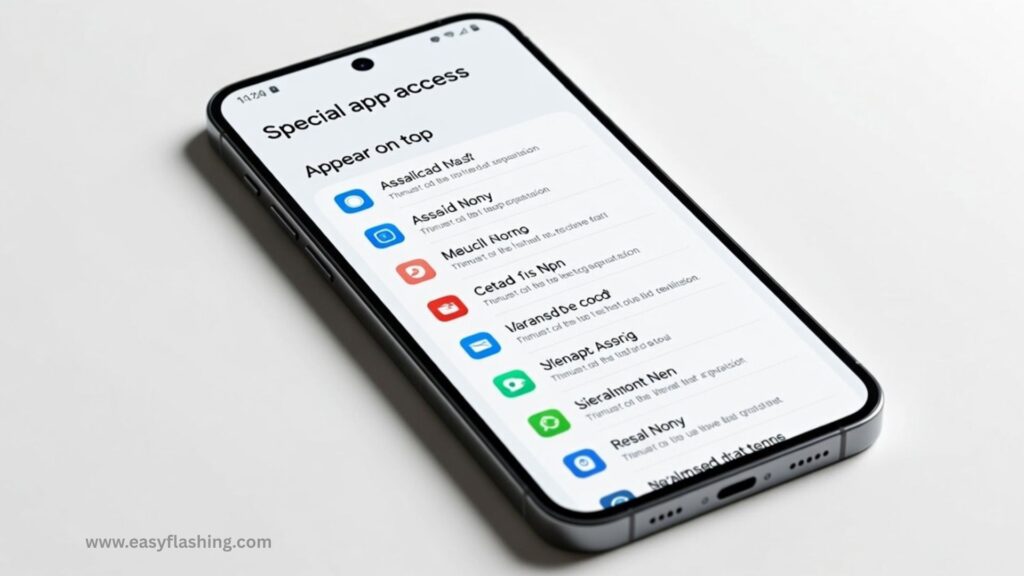
Some apps use special permissions to display ads.
Disable “Appear on Top” permission:
- Settings → Apps
- Tap Special app access
- Select Appear on top
- Disable for unknown apps
This single step stops many home screen ads.
Turn Off Notification Pop-Up Ads
Many ads appear as notifications.
Steps:
- Settings → Notifications
- View Recently sent
- Tap suspicious app
- Turn off Allow notifications
You too should check browser notifications here.
How to Stop Pop-Up Ads on Android Phone Home Screen from Browser
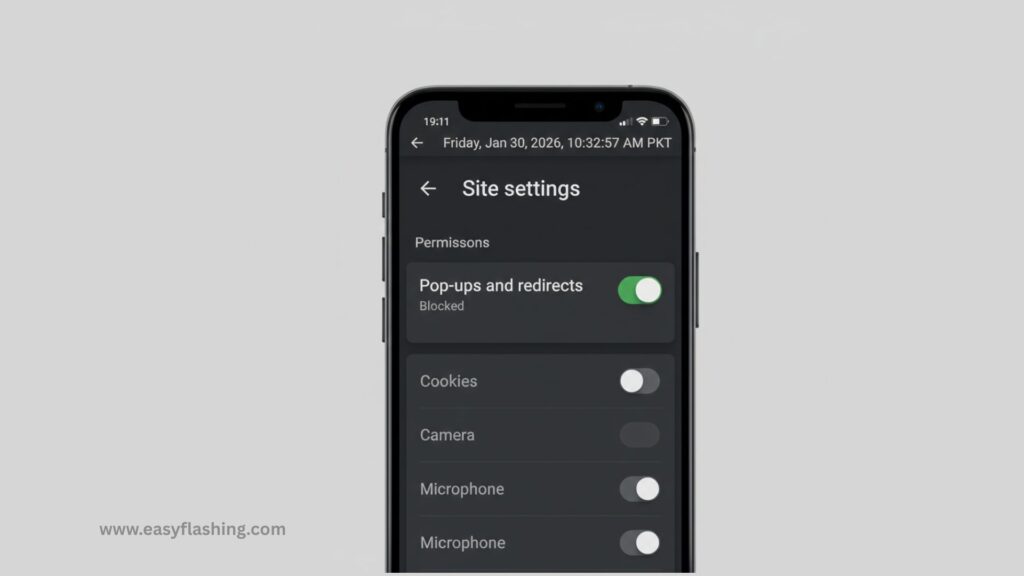
Browsers are common ad sources.
Google Chrome:
- Open Chrome
- Settings → Notifications
- Remove suspicious sites
- Settings → Pop-ups and redirects → Block
Samsung Internet:
- Menu → Settings
- Browsing privacy dashboard
- Enable Smart anti-tracking
- Turn on Block pop-ups
How to Stop Pop-Up Ads on Samsung Android Phones
Samsung phones show ads via system apps.
Disable Samsung system ads:
- Settings → Privacy
- Customization Service → Turn off
- Samsung Account → Privacy → Marketing info → Disable
Turn off Samsung notifications:
- Samsung Push Service
- Samsung Global Goals
- Galaxy Store promotions
This improves battery life too.
Remove Ad-Supported Launchers
Launchers often inject ads.
Common ad launchers:
- Free launchers with “offers”
- Theme launchers
- Custom icon packs
Fix:
- Settings → Apps → Default apps
- Change launcher to System launcher
- Uninstall third-party launcher
How to Remove Pop Up Ads on Android Home Screen
Check Downloaded APK Files
Apps installed outside Play Store are risky.
Steps:
- Settings → Apps
- Look for apps without Play Store icon
- Remove them immediately
I will tell you today APK ads are the biggest threat.
Use Play Protect to Scan for Adware
Google Play Protect helps detect harmful apps.
Steps:
- Open Play Store
- Profile → Play Protect
- Run a scan
- Remove flagged apps
How to Stop Pop-Up Ads Without Installing Any App
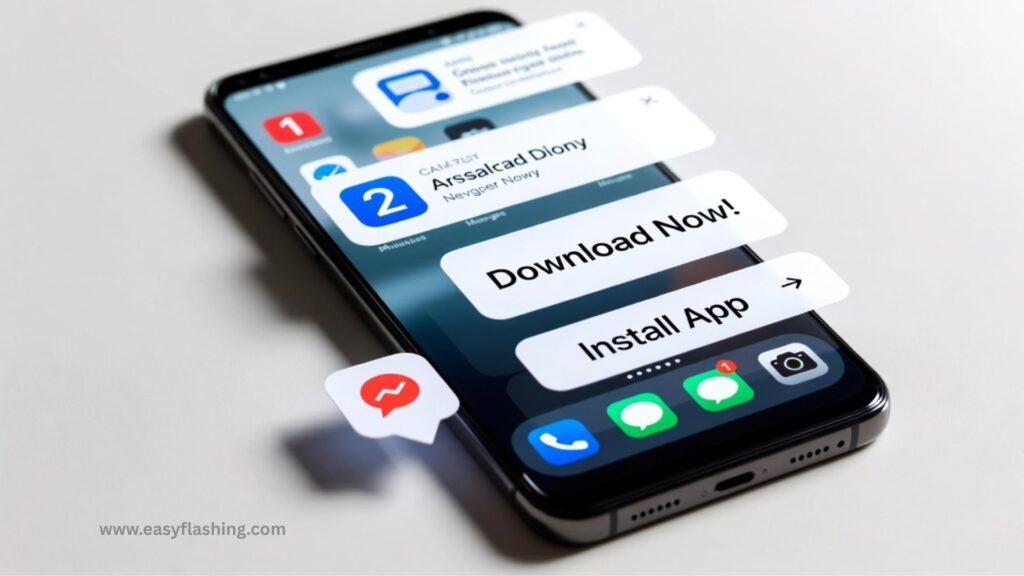
You don’t always need an ad-blocker.
Built-in methods:
- Disable permissions
- Remove ad apps
- Turn off notifications
- Use Safe Mode
- Use browser protection
Within this article, I will try to keep everything free and safe.
Should You Use Ad-Blocker Apps?
Pros:
- Stops browser ads
- Improves browsing experience
Cons:
- Some consume battery
- May collect data
- Not needed for home screen ads
Only use trusted blockers if necessary.
How to Prevent Pop-Up Ads in the Future
Best practices:
- Install apps only from Play Store
- Avoid “too good to be free” apps
- Read app reviews
- Check permissions
- Keep phone updated
You too can keep your phone clean with these habits.
Why Factory Reset Is the Last Option
If nothing works:
- Backup important data
- Reset phone
- Install apps carefully afterward
Factory reset removes all adware but should be last resort.
Common Myths About Pop-Up Ads
- Ads mean phone is hacked
- Factory reset is always required
- Antivirus apps always help
Most issues are app-based, not hacking.
Android vs iPhone: Why Android Gets More Ads
Android allows:
- More app freedom
- Third-party installations
- Custom launchers
This flexibility also increases ad risk.
Signs That Ads Are Completely Removed
You’ll notice:
- No random redirects
- Better battery life
- Faster phone
- Cleaner home screen
Final Checklist to Stop Pop-Up Ads
- Remove suspicious apps
- Disable special permissions
- Turn off notification ads
- Clean browser settings
- Disable Samsung promotions
Within this article, I will try to make sure you follow all of them.
(FAQs)
Q1: Why do ads appear on my Android home screen?
Because an installed app has permission to show ads over other apps.
Q2: Can pop-up ads steal my data?
Some can. That’s why removing them is important.
Q3: Do I need antivirus to stop ads?
No. Manual cleanup works better in most cases.
Q4: Are pop-up ads a virus?
Not always, but they are often linked to adware.
Q5: Will factory reset stop pop-up ads?
Yes, but only if you avoid reinstalling the same apps.
Conclusion
How to stop pop-up ads on Android phone home screen is not difficult once you understand the real cause. Most ads come from bad apps, permissions, or browser settings — not from Android itself.
I will tell you today: you don’t need paid apps or risky tools. Within this article, I will try to give you safe, proven, and beginner-friendly solutions. You too can clean your Android phone completely if you follow this guide step by step.
Trusted external reference:
👉https://support.google.com/android/answer/7665768
5 thoughts on “How to Stop Pop-Up Ads on Android Phone Home Screen”