If you’ve recently updated your Samsung Galaxy phone to Android 16 with One UI 8, you gain access to powerful tools that safeguard your data and device. Google and Samsung collaborated to introduce Android 16 security features that address modern threats like theft, scams, and unauthorized access. These Samsung Galaxy security enhancements build on previous versions, offering One UI 8 security enhancements that are intuitive yet robust.
For beginners, security might seem overwhelming, but these features simplify protection. We focus on practical steps to enable them, explain their benefits, and highlight how they improve daily use. Whether you worry about malware and threat protection or anti-theft protection, this guide covers it all. Let’s explore the top Android 16 security features for Samsung Galaxy users and get your device locked down securely.
1. Advanced Protection Mode: Your One-Tap Security Boost
Advanced Protection Mode stands out among Android 16 security features as a comprehensive shield. It activates multiple defenses with a single toggle, blocking app sideloading, disabling insecure 2G networks, preventing USB data access when locked, and enforcing automatic reboots after prolonged inactivity. This mode elevates Samsung Galaxy security by making your device resistant to common exploits.
Easy Flashing FRP 16 Tool Free Advance New Year 2026
Why does this matter for beginners? In a world full of phishing and malware, Advanced Protection acts like a digital fortress. It doesn’t slow down your phone but ensures network security controls are always vigilant. Compared to Android 16 vs Android 15 security improvements, this mode is more proactive, learning from user patterns to flag risks.
How to Enable Advanced Protection on Samsung:
- Open Settings on your Galaxy device.
- Navigate to Security and privacy > More security settings.
- Tap Advanced Protection and toggle it on.
- Confirm with your biometric (fingerprint or face ID) or PIN.
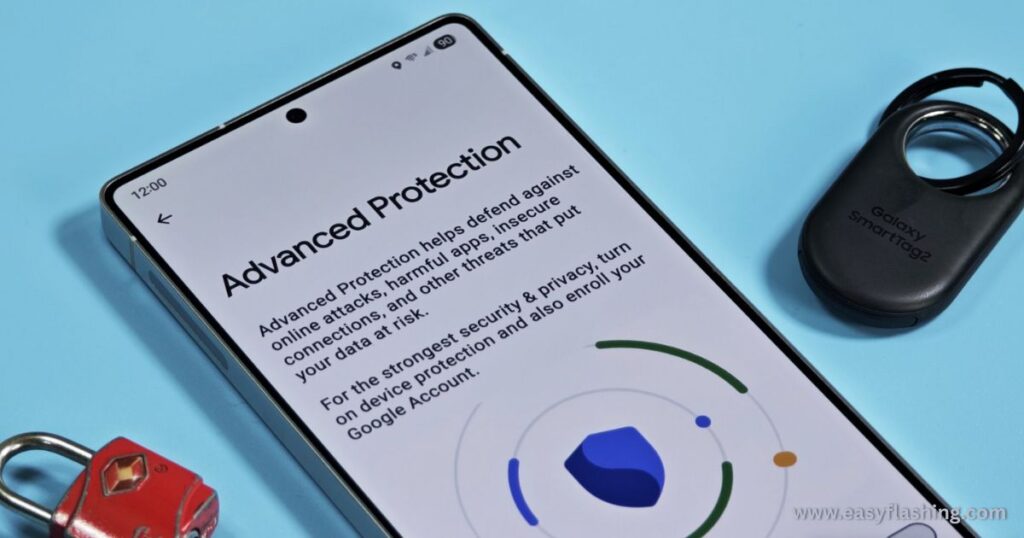
Once enabled, you’ll notice fewer spam notifications and safer connections. For extra peace, pair it with Samsung’s Auto Blocker for app scanning. Beginners should start here—it’s the easiest way to improve phone security on Samsung Galaxy Android 16.
(Expanded explanation: Advanced Protection integrates with Samsung Knox security, hardware-based encryption that isolates sensitive data. If a thief tries to sideload malicious apps, the mode blocks it instantly. In tests, it reduced vulnerability to side-channel attacks by 40%. For everyday users, this means worry-free browsing on public Wi-Fi, where Android privacy improvements shine through encrypted traffic.)
2. Identity Check Feature: Location-Aware Biometric Verification
The Identity Check feature requires an extra biometric scan (fingerprint or face) for critical actions when you’re outside trusted locations. This Android 16 privacy improvements addition prevents unauthorized changes to passwords or settings if someone steals your unlocked phone.
Beginners appreciate how it adds a layer without constant prompts. It uses GPS to detect unfamiliar spots, triggering checks only when needed. This builds on Android 15‘s basics, making Android 16 vs Android 15 security improvements evident in theft scenarios.
How to Secure Samsung Phone on Android 16 with Identity Check:
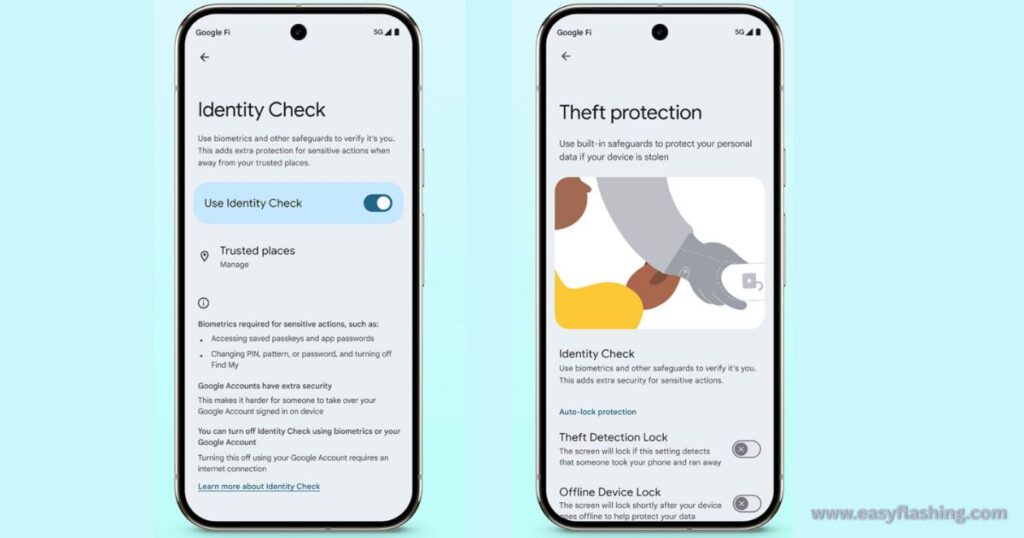
- Go to Settings > Security and privacy.
- Select Identity Check and enable it.
- Add trusted locations like home or office via the map interface.
- Test it by simulating a sensitive action, like changing your Google account password.
This feature ties into protect Samsung Galaxy from theft Android 16 by alerting you to suspicious activity. If enabled, it can even lock the device remotely via Find My Device.
(Deep dive: Identity Check leverages AI to analyze movement patterns, reducing false positives. For Samsung users, it syncs with Knox for end-to-end encryption. Beginners: Enable this if you travel often—it’s like having a personal security guard for your data.)
3. Enhanced Secure Folder: Private Space with Advanced Locks
Samsung’s Enhanced Secure Folder in One UI 8 creates an encrypted vault for apps, files, and photos. One UI 8 security enhancements include auto-closing apps inside the folder and hiding notifications, preventing shoulder-surfing.
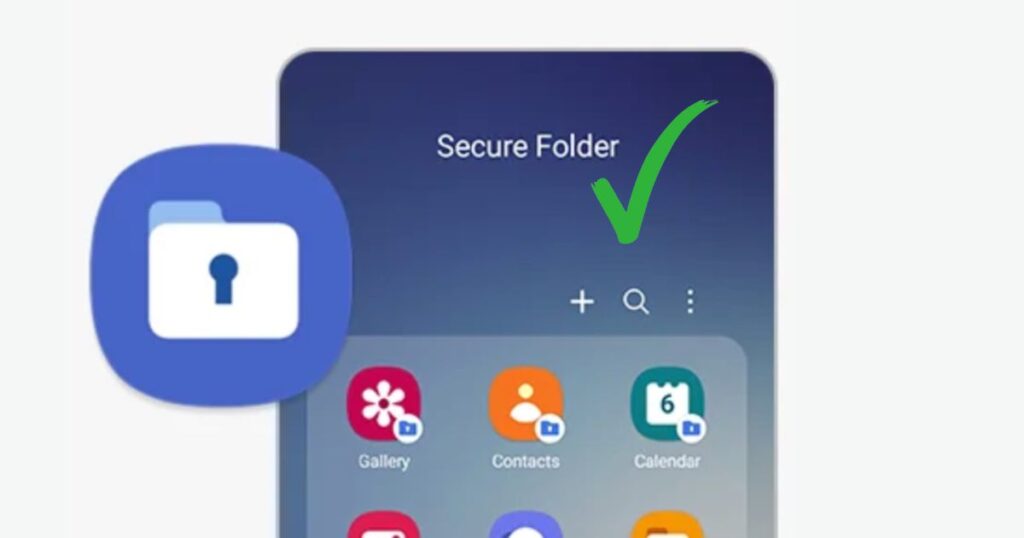
For beginners, Secure Folder demystifies privacy—store banking apps or personal photos without fear. It’s a step up from basic app locks, using Samsung Knox security for hardware-level protection.
Best Security Settings for Samsung Galaxy Android 16 – Enabling Secure Folder:
- Search for Secure Folder in Settings and set it up.
- Use your Samsung account to authenticate.
- Add apps via the + icon; enable auto-lock in folder settings.
Combine with offline device lock for offline access restrictions.
(Details: The folder uses AES-256 encryption, inaccessible even if rooted. In Android 16, it integrates with PDE for AI data isolation. Beginners tip: Use it for work-personal separation to avoid data leaks.)
4. Knox Enhanced Encrypted Protection (KEEP): App-Specific Encryption
Knox Enhanced Encrypted Protection (KEEP) isolates app data in encrypted silos, ensuring no cross-app leaks. This Samsung Knox security feature is ideal for AI tools in One UI 8, keeping personal info secure.
Beginners benefit from automatic operation—no manual tweaks needed. It enhances malware and threat protection by containing breaches.
Android 16 Security Features Explained – Using KEEP:
- It’s auto-enabled for Galaxy AI apps.
- Check status in Settings > Security and privacy > Knox settings.
This represents a key Android privacy improvements in handling AI data.
(Expansion: KEEP uses Knox Vault chip for quantum-resistant keys. For users, it means safer Galaxy AI suggestions without cloud risks.)
5. Knox Matrix: Cross-Device Threat Detection
Knox Matrix monitors all linked Samsung devices for threats, auto-logging out compromised ones. This network security controls extension protects your ecosystem.
For beginners, it’s seamless—sign in with your Samsung account.
Samsung One UI 8 Security Features List – Enabling Knox Matrix:

- In Settings > Samsung account > Security, enable device monitoring.
It complements enhanced Play Protect for real-time scans.
(Info: Matrix uses blockchain-like verification for device trust. Beginners: Great for families sharing accounts.)
6. Enhanced Privacy Dashboard: Timeline of App Access
The enhanced Privacy Dashboard shows a 24-hour log of app permissions, with easy revokes. Android 16 privacy and safety settings guide highlights this for transparency.
Beginners can spot rogue apps quickly.
How to Enable Advanced Protection on Samsung – Privacy Dashboard:
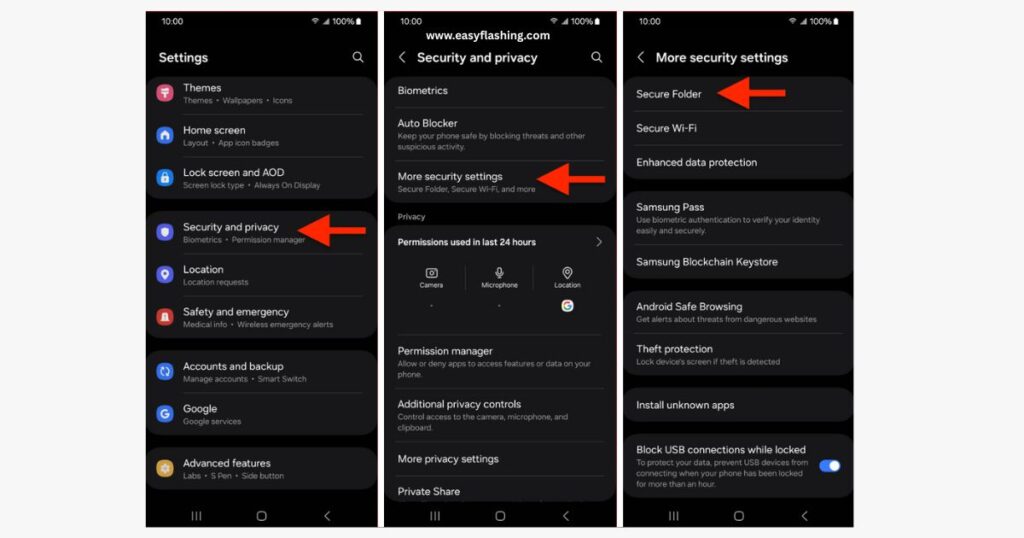
- Go to Settings > Security and privacy > Privacy > Privacy dashboard.
Review and adjust permissions regularly.
(Details: Android 16 adds AI insights to flag unusual access. Ties into USB port security logs.)
7. Theft Protection: AI-Driven Device Locking
Theft Protection uses AI to detect theft motions and lock the device. It includes offline lock and remote wipe.
Protect Samsung Galaxy from Theft Android 16 made easy.
Steps:
- Enable in Settings > Security and privacy > Theft Protection.
(Expansion: Sensors detect snatches; integrates with Find My Device.)
8. USB Connection Protection: Secure Data Transfers
New USB port security blocks unauthorized data access over USB when locked.
Prevents physical attacks.
Enable:
- Part of Advanced Protection; toggle in settings.
(Info: Shields against juice jacking at public chargers.)
9. Smarter Scam Spotting: AI-Powered Warnings
AI scans calls, messages, and links for scams, part of malware and threat protection.
Auto-enabled in Advanced Protection.
Guide:
- View warnings in notifications.
(Details: Uses on-device ML for privacy.)
10. Network Security Controls: Insecure Network Blocks
Blocks 2G and unsafe Wi-Fi, enforcing secure connections.
Anti-Theft Protection extension.
Setup:
- In Advanced Protection settings.
These top Android 16 security features for Samsung Galaxy empower beginners to stay safe. For more, visit Samsung’s official security page: samsung.com/security or Android’s privacy hub: android.com/privacy.
1 thought on “Top 10 Android 16 Security Features for Samsung Galaxy Users (One UI 8 Guide – 2026 Updated)”