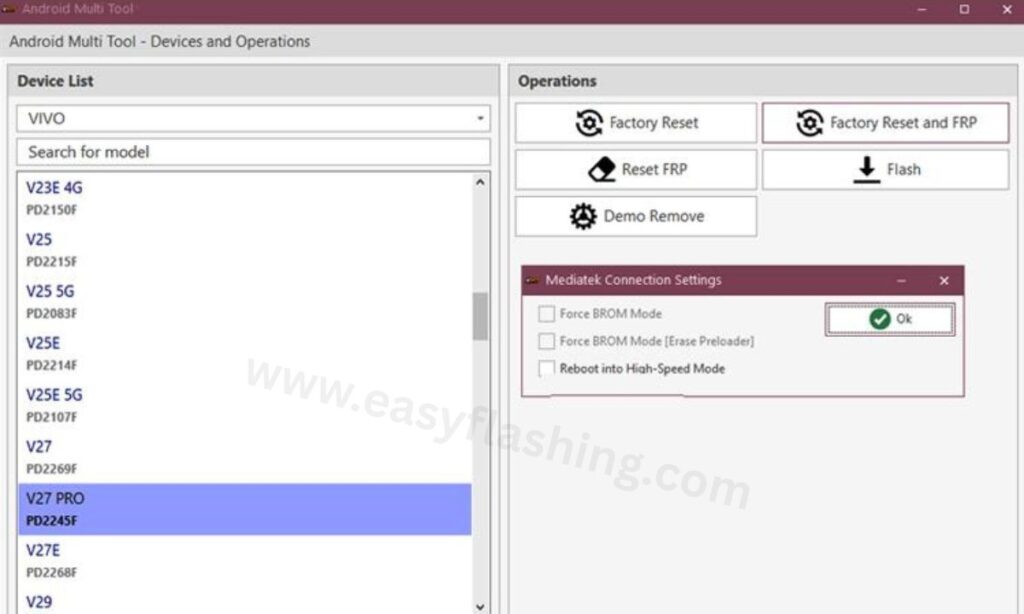
The Android Multi Tool latest version download is one of the most searched topics among mobile technicians and Android users who need a reliable smartphone repair solution. Within this article, I will tell you today everything you need to know about AMT Tool V1.3.5.0, including what it does, how to install it, which devices it supports, and how to use it safely on your Windows PC.
Those who don’t know much about mobile repair software will find this guide especially useful. By reading this article, you will get complete information about every feature this tool offers, the chipsets it supports, how its credit system works, and what steps you need to follow before connecting your phone. This is not a basic overview. Every section below covers something real and practical that helps you get results.
What Is Android Multi Tool (AMT)?
Android Multi Tool, also known as AMT Tool, is a premium Windows PC software built for mobile repair professionals and advanced Android users. It allows you to perform a wide range of operations on smartphones without needing multiple separate programs.
The tool was developed by Gautam Kumar (GautamGreat) and is officially distributed through (androidmultitool.com). It operates through an online server authentication system, which means an active internet connection is required during most operations.
AMT is not a free tool. You need to purchase a credit balance from an authorized reseller to use its paid features. Some older device models work with zero credits using built-in exploits, but most operations on newer phones require credits.
Key facts about AMT Tool:
- Works exclusively on Windows XP, 7, 8, 8.1, 10, and 11 (both 32-bit and 64-bit)
- Requires USB drivers installed before connecting any device
- Operates using online authorization servers for most chipsets
- Credits are purchased separately from resellers
- File name: Android_Multi_Tool.exe
What’s New in Android Multi Tool V1.3.5.0
Version 1.3.5.0 is the latest release available on the official website. This update builds on the strong foundation of previous versions and introduces server-side improvements alongside new device support.
Updates confirmed in V1.3.5.0:
- Server infrastructure improvements for faster authentication
- Expanded supported models list for Oppo, Realme, Vivo, and Samsung
- Stability fixes for operations on Android 15 devices
- Improved MTK and Qualcomm driver compatibility
- Bug fixes for BROM Mode detection on certain MediaTek chipsets
- Nokia Fastboot HMD Auth remains online
- Xiaomi EDL / BROM Auth, Xiaomi Fastboot to EDL Auth, and Xiaomi Mi Assistant FRP Auth all remain active
Current Authorization Server Status:
| Server | Status |
| Infinix / Tecno / Itel MediaTek Auth | Online |
| Infinix / Tecno / Itel Spreadtrum Auth | Online |
| Oppo / OnePlus / Realme Secrecy Decrypt | Online |
| Oppo / OnePlus / Realme Demo Remove | Online |
| Nokia Fastboot HMD Auth | Online |
| Xiaomi EDL / BROM Auth | Online |
| Xiaomi Fastboot to EDL Auth | Online |
| Xiaomi Mi Assistant FRP Auth | Online |
| Vivo Qualcomm / MediaTek Auth | Check official site |
| Oppo / OnePlus MediaTek Auth | Check official site |
Always verify the latest server status at the official website before starting any operation. Server availability changes without advance notice.
Full List of Features in Android Multi Tool
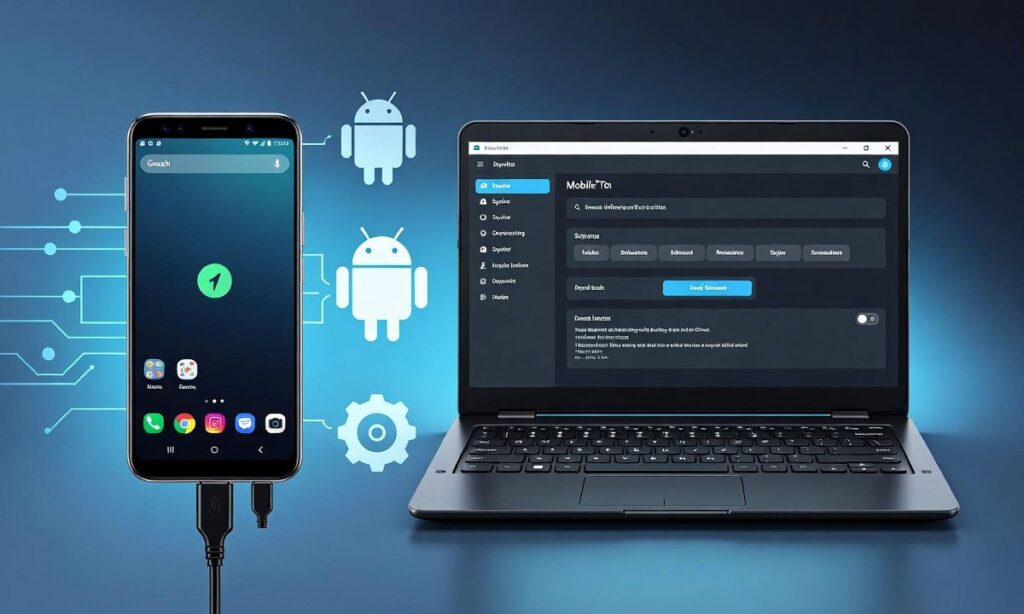
AMT Tool packs a large number of features into one interface. Below is a complete breakdown of what the tool can do.
FRP Bypass and FRP Reset
FRP stands for Factory Reset Protection. When you forget the Google account linked to your phone, the device locks you out after a reset. AMT Tool helps you perform an FRP bypass and FRP reset to remove this lock. This works across Samsung, Xiaomi, Oppo, Vivo, Realme, Infinix, Tecno, and many other brands.
Flash Firmware
Flashing means replacing your phone’s operating system with a fresh copy. AMT Tool supports flash firmware operations using stock firmware files. This is useful when a phone is stuck in a boot loop, has a corrupted OS, or needs to be downgraded or upgraded. It now also supports flashing Qualcomm-based official Oppo, OnePlus, and Realme firmware using Dynamic Super Partition.
For Motorola users, the tool supports flashing Moto XML firmware directly, working similarly to the official Moto Flash tool.
Factory Reset
AMT Tool performs a factory reset even when the phone cannot boot into recovery mode normally. This one-click function wipes all user data and restores the device to its default state.
Screen Lock and Pattern / Password Remove
Forgot your screen lock? The tool offers screen lock remove and pattern / password remove functions. Depending on the device model and Android version, some operations erase user data while others do not.
IMEI Repair
A damaged or missing IMEI causes network and signal issues. AMT Tool includes an IMEI repair function for supported Qualcomm and MediaTek devices. This is one of the more advanced features used primarily by professional mobile repair technicians.
Bootloader Unlock and Relock
The tool supports bootloader unlock and relock operations for specific brands. For Vivo phones, bootloader unlock is handled through the online authentication server and requires a minimum of 40 credits. MTK bootloader unlock in BROM Mode is also supported.
Mi Account Remove and Xiaomi Mi Cloud Unlock
For Xiaomi devices locked to a Mi Account or Mi Cloud, AMT Tool provides a dedicated Mi Account Remove and Xiaomi Mi Cloud Unlock function. This is routed through the Xiaomi EDL / BROM Auth server.
Demo Remove
Phones stuck in Demo Mode (common in display units) can be restored to normal use through the Demo Remove function. The Oppo / OnePlus / Realme Demo Remove server handles this operation.
RPMB Read/Write
RPMB (Replay Protected Memory Block) operations allow technicians to read and write the protected storage partition. This is an advanced feature used for specific security-related repairs.
QCN Read/Write
QCN files store IMEI and network calibration data on Qualcomm devices. AMT Tool supports QCN Read/Write for IMEI and calibration restoration on compatible phones.
Partition Manager
The Partition Manager feature lets you manage, format, and flash individual partitions on supported devices. For example, formatting the PARA and MISC partitions fixes Recovery Mode stuck issues on Oppo and Realme phones.
Diag Mode Enable
Some repair operations require the phone to enter diagnostic mode. AMT Tool supports Diag Mode Enable on compatible chipsets to allow deeper access during the repair process.
Secrecy Decrypt Auth
For Oppo, OnePlus, and Realme devices, the Secrecy Decrypt server handles encrypted data operations. This server is currently online.
Anti-Crack Fix
The Anti-Crack Fix function targets devices with corrupted security flags. Credits used for Anti-Crack operations are non-refundable. If the operation reports success but the device still shows an anti-crack flag, the cause is typically wrong firmware, erased serial information, or a corrupted IMEI.
OS and Build Number Info
AMT Tool lets you view detailed OS information, Android version, and build number directly from connected devices before performing any operation.
Reboot to Recovery or Bootloader
The tool includes a reboot function that lets you restart the device into recovery mode, bootloader mode (Fastboot Mode), or perform a simple standard restart.
Supported Chipsets and Processors
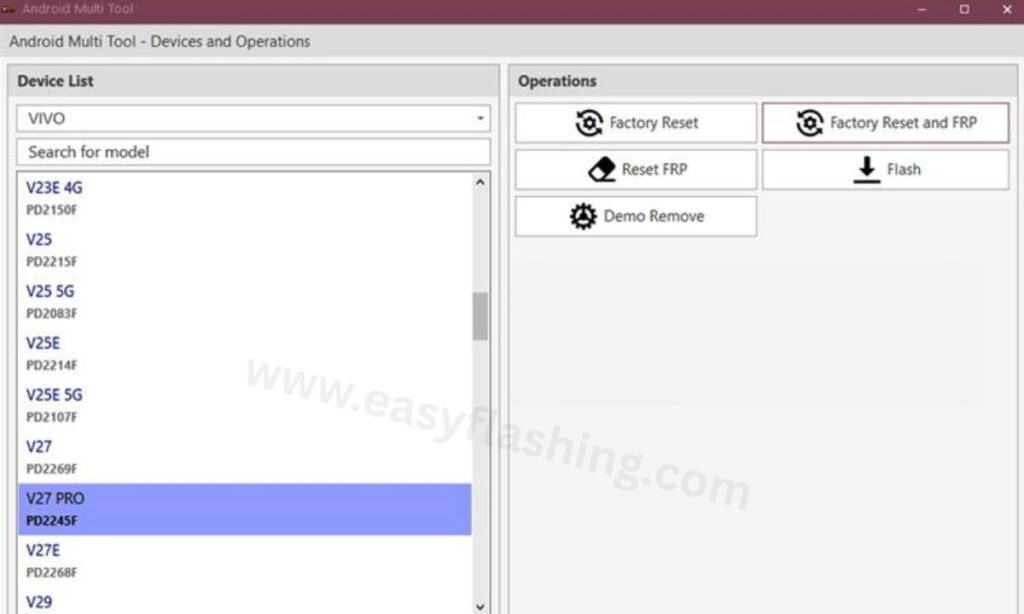
AMT Tool V1.3.5.0 supports the following chipsets:
- MediaTek (MTK) including Dimensity 9400, Dimensity 6300, MT6739, MT6755, MT6757, MT6761, MT6763, MT6765, MT6768, MT6771, MT6781, MT6785, MT6799, MT6779, MT6833, MT6853, MT6873, MT6877, MT6885, MT6893, MT6835, MT6855, MT6878, MT6895, MT6789, MT6877, MT6768
- Qualcomm (Snapdragon) across EDL Mode and Fastboot Mode operations
- Spreadtrum (SPD) for budget Android devices
- Exynos with limited Samsung model support
Supported Modes:
- ADB Mode: Used for screen unlock and factory reset when ADB is enabled in developer options
- Fastboot Mode: Used for bootloader tasks and firmware flashing
- Recovery Mode: Used for wipe and reset operations
- EDL Mode (Emergency Download Mode): Used for deep flashing on Qualcomm and MediaTek chipsets, including bricked phone recovery
- BROM Mode: Used for MediaTek bootloader operations and MTK deep flash
- Download Mode: Used for Samsung and certain other brand firmware flashing
- Test Point: Used on specific MTK models where standard modes are inaccessible
Supported Android Brands
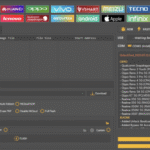
AMT Tool supports a very broad range of smartphone brands. The complete supported models list is available on the official supported models page at androidmultitool.com/supported_models.
Brands with confirmed support include:
- Samsung
- Xiaomi
- Vivo
- Oppo
- Realme
- OnePlus
- Infinix
- Tecno
- Itel
- Nokia
- Motorola
- Huawei
- Lenovo
- Karbonn
- Lava
- Asus (including ROG Phone and ZenFone series)
- Oukitel
- iQOO
- And many more regional and budget brands
Not every function works on every brand. Some features are model-specific or require specific chipset support. Always check the supported models page before purchasing credits for a specific operation.
Video tutorial: How To Use & Inatall Android Multi Tool
How to Download Android Multi Tool V1.3.5.0
Follow these steps to get the official file:
- Open your browser and go to the official website: (androidmultitool.com)
- Scroll to the download section on the homepage
- Click the official download link for Android Multi Tool V1.3.5.0
- Also download the MTK and Qualcomm Driver package from the same page
- Save both files to your Windows PC
Official download details:
- File name: Android_Multi_Tool_v1.3.5.0.exe
- Platform: Windows only
- Compatibility: Windows XP, 7, 8, 8.1, 10, 11 (32-bit and 64-bit)
- Internet connection required for server-based operations
Always download from the official website. Third-party sources may distribute modified versions that cause errors or security issues.
[Download Android Multi Tool V1.3.5.0 2026]How to Install and Set Up AMT Tool on Windows
Step 1: Install USB Drivers First
Before installing the tool, install the correct USB drivers for your device. Without drivers, the tool cannot detect the connected phone.
- For MediaTek devices: Install the MTK USB Driver
- For Qualcomm devices: Install the Qualcomm USB Driver
- For Oppo / Realme devices: Install the Oppo New QComMTK Driver
Step 2: Extract and Run the Tool
- Extract the downloaded ZIP or EXE file to a folder on your PC
- Right-click the AMT Tool EXE file
- Select Run as Administrator
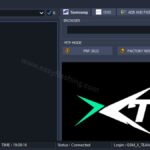
- The login window will open
Step 3: Register and Activate
- Click Register if you are a new user, or Login if you already have an account
- Purchase a credit balance from an official reseller listed at androidmultitool.com/resellers
- Enter your registered email and password
- Click Login to access the full tool interface
Step 4: Connect Your Device
- Select your device brand and model from the dropdown list
- Power off the phone
- Connect it to the PC using a USB cable
- Select the connection mode (ADB, Fastboot, EDL, etc.) depending on the operation
Step 5: Run Your Operation
- Choose the function you want to perform (FRP Reset, Flash Firmware, Factory Reset, etc.)
- Click the operation button
- Wait for the process to complete. Do not disconnect the phone during the operation.
- The tool will display a completion message when finished
Important: Keep your phone battery at a minimum of 30% charge before starting any operation to prevent disconnection mid-process.
Understanding the Credit System
AMT Tool uses a credit balance system to authorize server-side operations. Here is what you need to know:
- Create a free account on the official website
- Purchase credits from an authorized reseller
- Credit cost varies by operation and device chipset
- Vivo phones: Require a minimum of 40 credits for unlock operations via Qualcomm or MediaTek Auth
- MediaTek operations: New security costs 40 credits; old security costs 20 credits. The tool cannot detect which type in advance, so always keep 40 credits available before starting.
- Tecno / Infinix / Itel Auth: Costs 5 credits per operation
- Credits are non-refundable if an operation fails due to insufficient balance, device Lost Mode, or port sharing
- Some older models with available exploits work with zero credits
If you share your port with another user and the operation fails, no refund will be issued. Port sharing is entirely at your own risk.
Common Errors and How to Fix Them
“Failed to generate hwid #2” Error
This error occurs due to a Windows Management Instrumentation issue. Fix it by opening Command Prompt as Administrator and running these three commands one by one:
winmgmt /salvagerepository
winmgmt /verifyrepository
winmgmt /resetrepository
Phone Stuck in Recovery Mode After Format (Oppo / Realme)
If your Oppo or Realme phone gets stuck in Recovery Mode after a format operation, follow these steps:
- Select your model in the tool
- Open Partition Manager
- Format the PARA and MISC partitions
- Click Reboot
- The phone will restart normally
Device Re-Locks After Demo Remove (X300 / X300 Pro Models)
Devices in the X300 and X300 Pro series will re-lock if you update the software or factory reset after Demo Remove. Do not use Demo Remove on these models if you plan to update or reset the device afterward.
Transsion Device in Lost Mode
If an Infinix, Tecno, or Itel device is in Lost Mode, it will lock again when it connects to the internet after ID removal. Always check whether the device is in Lost Mode before using the Tecno/Infinix ID removal feature. Credits are non-refundable if the device re-locks.
Before You Start: Important Precautions
These precautions apply to every operation you run in AMT Tool:
- Back up your data first. Most operations including Flash, Unlock, and Factory Reset erase all user data permanently.
- Check the supported models list before purchasing credits for any operation. Not all features work on every phone.
- Install USB drivers before connecting any phone to the tool. An incorrect or missing driver causes connection failures.
- Verify server status on the official website before starting. If the relevant server is offline, the operation will not complete.
- Never disconnect the phone during an active operation. Disconnection mid-process can brick the device.
- Understand warranty implications. Operations like Bootloader Unlock and flashing custom ROMs may void your manufacturer warranty depending on your carrier and region.
- Maintain enough credit balance. Starting an operation without sufficient credits wastes the attempt and credits are not refunded.
Expert Tips for Getting the Best Results with AMT Tool
These tips go beyond the basic setup and help you avoid the most common mistakes:
Tip 1: Always use a quality USB cable. A damaged or low-quality cable causes intermittent connection drops during flashing. Use the original cable that came with the phone whenever possible.
Tip 2: Disable antivirus software temporarily. Some antivirus programs block AMT Tool from accessing USB ports or running certain processes. Temporarily disabling your antivirus during the operation prevents false-positive blocks. Re-enable it immediately after.
Tip 3: Run the tool on a freshly restarted PC. Background programs on Windows can interfere with USB communication. Restarting the PC before a repair session reduces the chance of connection errors.
Tip 4: For Qualcomm phones in EDL Mode, use a powered USB hub or plug directly into a rear USB port. Front panel USB ports on desktop PCs often deliver less power. A direct rear port connection or a powered hub gives more stable communication in EDL Mode.
Tip 5: Check the Android version before choosing firmware. Flashing firmware built for a different Android version than what your device currently runs can cause boot failures. Match the firmware version exactly to your current build unless you are intentionally upgrading.
Tip 6: Use Test Point only when necessary. The Test Point method bypasses the normal boot sequence and should only be used when the phone cannot enter any standard mode (ADB, Fastboot, EDL). Incorrect Test Point contact can damage the motherboard if not done carefully.
Tip 7: Keep the tool updated. New device support, security patches, and server compatibility improvements are released regularly. Always check the official website for the latest version before starting work on a new device model.
[LINK: Check official resellers for AMT Tool credit purchase — androidmultitool.com/resellers][Android developer documentation on ADB and Fastboot]FAQ:
Q1: Is Android Multi Tool free to use? AMT Tool is a paid software that requires a credit balance to unlock most features. Some older device models support zero-credit operations using built-in exploits.
Q2: What happens if the authorization server goes offline during my operation? If the server goes offline mid-operation, the process will stop and you should wait for the server to come back online before retrying. Check the official website for real-time server status before starting.
Q3: Can AMT Tool remove FRP without a computer? No. AMT Tool is a Windows PC software and requires a computer to run. All operations are performed by connecting the phone to a PC via USB cable.
Q4: Does using AMT Tool void my phone’s warranty? Operations like Factory Reset and FRP Reset typically do not void the warranty, but Bootloader Unlock and flashing custom ROMs may void it depending on your manufacturer and carrier policy.
Q5: Can AMT Tool fix a completely bricked phone? Yes, for phones supported in EDL Mode or BROM Mode, the tool can flash firmware even when the phone does not power on normally. This depends on whether the chipset and model are supported.
Q6: How do I find official resellers to buy AMT Tool credits? The official reseller list is published on the AMT Tool website at androidmultitool.com/resellers. Only purchase from listed resellers to avoid fraud.
Q7: Does AMT Tool support Android 15 devices? Yes. AMT Tool has been updated to support devices running Android 15, particularly for Oppo, Realme, OnePlus, Samsung, and Vivo models on supported chipsets.
Q8: What should I do if my device is not listed in the supported models page? Check the official website regularly as new models are added with each update. If your model is not listed, the tool does not currently support it and attempting to use it may not produce results.
Conclusion
Android Multi Tool V1.3.5.0 remains one of the most capable smartphone repair tools available for Windows PC in 2026. It covers everything from FRP bypass and factory reset to IMEI repair, bootloader unlock, firmware flashing, and advanced operations like RPMB Read/Write and Partition Manager.
The tool supports a broad range of brands including Samsung, Xiaomi, Vivo, Oppo, Realme, OnePlus, Infinix, Tecno, Nokia, and many more, working across MediaTek, Qualcomm, Spreadtrum, and Exynos chipsets.
To get started, download the latest version from the official website at androidmultitool.com, install the required USB drivers, register an account, and purchase a credit balance from a verified reseller. Always back up device data before running any operation, verify the server status, and keep your tool updated to the latest release.
1 thought on “Android Multi Tool Latest Version Download 2026”