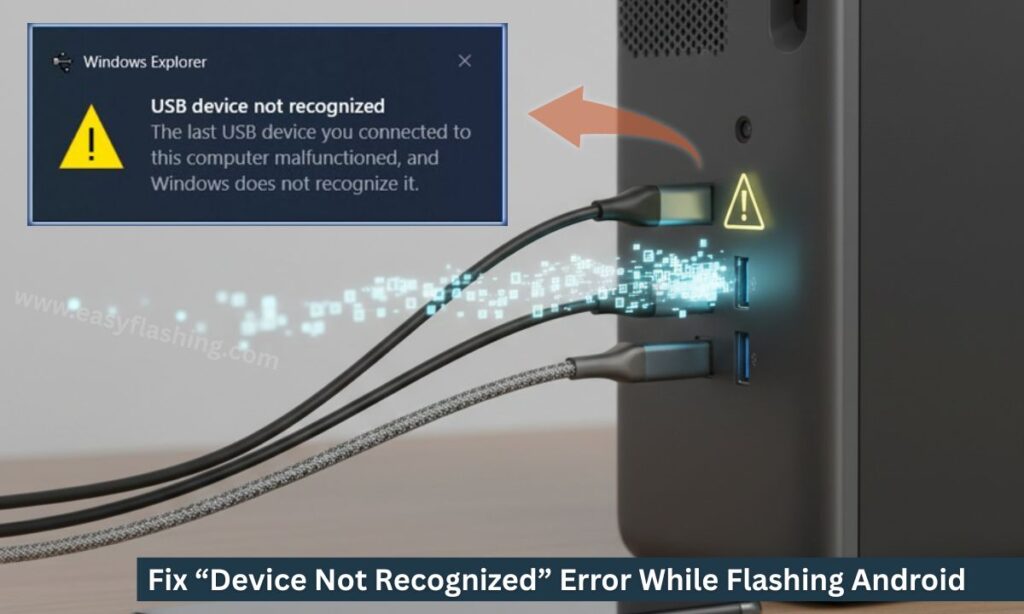
Flashing an Android phone should be a smooth process, but many beginners face a frustrating problem: the computer does not detect the phone at all. When you see the “Device Not Recognized” error while flashing Android, everything comes to a stop. The flash tool fails, the phone does not connect, and confusion takes over.
In this article, I will tell you in simple words that how to fix “Device Not Recognized” error while flashing Android using proven methods. It covers every common cause, from USB driver issues to software conflicts, and provides step-by-step solutions that beginners can follow safely. By the end, you will understand why the error happens and how to prevent it in the future.
What Does “Device Not Recognized” Mean While Flashing Android?
The “Device Not Recognized” error appears when your computer cannot properly detect your Android phone during the flashing process. This usually happens when the flash tool, operating system, or drivers fail to communicate with the device.
In simple terms, your phone is connected physically, but the system does not understand what it is.
Why This Error Is So Common for Beginners
Beginners often face this error because Android flashing depends on several technical elements working together. If even one part fails, the device will not be recognized.
Common Beginner Challenges
- Missing or incorrect USB drivers
- Using the wrong USB cable
- Wrong phone mode (normal instead of bootloader or fastboot)
- Outdated flash tools
- Permission or software conflicts
Types of “Device Not Recognized” Errors You May See
The error can appear in different forms depending on your system.
Common Error Messages
- USB device not recognized
- Unknown USB device
- Device not detected in flash tool
- Waiting for device
- No device found
All of these indicate the same core issue: communication failure.
Before Fixing: Important Preparation Steps
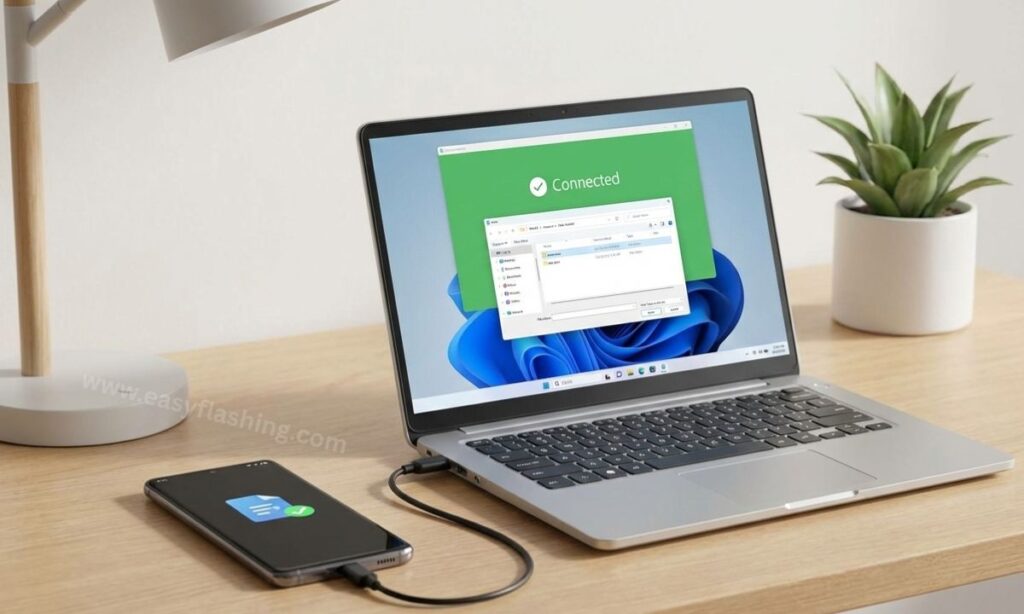
Before applying any solution, follow these basic steps to avoid further problems.
Basic Safety Checklist
- Charge phone battery above 50%
- Use original or high-quality USB cable
- Close unnecessary programs
- Do not rush the flashing process
1. Check USB Cable and USB Port (Most Overlooked Fix)
A faulty USB cable is the most common cause of the “Device Not Recognized” error.
Why USB Cable Matters
- Some cables support charging only
- Damaged cables interrupt data transfer
What You Should Do
- Use a data-capable USB cable
- Try a different USB port
- Avoid USB hubs
- Prefer direct motherboard USB ports
This simple step alone fixes the issue for many users.
2. Use the Correct USB Mode on Android
Android phones support multiple USB connection modes.
Common USB Modes
- Charging only
- File transfer (MTP)
- USB tethering
Why This Matters for Flashing
If the phone stays in charging-only mode, the PC cannot communicate properly.
What to Do
- Unlock phone if possible
- Enable file transfer mode
- Reconnect USB cable
3. Install or Reinstall USB Drivers Properly
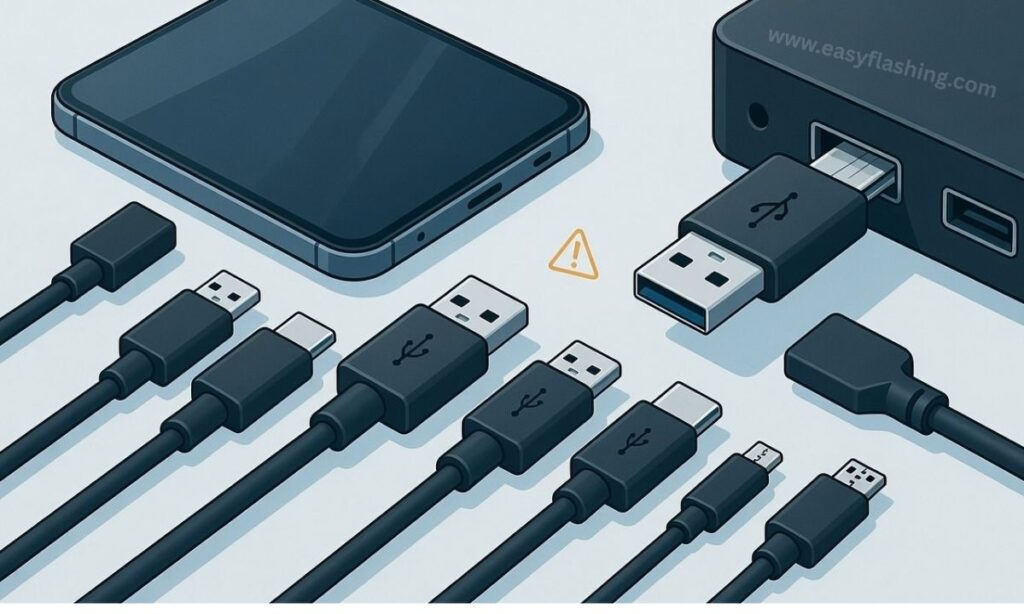
Drivers act as a bridge between your Android phone and computer.
Why Drivers Cause Problems
- Missing drivers
- Corrupted driver installation
- Wrong driver version
How Driver Issues Trigger the Error
Without proper drivers, Windows or macOS cannot identify the connected device.
4. Use Correct Android USB Drivers for Your Phone
Different Android brands use different drivers.
General Driver Types
- Android USB Driver
- ADB Driver
- Fastboot Driver
Key Tip for Beginners
Always install drivers designed for Android flashing, not just general USB drivers.
5. Enable USB Debugging (If Phone Boots)
USB debugging allows advanced communication between phone and PC.
How USB Debugging Helps
- Improves device detection
- Allows ADB commands
- Prevents recognition errors
When This Works Best
- Phone boots normally
- Screen unlock is possible
If your phone is bricked, skip this step and move forward.
6. Boot Phone into Correct Mode (Very Important)
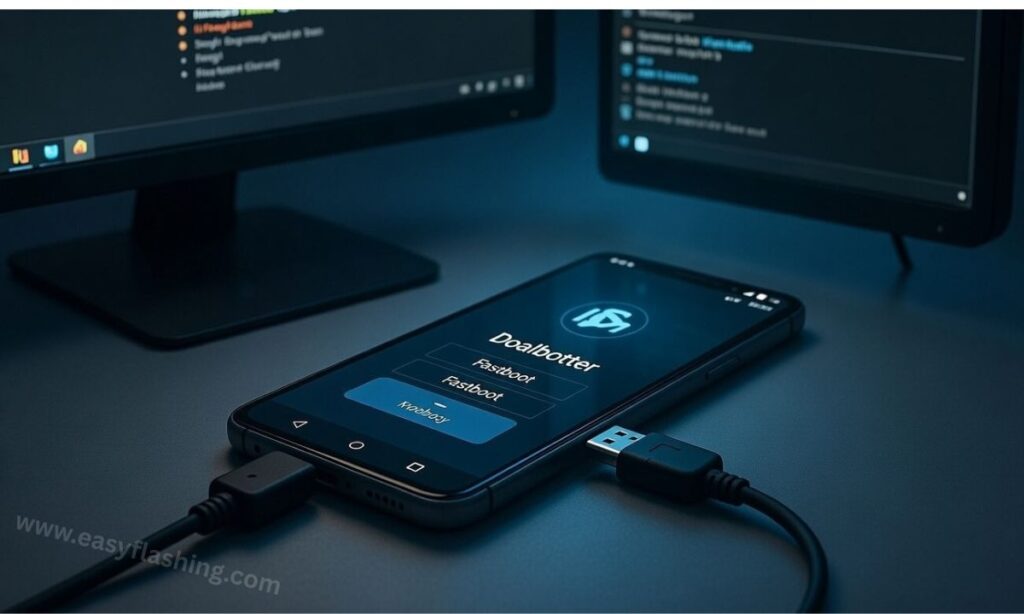
Flashing tools require the phone to be in a specific mode.
Common Android Modes
- Fastboot mode
- Bootloader mode
- Download mode (for some brands)
Why Normal Mode Fails
Flash tools cannot detect phones in regular Android mode.
What You Should Do
- Power off phone
- Use correct button combination
- Confirm mode on screen
7. Fix ADB and Fastboot Detection Issues
ADB and Fastboot are essential tools for Android flashing.
Common Problems
- ADB shows “no device”
- Fastboot does not detect phone
How This Causes “Device Not Recognized”
The PC sees the phone, but flashing commands fail.
Safe Solutions
- Restart ADB service
- Reconnect phone
- Use updated platform tools
8. Disable Driver Signature Enforcement (Windows)
Windows security sometimes blocks unsigned drivers.
Why This Causes Issues
- Flash drivers may not be digitally signed
- Windows blocks installation
Result
- Phone connects but is not recognized
Temporarily disabling this setting can allow driver installation.
9. Update or Change Flash Tool Version
Using outdated flashing software often causes detection problems.
Why Tool Version Matters
- New Android versions need updated tools
- Old tools fail to recognize new devices
Best Practice
Always use the latest stable version of the flashing tool.
10. Check Device Manager for Errors (Windows Users)
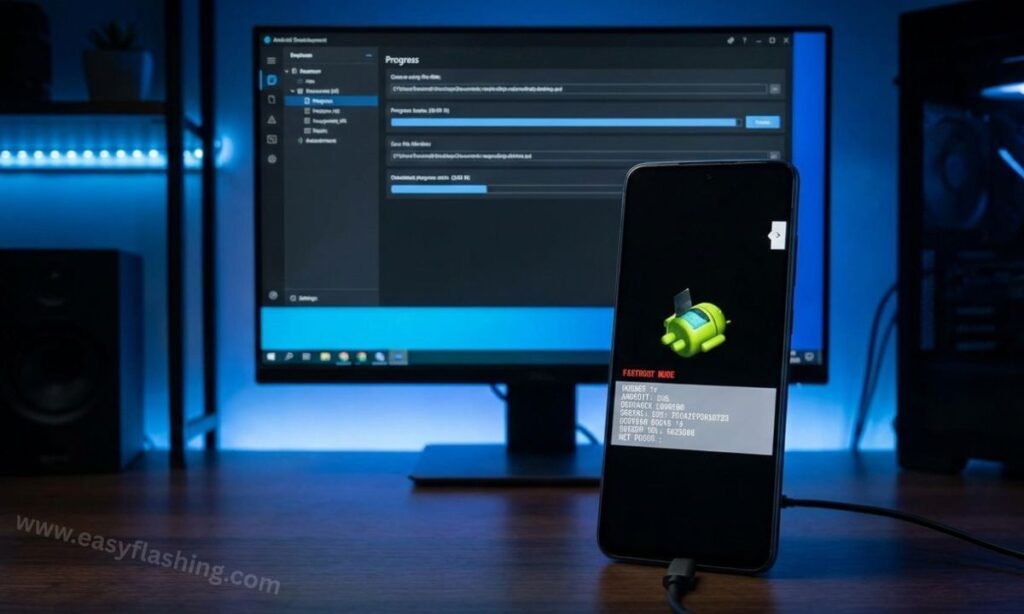
Device Manager gives clues about recognition problems.
What to Look For
- Yellow warning icons
- Unknown USB device
- Missing Android entries
These signs confirm driver-related issues.
11. Restart Computer and Phone
This step sounds simple, but it works more often than expected.
Why Restart Helps
- Clears temporary driver conflicts
- Resets USB services
- Refreshes system connections
Always restart after installing drivers.
12. Avoid Using Virtual Machines
Virtual machines often block USB access.
Why Virtual Machines Cause Errors
- USB passthrough issues
- Driver conflicts
- Limited hardware access
Always flash Android phones on the host system.
13. Disable Conflicting Software
Some software interferes with USB connections.
Common Conflict Sources
- Phone management tools
- Old sync software
- Security programs
Close them before flashing.
14. Use Original Firmware and Correct Files
Incorrect firmware can cause recognition failure.
Why Firmware Matters
- Flash tool checks device compatibility
- Mismatched files cause detection errors
Always verify model number carefully.
15. Try Another Computer (If Possible)
If nothing works, test another system.
Why This Helps
- Confirms PC-specific issues
- Eliminates OS conflicts
This step helps isolate the root cause.
Video tutorial: How to fix Unrecognized USB Flash Drive Quickly
Common Mistakes Beginners Make
Avoid these mistakes to prevent future issues.
Mistakes to Avoid
- Using cheap cables
- Skipping driver installation
- Flashing in wrong mode
- Rushing the process
- Ignoring error messages
How to Prevent “Device Not Recognized” Error in the Future
Prevention is always better than fixing.
Best Practices
- Keep drivers updated
- Use trusted cables
- Backup data regularly
- Follow flashing instructions carefully
- Avoid unnecessary software modifications
Understanding Key Terms (Beginner Friendly)
USB Driver
Software that allows the computer to communicate with the phone.
Flashing
Installing system software on an Android device.
ADB
Android Debug Bridge, a tool for device communication.
Fastboot
A special mode used for flashing partitions.
Is “Device Not Recognized” a Hardware Problem?
In most cases, no. The error is usually software-related. Hardware issues are rare and mostly involve damaged USB ports.
(Q&A)
1. Why does my computer not recognize my Android phone while flashing?
This usually happens due to missing drivers, wrong USB mode, faulty cable, or incorrect flashing mode.
2. Can I fix “Device Not Recognized” without technical knowledge?
Yes. Most fixes involve simple steps like changing cables, installing drivers, and selecting the correct phone mode.
3. Does this error mean my phone is damaged?
No. In most cases, the phone is fine. The issue lies with software communication.
4. Should I factory reset to fix this error?
No. Factory reset does not fix USB detection issues and may cause data loss.
5. Is this error common during Android flashing?
Yes. It is one of the most common problems beginners face during flashing.
Final Thoughts
Facing the “Device Not Recognized” error while flashing Android can feel overwhelming, especially for beginners. The good news is that this issue is usually easy to fix once you understand the cause. Most solutions involve drivers, USB connections, or using the correct mode.
Take your time, follow each step carefully, and avoid rushing. With the right approach, you can fix the problem safely and continue flashing your Android device without stress.