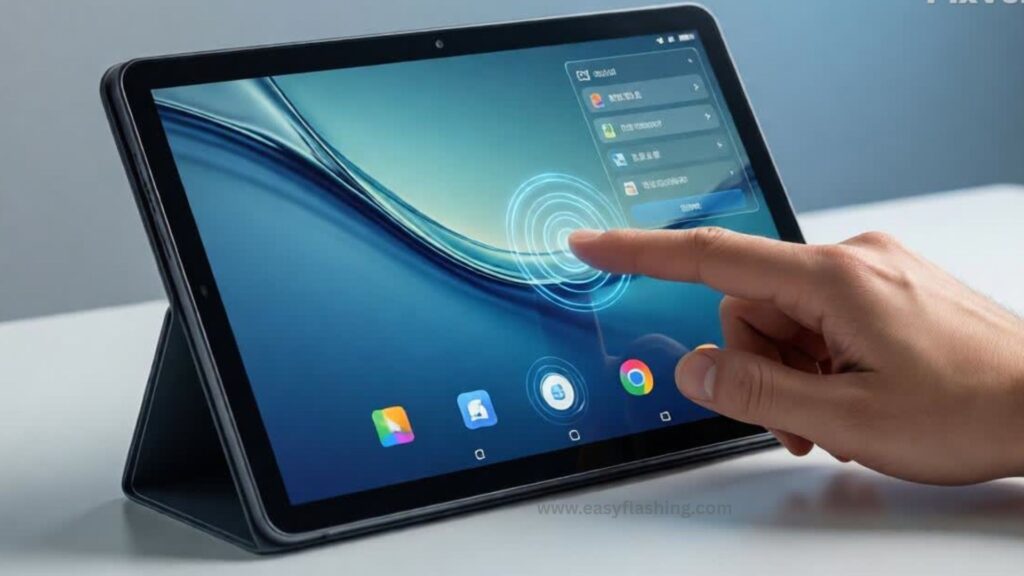
I will tell you today that a touch screen not working on an Android tablet is one of the most frustrating problems users face. Whether you are using a Samsung tablet or any other Android brand, an unresponsive screen can make the device feel completely useless. Those who don’t know much about tablet hardware or software often panic and think the tablet is permanently damaged.
Within this article, I will try to give you complete information on how to fix Android tablet touch screen not working using beginner-friendly methods. By reading this article, you will learn why touch screens stop responding, how AUTO system behavior works, and which fixes you should try first before visiting a repair shop.
Why Android Tablet Touch Screen Stops Working
Before fixing the problem, it is important to understand what is happening.
What Does “Touch Screen Not Working” Mean?
It can appear in different ways:
- Screen does not respond at all
- Touch works sometimes
- Touch registers incorrectly
- Screen freezes randomly
- Only part of the screen works
These issues can be caused by software glitches, system cache problems, hardware damage, or incorrect settings.
Step-by-Step Guide to Fix Android Tablet Touch Screen Not Working
1. Restart the Android Tablet (Most Overlooked Fix)
I will tell you today that restarting solves more problems than people expect.
Why This Works:
- Clears temporary system errors
- Restarts background services
- Fixes AUTO touch driver glitches
How to Do It:
- Press and hold the Power button
- Tap Restart
- If touch is not working, hold Power for 10–15 seconds to force reboot
Tried by millions of users and often fixes minor touch issues instantly.
2. Clean the Touch Screen Properly
Those who don’t know much about touch screens may ignore this simple step.
Why Cleaning Helps:
- Dirt, oil, or moisture can block touch sensors
- Screen protectors can interfere with touch response
What You Should Do:
- Turn off the tablet
- Use a microfiber cloth
- Remove screen protector temporarily
- Avoid liquid cleaners directly on screen
A clean screen improves touch accuracy immediately.
3. Remove External Accessories and OTG Devices
External devices can interfere with touch input.
Examples:
- USB OTG accessories
- Chargers with unstable voltage
- Third-party stylus
Fix:
- Disconnect all accessories
- Restart tablet
- Test touch again
This AUTO conflict fix is rarely mentioned but very effective.
4. Check If the Touch Screen Is Physically Damaged
Physical damage is a common reason, especially for tablets.
Signs of Hardware Damage:
- Cracks on the glass
- Screen flickering
- Touch not responding in one area
- Tablet dropped recently
If damage exists, software fixes will not help much. You may need professional repair.
5. Boot Tablet in Safe Mode (Very Important Test)
Safe Mode helps identify app-related problems.
Why Safe Mode Helps:
- Loads only system apps
- Disables third-party apps
- Identifies AUTO app conflicts
How to Enter Safe Mode (Most Android Tablets):
- Press and hold Power button
- Tap and hold Power Off
- Select Safe Mode
If touch works in Safe Mode, a third-party app is causing the issue.
6. Uninstall Recently Installed Apps
If touch works in Safe Mode, you to remove problematic apps.
Apps That Often Cause Issues:
- Screen overlays
- Launchers
- Battery saver apps
- Touch calibration apps
Remove apps installed before the issue started, then restart normally.
7. Update Android System Software
Outdated software can cause touch problems.
Why Updates Matter:
- Fix bugs
- Improve touch drivers
- Enhance system stability
How to Check:
- Settings → Software Update
- Download and install updates
By reading this article, you should understand that software updates often contain touch-related fixes.
8. Clear Cache Partition (Advanced but Safe)
This is a powerful fix not explained well on most sites.
What Cache Partition Does:
- Stores temporary system files
- Corruption can affect touch response
Steps (General Method):
- Power off tablet
- Press Power + Volume Up
- Select Wipe Cache Partition
- Reboot system
No data loss occurs.
9. Test Touch Using Built-in Diagnostic Tools (Samsung Tablets)
Samsung tablets include hidden diagnostic features.
Samsung Touch Test Code:
- Dial *#0*# (on models with dialer)
- Select Touch
- Test screen response
This helps confirm whether the issue is hardware or software.
10. Calibrate Touch Screen (If Option Exists)
Some tablets support manual touch calibration.
Where to Find Calibration:
- Settings → Display
- Settings → Accessibility
- Settings → Advanced settings
Calibration improves accuracy if touch registers incorrectly.
11. Free Up Storage Space
Low storage can cause system lag and touch issues.
Why Storage Matters:
- Android needs free space to function
- System processes slow down when storage is full
What You Should Do:
- Delete unused apps
- Clear large files
- Free at least 2–3 GB space
AUTO performance improves immediately.
12. Factory Reset (Last Software Solution)
I will tell you today: only do this if nothing else works.
Warning:
- Erases all data
- Backup first if possible
How to Reset:
- Settings → Reset → Factory Data Reset
- Or use Recovery Mode
This fixes deep software corruption.
13. Touch Screen Not Working on Samsung Tablet (Special Notes)
Samsung tablets have some unique features.
Extra Fixes for Samsung:
- Disable “Accidental Touch Protection”
- Turn off “Touch Sensitivity” temporarily
- Check Samsung One UI updates
Samsung’s AUTO optimization usually restores touch after updates.
14. Temperature and Environmental Factors
Extreme heat or cold affects touch screens.
Common Situations:
- Tablet overheated
- Used in very cold weather
- Left in direct sunlight
Let the tablet return to normal temperature before using.
15. Moisture and Water Damage Checks
Even small moisture exposure can affect touch.
Signs of Moisture Damage:
- Touch delay
- Random input
- Screen discoloration
Turn off the tablet and let it dry completely.
16. External Mouse as Temporary Solution
If touch is not working at all, you can still control the tablet.
How:
- Connect USB mouse via OTG
- Navigate settings
- Backup data
- Perform reset
This trick saves important data.
17. When to Visit a Service Center
You should seek professional help if:
- Touch never works
- Screen is cracked
- Tablet was dropped
- Water damage suspected
Repair usually involves replacing the digitizer.
18. Prevent Future Touch Screen Problems
Prevention is better than repair.
Tips:
- Use a quality screen protector
- Avoid cheap chargers
- Keep software updated
- Handle tablet gently
These steps extend tablet life.
Video Tutorial: How To Fix Unresponsive Touch Screen
Trusted Resource
For official Android troubleshooting guidance, refer to:
Android Help Center (Google):https://support.google.com/android
This trusted source explains Android hardware and software behavior accurately.
(FAQ)
Q1. Why is my Android tablet touch screen not responding?
It can be due to software glitches, hardware damage, moisture, or faulty apps.
Q2. How do I fix my Samsung tablet touch screen not working?
Restart the tablet, boot into Safe Mode, update software, and clear cache partition.
Q3. Can a factory reset fix touch screen problems?
Yes, if the issue is software-related. It will not fix hardware damage.
Q4. Does touch screen stop working due to virus?
Rarely, but poorly coded apps can interfere with touch input.
Q5. Is touch screen repair expensive?
It depends on the tablet model. Digitizer replacement costs vary.
Final Thoughts
Within this article, I tried to give you complete information on how to fix Android tablet touch screen not working in the easiest and safest way possible. Those who don’t know much about tablet repair can now confidently try these solutions before spending money on repairs.
By reading this article, you now understand AUTO system behavior, beginner-friendly fixes, and advanced solutions. If you follow these steps carefully, most touch screen problems can be fixed without professional help.