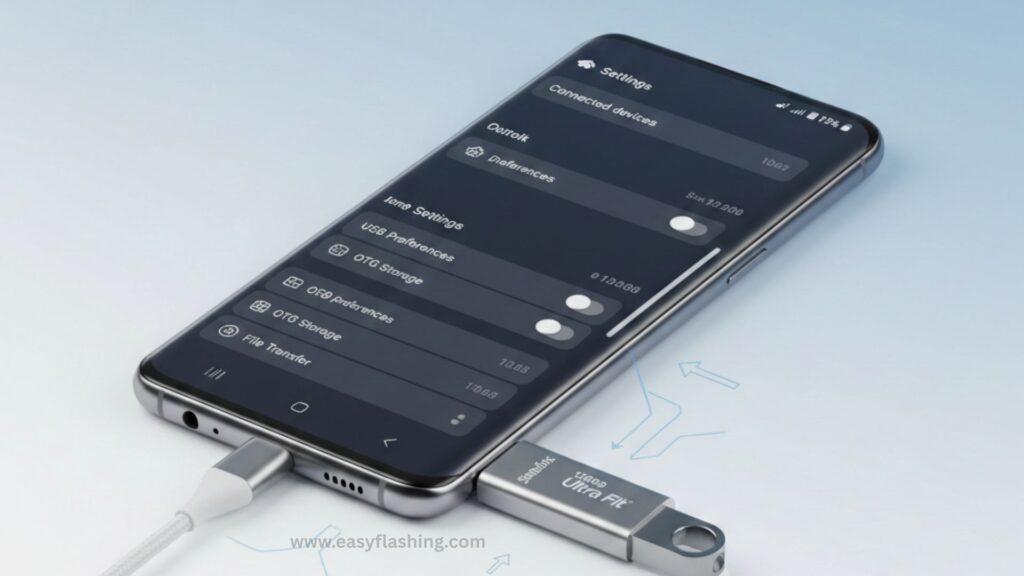
I will tell you today that many Samsung users search for How To Enable OTG On Android Samsung because they want to connect a USB drive, keyboard, mouse, or other accessories to their phone but they don’t know where to start. Those who don’t know much about Android settings often think OTG is complicated, but the truth is very simple.
Within this article, I will try to give you complete information about OTG (USB On-The Go) on Samsung phones in easy and beginner-friendly language. By reading this article, you will clearly understand what OTG is, whether your Samsung device supports it, and how to use it correctly without damaging your phone.
What Is OTG in Samsung Android Phones?
OTG stands for USB On-The Go. It is a technology that allows your Samsung Android phone to act like a host device, similar to a computer.
In Simple Words:
OTG lets you connect USB devices directly to your phone.
Examples of OTG devices:
- USB flash drive (pen drive)
- Keyboard and mouse
- Game controller
- Card reader
- External hard drive (with proper power)
Those who don’t know much about OTG should remember one thing:
If your Samsung phone supports OTG, you usually do NOT need to enable it manually.
Complete Guide on How To Enable OTG On Android Samsung
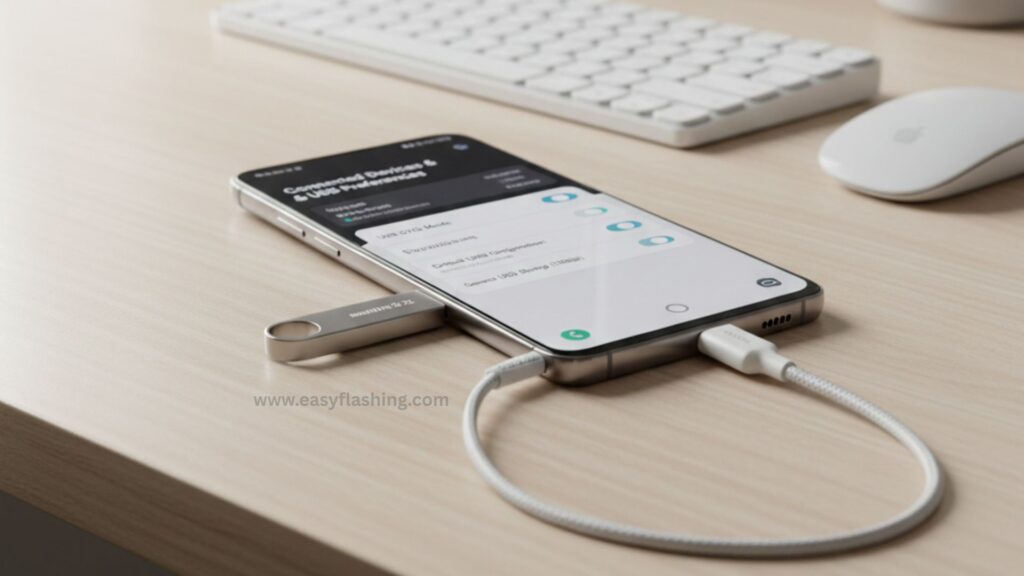
1. Check If Your Samsung Phone Supports OTG (Most Important Step)
Before doing anything, you must confirm whether your Samsung device supports OTG.
Most modern Samsung phones support OTG, including:
- Samsung Galaxy S series
- Samsung Galaxy Note series
- Samsung Galaxy A series
- Samsung Galaxy M series
- Samsung Galaxy F series
How to Check OTG Support:
- Check official Samsung specifications
- Search your model with “OTG support”
- Use trusted apps like USB OTG Checker
Example:
Samsung Galaxy A12, A32, A52, S21, S22, S23 – all support OTG.
If your phone does not support OTG at the hardware level, no app or setting can enable it.
2. Understand AUTO OTG Detection in Samsung Phones
AUTO OTG is a system feature where Samsung phones automatically enable OTG when a compatible USB device is connected.
What AUTO Means Here:
- No toggle or button required
- OTG activates itself
- Device gets detected instantly
This is why many users cannot find an “Enable OTG” option in settings it’s already working in the background.
You to just plug in the OTG cable, and the phone handles everything automatically.
3. What You Need to Use OTG on Samsung
To use OTG successfully, you need the right accessories.
Required Items:
- OTG cable (USB-C or Micro USB, depending on phone)
- Supported USB device (pen drive, mouse, etc.)
- Samsung phone with OTG support
Tip for Beginners:
Always buy a good quality OTG adapter. Cheap cables often cause detection issues.
4. How To Enable OTG On Android Samsung (Step-by-Step)
I will tell you today the simplest method that works on almost all Samsung phones.
Step 1: Connect OTG Cable
- Plug the OTG adapter into your Samsung phone
Step 2: Attach USB Device
- Insert your USB flash drive, mouse, or keyboard into the OTG cable
Step 3: Wait for AUTO Detection
- Samsung phone automatically detects the device
- A notification may appear
That’s it. OTG is enabled automatically.
No settings. No apps. No confusion.
5. How to Access USB Storage After OTG Is Enabled
After OTG AUTO detection, many beginners ask:
“Where is my USB file?”
Follow These Steps:
- Open My Files app
- Tap USB storage or External storage
- Browse, copy, or move files
You can now transfer files between phone and USB easily.
6. How to Enable OTG Using Samsung Settings (If Available)
Some Samsung versions show limited OTG-related options.
Possible Settings Path:
- Settings → Battery and Device Care
- Settings → Connections
- Settings → Developer Options (rare cases)
If you don’t see OTG, don’t worry. AUTO OTG is already active.
7. Using OTG for Keyboard and Mouse on Samsung
This is one of the most useful OTG features.
Benefits:
- Easy typing for long messages
- Better control for accessibility users
- Useful for document editing
Once connected:
- Keyboard starts typing instantly
- Mouse pointer appears on screen
No setup required. Tried and tested.
8. Using OTG for File Transfer (Pen Drive)
This is why most people search for how to open OTG in Samsung.
Use Cases:
- Transfer photos and videos
- Backup important files
- Share files without internet
Samsung phones support:
- FAT32
- exFAT (on most models)
9. OTG for Gaming Controllers on Samsung
OTG supports many wired game controllers.
Benefits:
- Better gaming control
- Reduced lag
- Console-like experience
Just plug in the controller and start playing supported games.
10. Common OTG Problems and Their Solutions
Problem 1: OTG Not Working
Solutions:
- Change OTG cable
- Restart phone
- Try another USB device
Problem 2: USB Not Showing
Solutions:
- Open My Files manually
- Check file system format
- Clean charging port
Problem 3: OTG Works Sometimes
Solutions:
- Disable battery saver
- Update phone software
11. OTG and Battery Consumption Explained
OTG uses phone power to run external devices.
Important Tips:
- Avoid long OTG sessions
- Disconnect after use
- Avoid high-power devices
This prevents battery drain and overheating.
12. OTG Security and Safety Tips
Those who don’t know much about USB security should read this carefully.
Safety Rules:
- Do not connect unknown USB devices
- Avoid public USB accessories
- Scan files before opening
OTG is safe when used responsibly.
13. OTG Compatibility with Android Versions
Android Versions Supporting OTG:
- Android 6 (Marshmallow) and above
- Android 10, 11, 12, 13, 14 – fully supported
Samsung One UI handles OTG very smoothly.
14. Myths About Enabling OTG on Samsung
Myth 1: You need an app to enable OTG
False
Myth 2: OTG damages the phone
False (if used properly)
Myth 3: OTG works only on flagship phones
False
15. Advantages and Limitations of OTG on Samsung
Advantages:
- No internet required
- Fast file transfer
- Easy peripheral support
- AUTO detection
Limitations:
- Limited power output
- Not all devices supported
- External HDD may need power
Balanced understanding builds trust.
3 Ways to Fix OTG Not Working Issues on Samsung Galaxy
Trusted Resource
For official USB and device compatibility details, refer to Samsung’s trusted support documentation:
Samsung Official Support:https://www.samsung.com/support
This source explains Samsung hardware and USB features accurately.
(FAQ)
Q1. How do I enable OTG on my Samsung phone?
OTG enables automatically. Just connect an OTG cable and a USB device.
Q2. Why can’t I find OTG settings on Samsung?
Because Samsung uses AUTO OTG detection. No manual toggle is needed.
Q3. Does every Samsung phone support OTG?
Most modern Samsung phones do, but very old or low-end models may not.
Q4. Can I use OTG without internet?
Yes. OTG works completely offline.
Q5. Is OTG safe for beginners?
Yes. By reading this article, you now know how to use it safely.
Final Words
Within this article, I tried to give you complete information about How To Enable OTG On Android Samsung in the simplest way possible. Those who don’t know much about Android features can now confidently use OTG without fear.
By reading this article, you understand AUTO OTG, compatibility, troubleshooting, and real-world usage. If you follow these steps, OTG will become one of the most useful features on your Samsung phone.


1 thought on “How To Enable OTG On Android Samsung (Method)”