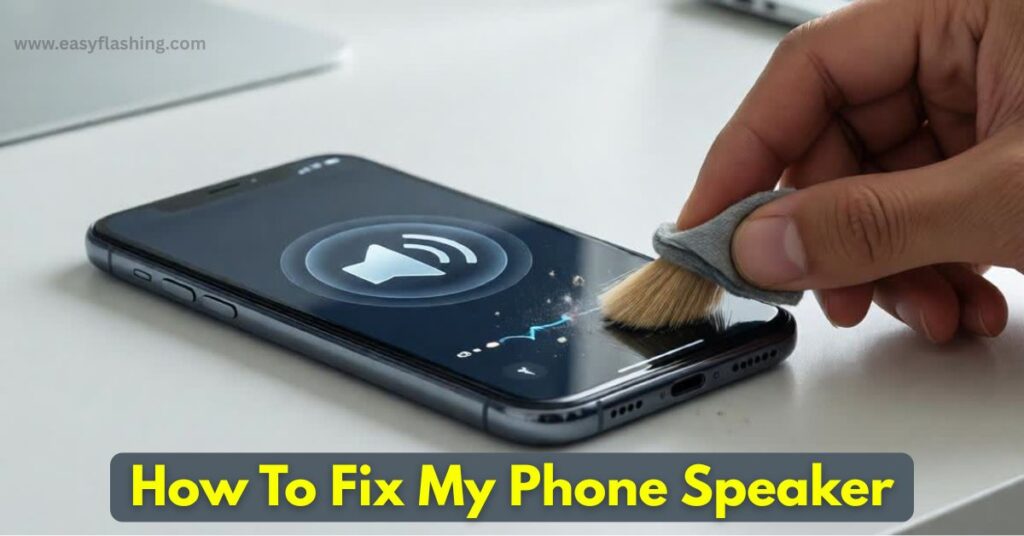
If you’re searching for how to fix my phone speaker, you’re probably dealing with low volume, muffled sound, crackling noise, or no sound at all. I will tell you today that most phone speaker problems are common, fixable, and not as scary as they seem.
Within this article, I will try to explain every possible reason your phone speaker is not working properly and show you safe, beginner-friendly solutions. Those who don’t know much about phone hardware or settings can still follow this guide easily.
By reading this article, I will give you complete information about:
- Why your phone speaker sounds low or distorted
- How to fix phone speaker water damage
- How to fix speaker on iPhone
- When the problem is software vs hardware
- When you can fix it yourself and when to seek repair
Let’s start from the basics and move step by step.
1. Check Your Volume and Sound Settings First
Before assuming hardware damage, always check the basics.
Why this matters
Many speaker issues happen due to incorrect settings, not broken speakers.
What to check
- Media volume (not just ringtone volume)
- Silent or Do Not Disturb mode
- Bluetooth accidentally connected
- Sound balance or mono audio settings
How to fix it
- Press volume up while playing music or a video
- Go to Settings → Sound and adjust media volume
- Turn off Bluetooth and test speaker
- Disable “Mono Audio” if enabled
Example:
If sound works after disconnecting Bluetooth, your phone speaker is fine.
2. Restart Your Phone (Simple but Powerful)
A restart can solve more problems than people realize.
Why restarting helps
Temporary software glitches can block sound output. Restarting resets system audio services.
What to do
- Power off your phone
- Wait 30 seconds
- Turn it back on
- Test speaker with music or a video
This step alone fixes many “no sound” issues.
3. Clean the Phone Speaker Gently
Dust and debris are major reasons speakers sound muffled.
Why speakers get clogged
Phones stay in pockets, bags, and hands all day. Dust, lint, and tiny particles block the speaker grill.
Signs of a dirty speaker
- Sound is low but not completely gone
- Audio sounds muffled or distant
- Speaker works better on speakerphone than media
How to clean safely
- Turn off your phone
- Use a soft brush or clean toothbrush
- Gently brush the speaker grill
- Use compressed air at a safe distance
Avoid needles, pins, or metal objects.
4. How to Fix Phone Speaker Water Damage
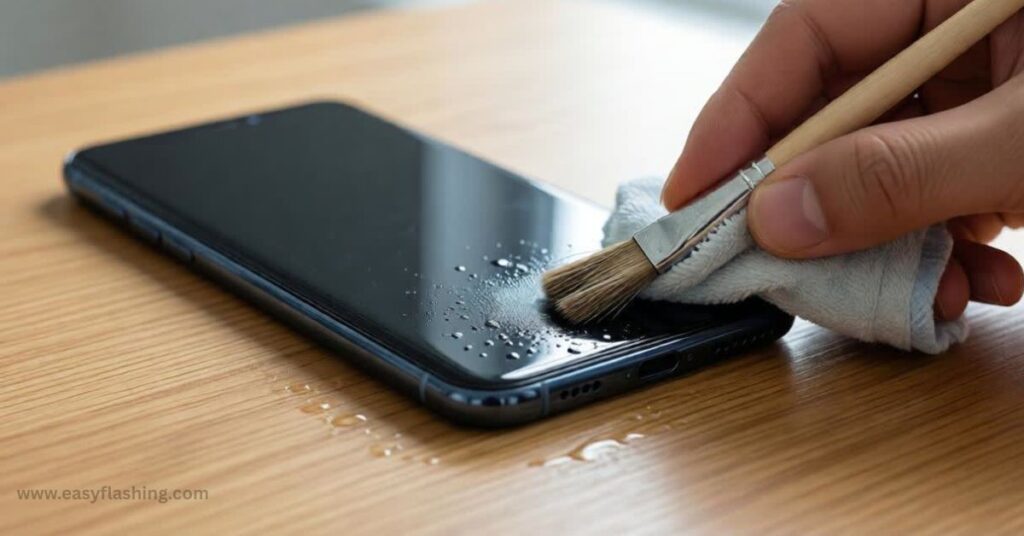
Water damage is one of the most searched problems.
What happens when water enters the speaker
Water blocks sound waves and can damage internal speaker components if not dried properly.
Immediate steps to take
- Turn off your phone immediately
- Do not charge it
- Remove phone case
- Wipe external moisture
Safe drying methods
- Place phone speaker side down
- Use silica gel packets if available
- Leave phone in a dry place for 24–48 hours
What NOT to do
- Do not use a hair dryer
- Do not shake the phone aggressively
- Do not put phone in rice (ineffective and messy)
Sound eject method (safe approach)
Some phones can push water out using vibration sounds. Play a low-frequency speaker cleaning tone at low volume.
5. Check for Software Updates
Outdated software can cause audio bugs.
Why updates matter
Manufacturers fix sound-related bugs through updates.
How to update
- Go to Settings → Software Update
- Download and install official updates
- Restart after updating
This is especially important for iPhone users.
6. How to Fix Speaker on iPhone
iPhones have unique audio controls.
Common iPhone speaker problems
- Low volume during calls
- No sound in apps
- Distorted speaker output
iPhone-specific fixes
- Disable Silent Mode
- Turn off Phone Noise Cancellation
- Reset all settings (not data)
Path:
Settings → General → Transfer or Reset iPhone → Reset → Reset All Settings
This fixes many hidden sound issues.
7. Check App Specific Audio Problems
Sometimes the issue is not system wide.
Why this happens
Apps can have their own sound permissions or bugs.
What to do
- Test speaker with multiple apps
- Check in app sound settings
- Update or reinstall the problematic app
If sound works in other apps, your phone speaker is fine.
8. Disable Accessibility Audio Features
Accessibility features can affect sound balance.
Settings to check
- Mono Audio
- Sound balance left/right
- Hearing aid compatibility
How to fix
Reset sound balance to center and disable unnecessary audio filters.
9. Test Speaker Using Diagnostic Tools
Built-in diagnostics help confirm speaker health.
How to test
- Use phone’s built-in hardware test (if available)
- Play music at full volume
- Test speakerphone during calls
If sound plays clearly during tests, hardware is likely okay.
10. Check for Physical Damage
Physical damage affects sound quality.
Signs of physical damage
- Cracked speaker grill
- Dent near speaker area
- Phone dropped recently
Physical damage often requires professional repair.
11. Clear Cache (Android Only)
Cache files can interfere with audio services.
How to clear cache
- Power off phone
- Boot into recovery mode
- Select “Wipe cache partition”
This does not delete personal data.
12. Reset Sound Settings Only
This is safer than full reset.
What it fixes
- Audio routing issues
- Corrupted sound profiles
- App conflicts
Reset only sound-related settings if possible.
13. Factory Reset (Last Software Option)
Only use this if nothing else works.
Important warning
Backup your data before doing this.
When to try
- Sound stopped after update
- No hardware damage
- All other fixes failed
14. When Speaker Replacement Is Needed
Sometimes the speaker is physically damaged.
Common causes
- Long-term water exposure
- Dust corrosion
- Speaker coil damage
Speaker replacement is usually affordable and quick.
15. When to Visit a Repair Shop
You should visit a technician if:
- No sound at all
- Speaker crackles constantly
- Water damage persists
- Phone overheats during audio use
Choose authorized service centers when possible.
How To Clean Your iPhone Speakers The Right Way
Trusted Resource
For official guidance on iPhone audio and speaker troubleshooting, refer to Apple Support:
https://support.apple.com/en-us/HT203794
FAQs
Why is my phone speaker not working but headphones do?
This usually indicates a speaker hardware issue or clogged speaker grill.
How to fix phone speaker water damage at home?
Dry the phone properly, avoid heat, and allow enough time. Use sound vibration cautiously.
How to fix speaker on iPhone when sound is low?
Check Silent Mode, disable noise cancellation, clean speaker, and reset settings.
Can a phone speaker be repaired without replacement?
Minor issues like dust, moisture, or software bugs can be fixed without replacement.
How long does it take for water to dry from phone speaker?
It usually takes 24–48 hours depending on exposure and environment.
Final Thoughts about How to Fix My Phone Speaker
I tried to cover every possible angle on how to fix your phone speaker in one place. Within this article, I have tried to guide you to solutions that are safe, practical. People who don’t know much about phone technology can still follow these steps with confidence.
By reading this article, you now have the knowledge to properly diagnose speaker problems and make the right decision on the next step, whether it’s a simple fix or a professional repair.

1 thought on “How to Fix My Phone Speaker If Sound Is Low, Muffled, or Not Working”