Few things are more frustrating than plugging in your phone and seeing no charging icon, or watching the battery percentage refuse to go up. If you’re wondering why is my phone not charging, you’re not alone. Millions of people in the USA face this issue every year, whether they use an Android phone or an iPhone.
I will tell you today that most phone charging problems do not require a repair shop. Within this article, I will try to explain everything in simple language, so even those who don’t know much about phone hardware can understand and fix the issue confidently.
By reading this article, I will give you complete information on:
- How to fix phone not charging at all
- How to fix slow charging issues
- How to fix iPhone not charging problems
- When the issue is software, cable, charger, battery, or hardware
Let’s start fixing your phone step by step.
1. Check the Charging Cable (Most Common Cause)
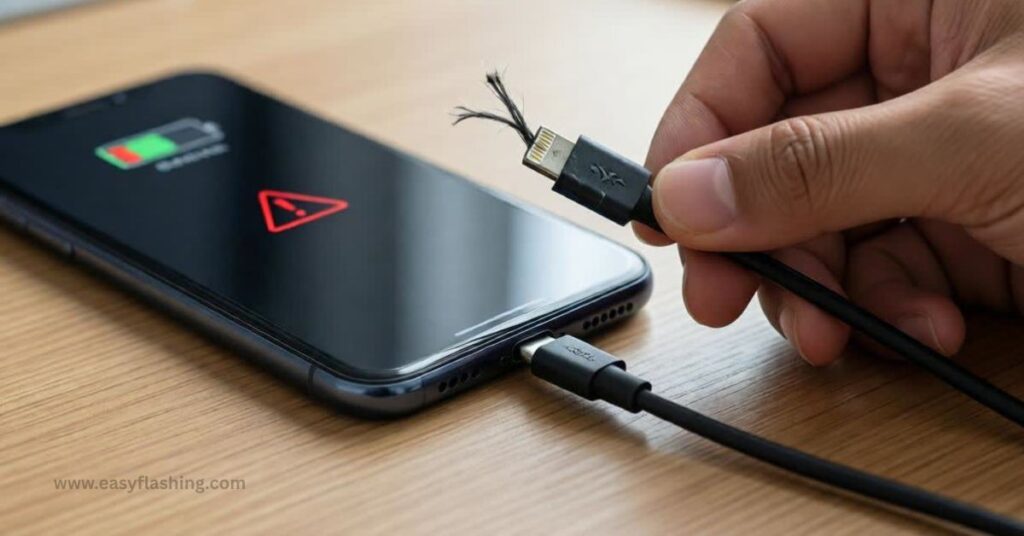
The charging cable is the #1 reason phones stop charging properly.
Why the cable causes charging problems
Charging cables bend, twist, and stretch daily. Inside the cable are tiny wires that break easily. Even if the cable looks fine on the outside, it may be damaged inside.
Signs your cable is faulty
- Phone charges only at a certain angle
- Charging starts and stops repeatedly
- Phone charges very slowly
- Cable feels loose in the phone
How to fix it
- Try a different charging cable (preferably original or certified)
- Borrow a cable from a friend
- Avoid very cheap, unbranded cables
Example:
If your phone charges with another cable, the problem is solved. You don’t need further troubleshooting.
2. Inspect the Charging Adapter (Wall Plug)
If the cable is fine, the next thing to check is the charging adapter.
Why adapters fail
Adapters can overheat, suffer internal damage, or stop delivering stable power.
What to do
- Plug the adapter into a different wall outlet
- Try another adapter with the same cable
- Avoid using old or cracked adapters
Beginner tip
Fast charging phones require fast charging adapters. A low-power adapter can cause slow charging or no charging at all.
3. Clean the Charging Port Carefully
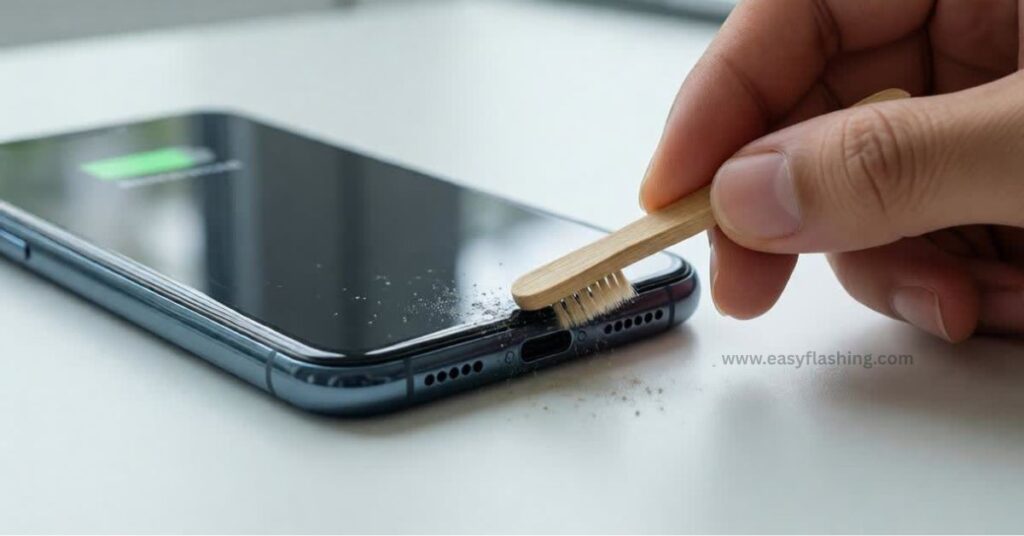
This step is often ignored but extremely important.
Why charging ports get dirty
Lint, dust, and pocket debris collect inside the charging port over time. This blocks proper contact between the cable and charging pins.
Signs of a dirty port
- Cable doesn’t click in properly
- Charging works only when pushed
- Phone disconnects easily
How to clean it safely
- Turn off your phone
- Use a wooden toothpick or plastic pick
- Gently remove lint and dust
- Use compressed air if available
Do not use metal objects like needles or pins. They can permanently damage the port.
4. Try a Different Power Source
Sometimes the phone is not the problem.
Test these power sources
- Wall outlet
- Power strip
- Laptop USB port
- Power bank
- Car charger
Why this helps
Some outlets deliver unstable or insufficient power. Switching the power source quickly confirms whether electricity supply is the issue.
5. Restart Your Phone (Simple but Powerful)
Software glitches can stop charging detection.
Why restarting works
Restarting clears background processes and resets charging services.
What to do
- Restart your phone normally
- Plug it in after restart
- Wait at least 5 minutes
This step fixes many “phone not charging” complaints instantly.
6. Check for Software Updates
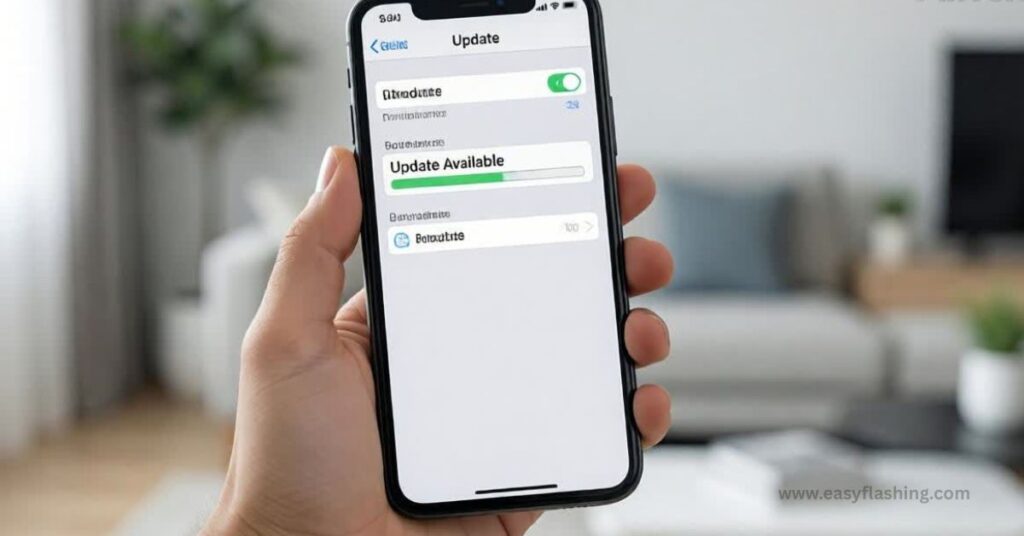
Outdated software can interfere with charging behavior.
Why updates matter
Manufacturers release updates to fix bugs, including charging and battery issues.
How to check
- Android: Settings → Software Update
- iPhone: Settings → General → Software Update
Always install official updates over a stable Wi-Fi connection.
7. How to Fix Slow Charging Issues
Slow charging is different from not charging at all.
Common reasons for slow charging
- Using phone while charging
- Old charging cable
- Weak adapter
- Background apps
- Battery health degradation
How to fix slow charging
- Enable Airplane Mode while charging
- Close unused apps
- Use original fast charger
- Avoid charging from laptops
- Remove phone case if overheating
Reality check
Phones charge fastest when the screen is off and the device is idle.
8. How to Fix iPhone Not Charging Issues
iPhones have some unique charging problems.
Common iPhone charging issues
- “Accessory not supported” message
- No charging icon
- Charging stops randomly
Fixes for iPhone users
- Use Apple-certified Lightning or USB-C cables
- Clean the Lightning port carefully
- Restart iPhone
- Update iOS
- Reset settings (without deleting data)
Path:
Settings → General → Transfer or Reset iPhone → Reset → Reset All Settings
This does not delete your data.
9. Check Battery Health (Very Important)
Batteries wear out over time.
Signs of a failing battery
- Phone dies quickly
- Phone charges very slowly
- Battery percentage jumps
- Phone shuts down unexpectedly
How to check battery health
- iPhone: Settings → Battery → Battery Health
- Android: Use built-in diagnostics or trusted apps
If battery health is below 80%, replacement may be necessary.
10. Check for Overheating Problems
Phones stop charging when they get too hot.
Why overheating stops charging
Charging generates heat. If the phone temperature rises too much, charging pauses automatically to protect the battery.
Fix overheating
- Remove phone case
- Charge in a cool place
- Avoid sunlight
- Stop gaming or streaming while charging
11. Check Charging Mode & USB Settings (Android)
Some Android phones require permission to charge.
What to check
- Unlock phone while charging
- Select “Charging” or “File Transfer”
- Disable “USB controlled by device” issues
This is common after software updates.
12. Try Safe Mode (Android Only)
Safe Mode disables third-party apps.
Why this helps
Some apps interfere with charging services.
Steps
- Hold Power button
- Tap and hold Restart
- Enter Safe Mode
- Plug in charger
If charging works in Safe Mode, uninstall recently installed apps.
13. Reset System Settings (Last Software Step)
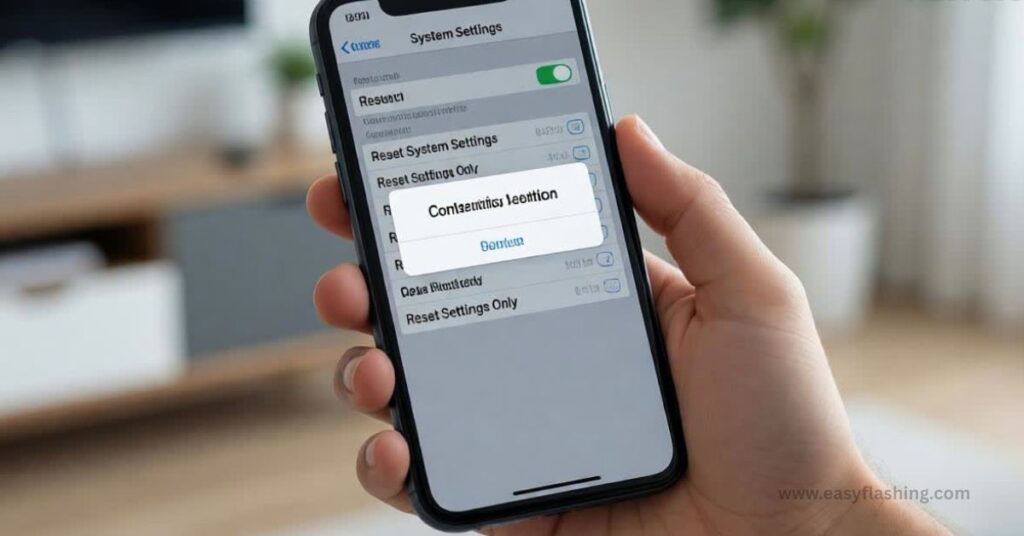
This fixes deep configuration issues.
What it resets
- Network settings
- System preferences
- Battery calibration
Your data remains safe.
14. When It’s a Hardware Problem
Sometimes home fixes are not enough.
Hardware issues include
- Damaged charging port
- Water damage
- Motherboard issues
- Broken charging IC
If your phone:
- Never charges
- Shows no response
- Was exposed to water
Professional repair is required.
15. When to Visit a Repair Shop
Visit a technician if:
- All steps failed
- Phone heats excessively
- Charging port feels loose
- Battery swells
Choose authorized service centers when possible.
Phone Not Charging. Expert’s Simple Tip To Fix It!
Trusted Resource
For official battery and charging safety guidelines, you can refer to Apple’s trusted documentation:
https://support.apple.com/en-us/HT208387
FAQs
Why is my phone not charging even though it’s plugged in?
This usually happens due to a damaged cable, dirty charging port, faulty adapter, or software glitch. Start with cable and port cleaning.
How to fix phone not charging overnight?
Check the charger, outlet, and battery health. Disable background apps and avoid cheap chargers.
How to fix slow charging on Android phones?
Use original fast chargers, enable airplane mode, close apps, and avoid charging from USB ports.
How to fix iPhone not charging after update?
Restart the phone, update iOS, clean the charging port, and reset all settings if needed.
Can a phone battery be fixed without replacement?
Battery calibration and software fixes may help temporarily, but worn-out batteries require replacement.
Final Thoughts
I tried to cover every possible reason and solution for phone charging problems in one place. Within this article, I explained each step clearly so beginners can follow without confusion. Those who don’t know much about phone hardware can still troubleshoot confidently.
If you follow these steps carefully, most charging issues can be fixed at home saving time and money.



2 thoughts on “How to Fix Phone Not Charging – Fix Slow Charging”