Forgetting your Android phone’s pattern, PIN, or password can feel stressful, especially when the device contains important data. Many beginners search for how to flash Android phone after forgot pattern or PIN lock because flashing is often the last working solution when all other unlock methods fail.
What Does “Flash Android Phone” Mean?
Flashing an Android phone means reinstalling the phone’s system software (firmware) from scratch. This process removes the existing operating system, including screen lock data, and installs a fresh system.
In simple words:
- Flashing = reinstall Android software
- Pattern/PIN lock = stored inside system data
- Flashing deletes the lock along with user data
Flashing is different from a normal factory reset because it uses a computer and flash tool to rewrite the phone’s firmware.
Why Flashing Is Needed After Forgot Pattern or PIN Lock
Android security is designed to protect user data. If you forget the lock and cannot verify your Google account or fingerprint, the phone blocks access completely.
Flashing becomes necessary when:
- You forgot pattern, PIN, or password
- Google account recovery fails
- Phone is locked after too many attempts
- Device is stuck on lock screen
- Recovery reset still asks for old lock
Flashing removes the lock by installing a clean system.
Important Warning Before Flashing Android Phone
Before learning how to flash Android phone after forgot pattern or PIN lock, you must understand these points:
- Flashing deletes all user data
- Photos, contacts, apps will be erased
- FRP (Google account lock) may still appear
- Wrong firmware can permanently damage phone
Always flash only when you fully understand the risks.
Things You Need Before Flashing Android Phone
Prepare the following tools and files:
- Windows PC or laptop
- USB cable (original recommended)
- Correct firmware for your phone model
- Compatible flash tool
- USB drivers for your phone
- Battery charged at least 50%
Preparation avoids flashing failure.
Types of Android Locks You Can Remove by Flashing
Flashing helps remove these locks:
- Pattern lock
- PIN lock
- Password lock
- Face lock (software-based)
- Fingerprint lock (software-based)
However, flashing does not always remove FRP lock unless special methods are used.
Common Android Flash Tools Explained
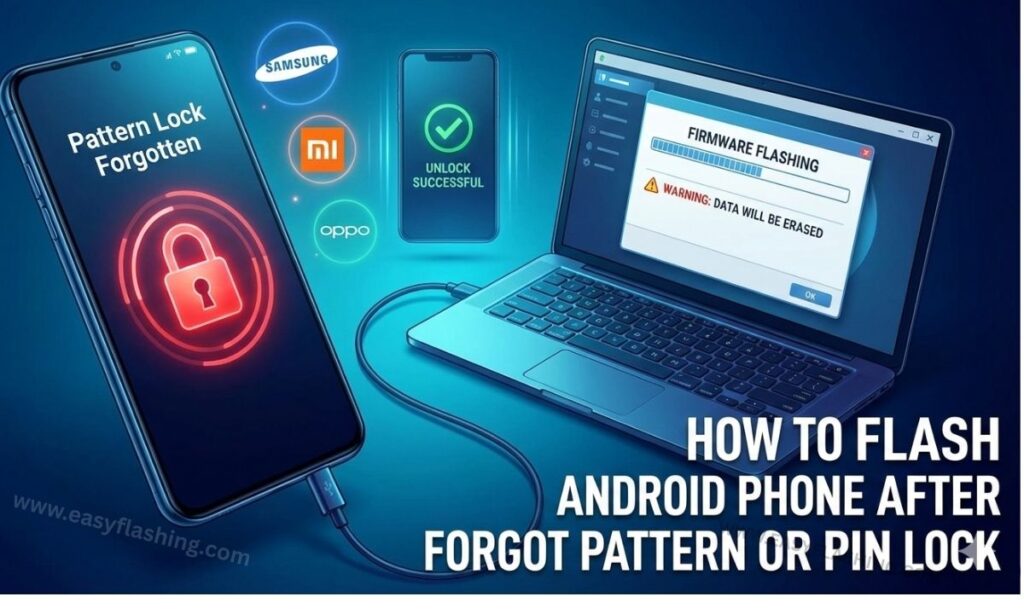
Different Android brands use different flashing tools. Below are the most common mobile flash tools beginners should know.
Flashing Android Phone Using Stock Firmware (Most Reliable Method)
What Is Stock Firmware?
Stock firmware is the original software provided by the phone manufacturer. Flashing stock firmware resets the phone to factory condition.
Why Stock Firmware Is Best for Beginners
- Official and safe
- Stable performance
- No malware risk
- Compatible with device hardware
Steps to Flash Android Phone Using Stock Firmware
- Identify your phone model number
- Download correct firmware for the model
- Install USB drivers on PC
- Install the required flash tool
- Boot phone into download or fastboot mode
- Connect phone to PC
- Load firmware files in flash tool
- Start flashing process
- Wait until flashing completes
- Reboot phone
After reboot, the pattern or PIN lock is removed.
How to Flash Samsung Phone After Forgot Pattern or PIN Lock
Samsung phones use a specific flashing method.
Tools Required for Samsung Flashing
- Odin flash tool
- Samsung USB drivers
- Samsung stock firmware
Samsung Flashing Steps (Beginner-Friendly)
- Power off Samsung phone
- Press Volume Down + Power + Home (or Bixby)
- Enter Download Mode
- Open Odin on PC
- Load firmware files (AP, BL, CP, CSC)
- Click Start
- Wait for PASS message
- Phone restarts automatically
The lock screen is removed after flashing.
How to Flash Xiaomi Phone After Forgot Pattern or PIN Lock
Xiaomi devices use fastboot flashing.
Tools Required
- Mi Flash Tool
- Xiaomi USB drivers
- Fastboot firmware
Xiaomi Flashing Steps
- Turn off phone
- Press Volume Down + Power
- Enter Fastboot Mode
- Connect phone to PC
- Open Mi Flash Tool
- Select firmware folder
- Choose “Clean All”
- Click Flash
- Wait until complete
This removes the lock but also erases data.
How to Flash Oppo, Vivo, Realme Phone After Forgot Lock
These brands use different flash tools depending on chipset.
Common Tools Used
- SP Flash Tool (MediaTek)
- QFIL Tool (Qualcomm)
Basic Flashing Process
- Install USB drivers
- Download correct firmware
- Open flash tool
- Load scatter or programmer file
- Power off phone
- Connect phone to PC
- Start flashing
- Wait until success message
Phone restarts without lock.
Flashing Android Phone Using Recovery Mode (Limited Cases)
In some cases, flashing through recovery works.
When This Method Works
- Older Android versions
- No encryption
- Custom recovery installed
Recovery Flash Steps
- Power off phone
- Press Volume Up + Power
- Enter Recovery Mode
- Wipe data and cache
- Install firmware ZIP
- Reboot system
Modern phones usually block this method.
Difference Between Flashing and Factory Reset
Many beginners confuse flashing with factory reset.
| Feature | Factory Reset | Flashing |
| Needs PC | No | Yes |
| Removes lock | Sometimes | Yes |
| Reinstalls OS | No | Yes |
| Fixes system errors | Limited | Full |
Flashing is more powerful than reset.
FRP Lock After Flashing: What Beginners Must Know
FRP (Factory Reset Protection) is Google’s security feature.
Why FRP Appears After Flashing
- Phone was previously linked to Google account
- Flashing resets system
- Google asks for previous credentials
Important FRP Rules
- Flashing does not legally remove FRP
- Original Google account is required
- Bypass methods vary by Android version
- Unauthorized bypass may violate policies
Always use your own device and account.
Common Mistakes Beginners Make While Flashing Android
Avoid these mistakes:
- Flashing wrong firmware
- Interrupting flashing process
- Using incompatible flash tool
- Low battery during flashing
- Ignoring chipset type
- Not installing drivers properly
One mistake can permanently brick the phone.
Is Flashing Android Phone Safe?
Flashing is safe when:
- Correct firmware is used
- Proper tool is selected
- Instructions are followed carefully
Flashing becomes risky when done without knowledge.
When You Should Not Flash Your Android Phone
Do not flash if:
- Phone is under warranty (without need)
- Hardware is damaged
- You are unsure about firmware
- Battery is dead or unstable
In such cases, professional service is better.
Resources for Learning Android Flashing
- Android Developers Documentation
https://developer.android.com - Samsung Official Support
https://www.samsung.com/support - Android Open Source Project
https://source.android.com
These sources provide accurate and trusted information.
(Q&A)
Can flashing remove pattern or PIN lock on Android?
Yes, flashing reinstalls the Android system and removes the pattern, PIN, or password lock completely.
Will flashing delete all data from my phone?
Yes, flashing erases all user data including photos, apps, and files. Always assume data loss.
Is flashing legal for removing phone lock?
Flashing your own device using official firmware is legal. Removing security on stolen devices is illegal.
Does flashing remove Google account lock?
No, flashing does not automatically remove FRP lock. You must sign in with the original Google account.
Is flashing suitable for beginners?
Yes, if beginners follow correct steps, use official firmware, and understand risks, flashing is safe.
Final Thoughts
If you are searching for how to flash Android phone after forgot pattern or PIN lock, flashing is the most effective and reliable solution when all other methods fail. It completely removes the lock by reinstalling the system software.
However, flashing requires patience, correct files, and careful execution. Beginners should always use official firmware and trusted flash tools. When done correctly, flashing restores full access to your Android phone and resolves lock-related issues safely and permanently.


5 thoughts on “How to Flash Android Phone After Forgot Pattern or PIN Lock”