Facing an iPhone boot loop or an iPhone stuck on Apple logo can be extremely stressful, especially if you are a beginner. Your iPhone keeps restarting, never reaches the home screen, or stuck on the Apple logo for a long time. This problem can happen on any iPhone model, including the latest versions.
The good news is that most boot loop issues are software-related and fixable. You do not always need a technician or expensive repair. This guide explains iphone boot loop fix methods in the simplest way possible, step by step, without technical confusion.
This article combines real world solutions used by Apple support communities, technicians, and iOS users worldwide. And inside this post I have also given you additional points and safety tips that will benefit you greatly.
What Is an iPhone Boot Loop?
An iPhone boot loop happens when your device:
- Repeatedly restarts on its own
- Gets stuck on the Apple logo
- Never reaches the lock screen
- Turns on and off continuously
In simple terms, your iPhone cannot complete the startup process.
Why Is My iPhone Stuck on the Apple Logo?
Understanding the cause helps you choose the right fix.
Common Causes of iPhone Boot Loop
- iOS update failure
- Low storage during update
- Corrupted system files
- Incompatible apps
- Jailbreak issues
- Hardware problems (rare)
- Restoring from a bad backup
Most of the time, the issue starts after an iOS update or restore.
Before You Fix iPhone Boot Loop: Important Preparation
Before trying any solution, do the following:
- Charge your iPhone to at least 50%
- Use original or certified charging cable
- Do not press random buttons repeatedly
- Avoid force resets again and again
- Read each method fully before applying
This helps avoid data loss and further damage.
Step-by-Step iPhone Boot Loop Fix Methods
Follow these fixes in order, from safest to advanced.

1. Force Restart iPhone (First and Safest Fix)
A force restart refreshes the system without deleting data.
How to Force Restart
iPhone 8 and newer:
- Press and release Volume Up
- Press and release Volume Down
- Press and hold Side Button
- Release when Apple logo appears
iPhone 7 / 7 Plus:
- Hold Volume Down + Power together
iPhone 6s and older:
- Hold Home + Power together
Why It Works
It clears temporary system glitches caused by failed updates.
2. Charge and Cool Down the iPhone
Sometimes the boot loop happens due to power or overheating issues.
What to Do
- Charge the iPhone for 30–60 minutes
- Remove phone case
- Keep it in a cool environment
- Avoid using while charging
Low battery or heat can interrupt the boot process.
3. Remove SIM Card and Accessories
External components can interfere with startup.
Steps
- Power off the iPhone
- Remove SIM card
- Disconnect accessories
- Restart the iPhone
If the phone boots normally, reinsert the SIM later.
4. Update iOS Using Recovery Mode (No Data Loss in Many Cases)
This is one of the best iPhone stuck on Apple logo fixes.
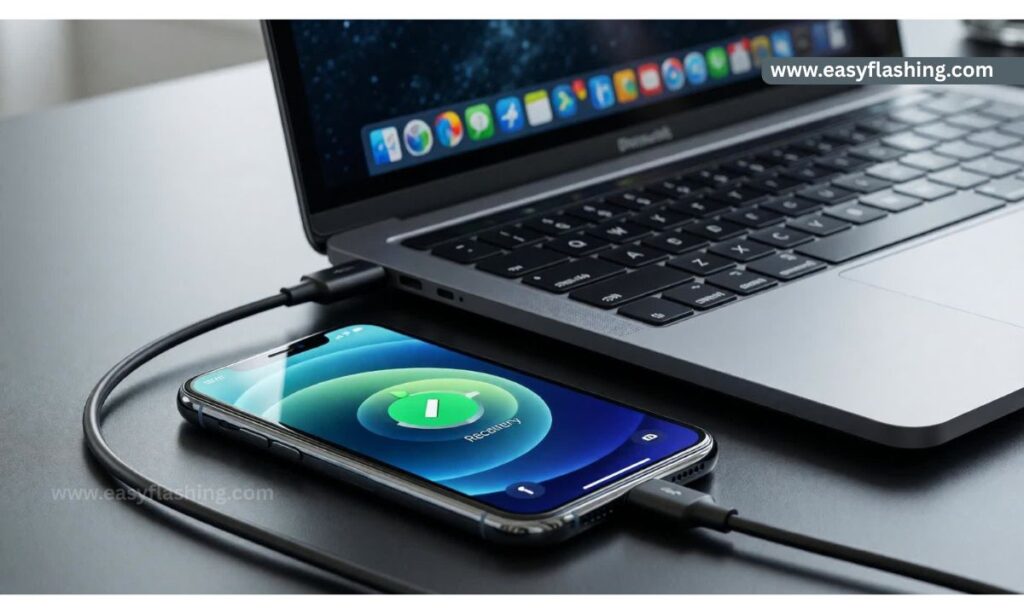
How to Enter Recovery Mode
- Connect iPhone to computer
- Open Finder (Mac) or iTunes (Windows)
- Force restart but keep holding buttons
- Release when Recovery Mode screen appears
Choose “Update”
- Select Update, not Restore
- iOS reinstalls without deleting data
This fixes corrupted system files safely.
5. Use DFU Mode (Deep System Fix)
DFU (Device Firmware Update) mode is a deeper restore option.
When to Use DFU Mode
- Recovery Mode fails
- iPhone still boot loops
- Software severely corrupted
Important Warning
DFU mode may erase data, so use it carefully.
What It Does
- Reinstalls firmware
- Fixes deep iOS corruption
- Solves stubborn boot loops
6. Check Storage-Related Boot Loop Issues
Lack of storage can break updates.
Signs
- Boot loop started after update
- Phone was almost full
- Update failed midway
Solution
- Use Recovery Mode Update
- Restore from recent backup
- Avoid restoring corrupted backups
7. Remove Problematic Apps After Boot
If your iPhone boots temporarily, apps may be the cause.
Common Problem Apps
- VPN apps
- Beta apps
- System cleaners
- Old banking apps
Delete recently installed or updated apps.
8. Restore iPhone from Backup (Carefully)
Restoring from a backup helps only if the backup is healthy.
Best Practices
- Use latest backup
- Avoid old corrupted backups
- Prefer iCloud backups
A bad backup can cause boot loop again.
9. Factory Reset (Last Software Option)
Data will be erased
When to Use
- All other methods fail
- You have a backup
- Boot loop continues endlessly
Factory reset removes system conflicts completely.
10. Hardware Issues That Cause iPhone Boot Loop
Although rare, hardware problems exist.
Possible Hardware Causes
- Battery failure
- Water damage
- Logic board issues
- Faulty charging port
Signs
- Phone heats up quickly
- Random shutdowns before boot loop
- Boot loop after physical damage
In these cases, professional repair is required.
Video Tutorial: 5 Step-by-Step Methods to Fix Boot Loop
How to Prevent iPhone Boot Loop in the Future
Prevention saves time and stress.
Best Practices
- Always back up before updates
- Keep 5–10 GB free storage
- Avoid beta iOS versions
- Do not interrupt updates
- Update apps before system updates
- Avoid jailbreaking
Myths About iPhone Boot Loop
- Boot loop does NOT always mean dead iPhone
- Boot loop does NOT always erase data
- Boot loop is usually fixable
- Apple logo freeze is often software-related
When to Contact Apple Support
Contact Apple Support if:
- iPhone won’t enter Recovery Mode
- Boot loop persists after DFU restore
- Hardware damage suspected
- Device is under warranty
Trusted Resource
For official Apple recovery and troubleshooting guidance, refer to:
Apple Support – iPhone Restore & Recovery
https://support.apple.com/iphone
(Q&A)

Q1. Can iPhone boot loop fix without losing data?
Yes, force restart and Recovery Mode “Update” often fix boot loops without data loss.
Q2. Why is my iPhone stuck on Apple logo after update?
Usually due to corrupted update files, low storage, or interrupted installation.
Q3. Does DFU mode fix iPhone boot loop?
Yes, DFU mode can fix deep software issues, but it may erase data.
Q4. Is boot loop a hardware issue?
Mostly no. Boot loops are usually software-related unless there is physical damage.
Q5. How long should I wait before fixing boot loop?
If Apple logo stays longer than 10 minutes, start troubleshooting.
Final Thoughts
An iPhone boot loop fix does not need panic or guesswork. In most cases, your iPhone stuck on Apple logo can be fixed safely using the right steps in the correct order. Start with simple fixes, move to Recovery Mode, and only use advanced options when necessary.
With proper care, backups, and update habits, you can avoid boot loop problems and keep your iPhone running smoothly for years.
4 thoughts on “iPhone Boot Loop Fix | How To Fix Stuck Logo”