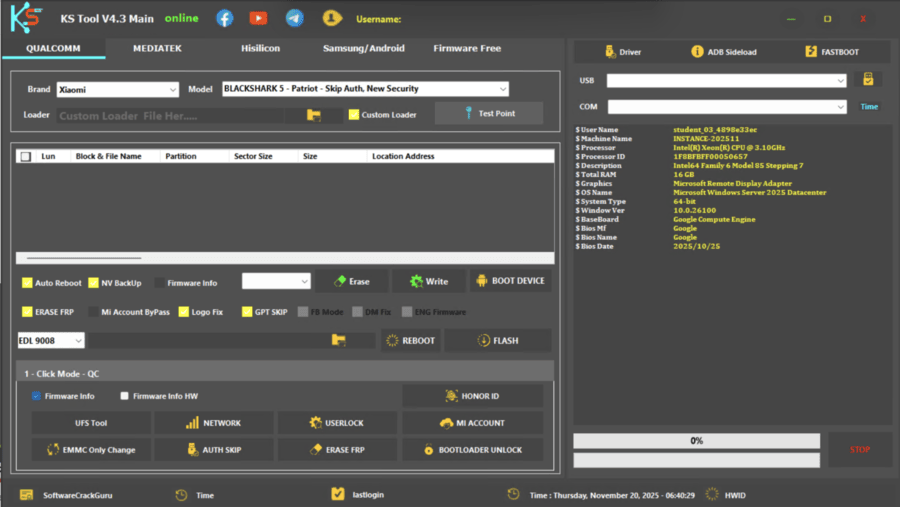
KS Tool V4.4 is one of the most powerful free Android tools available in 2026 for FRP removal, factory reset, Mi Account bypass, bootloader unlock, and firmware flashing across Qualcomm and MediaTek devices. Within this article, I will tell you today everything you need to know about it, from its full feature list and supported brands to download steps, installation instructions, and fixes for the most common errors beginners face.
By reading this article, you will get complete information on how this one click solution works, which chipsets and Android versions it supports, and how to use it safely on your Windows PC. Those who don’t know much about Android repair tools will find every step explained in plain language with no technical terms left unexplained.
The latest version builds on KS Tool 4.1, KS Tool 4.2, and KS Tool 4.3 with expanded support for Android 15, new 5G device compatibility, and a completely free no login needed experience that requires no activation.
Best Free Android Repair Tool 2026
1. What Is KS Tool and What Does It Do?
KS Tool is a Windows PC tool developed by the KS Team for unlocking, flashing, and repairing Android smartphones across multiple brands. It works as an all in one mobile tool that replaces the need for separate programs for each chipset or brand.
The tool handles operations through four primary modes: Qualcomm CPU mode, MediaTek CPU mode, Fastboot mode, and ADB sideload mode. Each mode targets specific chipset types and connection states, giving technicians and users flexible access to the right function for their specific situation.
The current release, KS Tool V4.4, is completely free with no login needed and no activation required. Earlier versions including KS Tool 4.3 and KS Tool 4.2 required login credentials. Version 4.4 removes that barrier entirely, making it accessible to anyone with a Windows PC.
2. What Is EDL Mode and Why Does It Matter?
Those who don’t know much about phone repair often see “EDL mode” mentioned in tool guides without any explanation of what it actually means or when to use it.
EDL stands for Emergency Download Mode. It is a special low-level mode built into Qualcomm chipset devices that allows a PC to communicate directly with the device’s processor, bypassing the Android operating system entirely. This makes it possible to flash firmware, repair partitions, or remove FRP even when the device cannot boot normally.
KS Tool V4.4 can reboot a device to EDL mode directly from Fastboot using the Reboot to EDL from Fastboot function. This is particularly useful when a device is stuck in a bootloop or when standard ADB and Fastboot connections are not enough to complete the required operation.
For MediaTek devices, the equivalent low-level connection mode is called Preloader mode or BROM mode. KS Tool handles both through its MTK chipset functions.
3. What Is IMEI Repair and Do You Need It?
IMEI stands for International Mobile Equipment Identity. Every Android phone has a unique IMEI number that identifies it on mobile networks. A corrupted or missing IMEI causes the device to lose mobile signal completely, which means it cannot make calls, send messages, or use mobile data even with a valid SIM card inserted.
IMEI corruption typically happens after a failed flash, an incomplete factory reset, or an improper partition wipe. KS Tool V4.4 includes IMEI fix MTK functionality specifically for MediaTek chipset devices, allowing the IMEI to be restored without requiring expensive professional repair.
If your device shows “No Service,” “Invalid SIM,” or “Emergency Calls Only” after a flashing operation, IMEI repair is the function you need.
4. Full Feature Breakdown by Mode
Qualcomm CPU Features
Qualcomm chipset devices get the deepest feature coverage inside KS Tool V4.4.
- Erase FRP Qualcomm (Google Lock removal)
- Format factory reset Qualcomm (screen lock removal including pattern PIN password fingerprint unlock)
- Disable Mi Account
- Bootloader unlock
- Honor ID erase and Huawei ID erase
- Flash firmware Qualcomm using rawprogram0.xml
- Read write partitions
- Backup restore erase NV network data
- Reboot to EDL from Fastboot
- GPT skip
- DM fix
- ENG firmware support
- UFS tool
- Auth skip
- Enable Diag mode
MediaTek CPU Features
MTK chipset devices are supported through a dedicated MediaTek mode with its own specialized functions.
- Erase FRP MediaTek (Google Lock removal)
- Format factory reset MTK (screen lock removal)
- Disable Mi Account bypass
- Bootloader unlock and bootloader relock
- Flash firmware scatter file MTK
- Read write erase partitions
- Backup restore erase NV network data
- IMEI repair and IMEI fix MTK
- Auth bypass
- OPPO download not complete fix
- SP Flash Tool integration
- Auto repair GPT from SGPT
- Create scatter backup file
- Auto crash preloader
- Brom only mode
- Bypass secure boot
- Auto unsparse
- Auto switch high speed USB
- DM verity fix
Fastboot Features
Fastboot mode covers operations for devices that can be booted into Fastboot without entering EDL.
- Read device info Fastboot
- Flash firmware using flash all bat
- Fastboot erase FRP
- Factory reset via Fastboot
- System is destroyed fix
- DM verity fix
- Reboot to EDL recovery Fastboot and other modes
ADB and Sideload Features
ADB mode handles operations for devices where USB debugging is active.
- Read device info
- Remove FRP ADB
- Factory reset via ADB
- Disable Mi Account MIUI 13 14 HyperOS
- Disable OTA updates Xiaomi Vivo Oppo
- Enable Diag mode
- ADB sideload functions
Samsung Features
Samsung support runs through MTP mode and ADB mode.
- Samsung MTP remove FRP
- Samsung ADB remove FRP
- Samsung ADB remove Samsung account
- Enable ADB for FRP removal
- Open browser YouTube Maps MTP mode
- Samsung factory reset MTP
- Enter download mode MTP mode
- Read device info in MTP mode
Utilities
- Driver installer one click for all required phone drivers
- Firmware downloader free with tested files for Xiaomi, Oppo, Vivo, and Huawei
How to Enable USB Debugging on Any Android Device
5. Supported Brands and Chipsets
KS Tool V4.4 works as a multi brand Android tool covering a wide range of manufacturers.
Supported brands include: Xiaomi, Redmi, POCO, Oppo, Realme, Vivo, Huawei, Honor, Samsung, OnePlus, Meizu, Smartisan, Tecno, and Infinix.
Chipset coverage:
- Qualcomm chipset devices across all listed brands
- MediaTek CPU devices across all listed brands
- Hisilicom CPU support for Huawei and Honor devices
Android version support: Android 12, 13, 14, and 15, including devices running MIUI 13, MIUI 14, and HyperOS on Xiaomi devices.
Windows compatibility: Windows 7, 8, 10, and 11 in both 32 bit and 64 bit architecture.
The file size for the current KS Tool V4.4 package is approximately 936MB as a zip file without virus. The package is distributed as a RAR or ZIP archive through MediaFire download, JioCloud download, and Google Drive download links.
6. Why KS Tool V4.4 Must Be Used Offline
This is one of the most critical points for getting the tool to work correctly, and it is the single most common reason users experience problems after installation.
KS Tool V4.4 must be used strictly offline. If your PC remains connected to the internet while the tool is open, it will attempt to auto-update and the update process will break the current installation. The tool stops functioning correctly after an unwanted auto-update.
Follow this sequence every time before opening the tool:
- Disconnect your PC from the internet completely, either by disabling Wi-Fi or unplugging the ethernet cable
- Open KS Tool V4.4 only after the internet connection is confirmed off
- Complete your operation fully
- Close the tool before reconnecting to the internet
If you installed a previous version before upgrading to V4.4, uninstall the previous version completely before installing the new one. Running two versions simultaneously causes conflicts that prevent the tool from loading.
7. How to Fix the “User Banned” Error
The “User Banned” error appeared frequently in KS Tool 4.2 and KS Tool 4.3 when users attempted to log in with incorrect credentials or when the login system flagged repeated failed attempts.
KS Tool V4.4 eliminates this problem entirely by removing the login requirement. The tool now runs without any credentials. If you are still seeing the User Banned error, it means you are running an older version, not V4.4.
To fix it permanently:
- Uninstall your current version of KS Tool completely
- Download KS Tool V4.4 from the official link
- Extract using the RAR password provided with the download
- Run the new version as administrator with the internet disconnected
- The tool will open without any login prompt and the User Banned error will not appear
Video Tutorial: How To use KS Tool V4.4 Latest Version 2026
8. How to Download KS Tool V4.4 Safely
Step 1 — Get the File from a Trusted Source Download from the website (easyflashing.com).
Step 2 — Check the File The legitimate V4.4 package is a zip file without virus labeled clearly as KS Tool V4.4. Confirm the file size is approximately 936MB before extracting anything.
Step 3 — Disable Antivirus Before Extraction Antivirus disable temporarily is required during extraction because Windows security programs frequently flag Android tool files as suspicious even when the file is clean. Re-enable antivirus immediately after extraction is complete.
Step 4 — Use WinRAR or 7Zip Perform WinRAR extraction or zip file extraction using 7zip WinRAR. Extract directly to your C drive rather than a nested folder to avoid path length errors on Windows.

Password : IAASTEAM
9. Step-by-Step Installation and Usage Guide
Step 1 — Disconnect from the Internet Turn off Wi-Fi or unplug your ethernet cable before doing anything else. This is the most important step.
Step 2 — Uninstall Any Previous Version If KS Tool 4.1, 4.2, or 4.3 is currently installed, uninstall it completely through Windows settings before proceeding.
Step 3 — Extract the RAR File Right-click the downloaded RAR file and select Extract Here using WinRAR or 7Zip. Enter the RAR password when prompted.
Step 4 — Run as Administrator Right-click the KS Tool exe file inside the extracted folder and select Run as Administrator. Administrator privileges are required for the tool to function correctly. Without this step, the tool may open but fail to detect devices or complete operations.
Step 5 — Handle the Microsoft Framework Error A Microsoft Framework error pop-up will appear when you first open the tool. This is normal and expected behavior, not a sign that something went wrong. Click Continue and allow the tool to finish loading. The Microsoft Framework error fix is simply clicking Continue on this pop-up.
Step 6 — Connect Your Device Use a USB cable connection to connect your Android phone to the PC. Install Android drivers through the one click driver installer inside the tool if your device is not detected automatically. SPD driver, MTK driver, and Qualcomm driver packages are typically included in the extracted folder.
Step 7 — Select Mode and Execute Choose the correct mode for your device chipset. Use Qualcomm CPU mode for Snapdragon devices. Use MediaTek CPU mode for MTK chipset devices. Use Samsung MTP mode for Samsung FRP operations. Select your function and click to begin. Never disconnect the USB cable during an active operation.
10. Expert Tips for Best Results
Identify Your Device Chipset Before Starting Open your device’s Settings, then About Phone, then look for the processor or chipset name. If it says Snapdragon, use Qualcomm CPU mode. If it says Dimensity, Helio, or MediaTek, use MediaTek CPU mode. Choosing the wrong mode will cause the operation to fail without damaging the device.
Use Original USB Cables Only Third-party USB cables are the most common cause of device detection failures. An original manufacturer cable provides the stable data connection that operations like EDL mode flashing and scatter file flashing require.
Keep the Device Battery Above 60 Percent Starting any flashing or repair operation with a battery below 30 percent risks the device shutting down mid-operation. A device that loses power during a flash can be extremely difficult to recover. Charge to at least 60 percent before starting.
Create a System Restore Point Before Installing Before installing KS Tool V4.4 or any new version, create a Windows system restore point. If anything goes wrong during installation or if the tool causes unexpected system issues, you can roll back to the previous state without reinstalling Windows.
Back Up Device Data Before Any Flash Operation Any firmware flashing or factory reset operation will erase all data on the device. Back up contacts, photos, messages, and app data before beginning. Data lost during a flash cannot be recovered.
Do Not Run Multiple Android Tools Simultaneously Running KS Tool alongside other Android tools that use ADB or Fastboot drivers at the same time causes port conflicts. Close all other tools before opening KS Tool V4.4.
FAQ
Q1: What is the difference between Qualcomm mode and MTK mode in KS Tool V4.4? Qualcomm mode is for devices running Snapdragon processors and uses firehose loader files and rawprogram0.xml for flashing. MTK mode is for MediaTek chipset devices and uses scatter file flashing through the SP Flash Tool integration.
Q2: What is the RAR password for KS Tool V4.4? The password depends on your download source. The softwarecrackguru version uses “softwarecrackguru” as the RAR password. Other versions use “kstool” or “MobileTeam” as noted on the download page.
Q3: Does KS Tool V4.4 support Android 15? Yes. KS Tool V4.4 added full Android 15 support along with new 5G device compatibility. It also supports Android 12, 13, and 14 across all supported brands.
Q4: Can KS Tool V4.4 remove Mi Account on MIUI 14 and HyperOS devices? Yes. The Disable Mi Account function works on devices running MIUI 13, MIUI 14, and HyperOS through both ADB mode and sideload depending on the device model and connection state.
Q5: Does KS Tool V4.4 work without an internet connection? The tool must be used offline. Keeping the internet connected while the tool is open triggers an auto-update that breaks the current installation and prevents it from functioning correctly.
Q6: What login credentials does KS Tool V4.4 require? KS Tool V4.4 requires no login credentials at all. The login requirement was removed in this version. If a login prompt appears, you are running an older version and need to upgrade to V4.4.
Conclusion
KS Tool V4.4 gives users and technicians a free, no login needed solution for the most common Android repair tasks in 2026. FRP removal, Mi Account bypass, bootloader unlock, IMEI repair, and firmware flashing across Qualcomm, MediaTek, Hisilicom, and Samsung devices are all handled within one interface on any Windows 7, 8, 10, or 11 PC.
I have given you complete information in this guide covering every feature, supported brand, correct installation steps, the offline usage requirement, the User Banned fix, the Microsoft Framework error fix, and expert tips that prevent the most common mistakes beginners make.
Download KS Tool V4.4 from a trusted source, always disconnect from the internet before opening it, run it as administrator, and use it only on devices you own or have clear permission to service. If this guide helped you, share it with anyone dealing with an Android device issue.
1 thought on “KS Tool V4.4 Latest Version Free Download 2026”