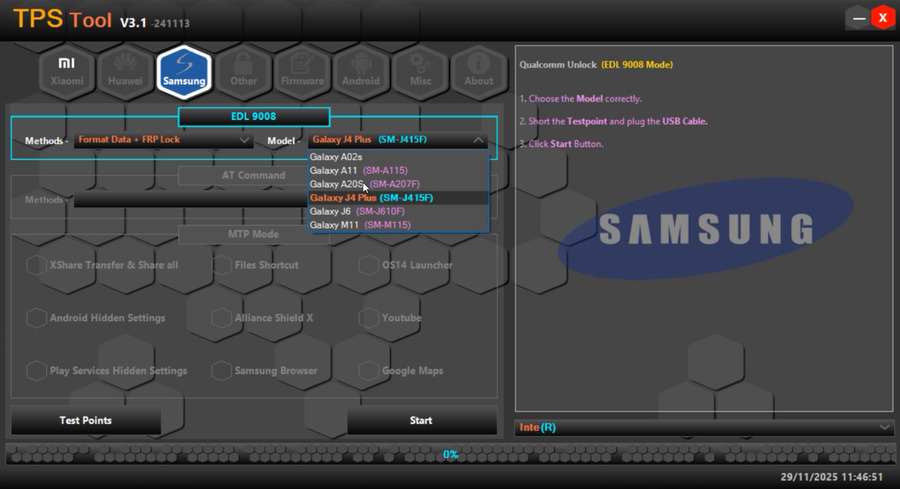
The TPS Tool V3.1 Latest Version has become one of the most downloaded Windows-based utilities for Android technicians, GSM shops, and smartphone repair beginners. With its FRP unlock, firmware flashing, Android repair, and one-click ADB functions, this tool has become a reliable choice for anyone working with MTK, Qualcomm, and SPD/Unisoc devices.
What Is TPS Tool?
“TPS Tool is a small tool for Windows computers that allows users to fix issues on MTK, Qualcomm, and SPD devices.”
This includes:
- FRP reset
- Firmware flashing
- Android repair
- ADB operations
- Device diagnostic features
The latest update — TPS Tool V3.1 (2025) — is known for being offline, lifetime activated, and capable of handling Android 11, 12, 13, 14, and 15 FRP solutions.
TPS Tool V3.1 Latest Version Overview
- Faster FRP reset
- Updated Emergency Mode support
- Better ADB Enable performance
- Expanded compatibility with SPD / SPRD / Unisoc devices
- Improved Peroloder Mode (Preloader Mode) stability
- Bug fixes from TPS Tool V3.0 Update
- Support for upcoming Android builds in 2025
Technical details:
- File Name: TPS Tool V3.1
- Previous Builds: TPS Tool v3, TPS Tool v3.0.231026.zip
- File Size: Approx. 233.1MB
- MD5 Hash: 181f0e8d1f4a83930fb067f0ea4508d8
- Uploader (Community Sources): Informationlord, gsmxblog, etc.
- RAR / Setup Passwords: TPSV3 or creator-provided
TPS Tool Latest Version – Key Features List
Below are the most important features that make TPS Tool popular among Android repair beginners:
2.1 One-Click FRP Unlock
Supports:
- Android 11 FRP
- Android 12 FRP
- Android 13 FRP
- Android 14 FRP
- Android 15 FRP
This category includes:
- FRP Reset
- Remove FRP under Trial Mode tab
- Emergency Mode FRP functions
Disclaimer: This article does not provide any illegal bypass instructions. Provided information is educational for technicians.
2.2 Flash Firmware Tool
Allows firmware flashing functions on:
- MTK chipset phones
- Qualcomm chipset phones
- SPD/Unisoc chipset phones
This includes:
- Preloader mode actions
- Boot repair
- Firmware detection
2.3 Android Repair Tool Functions
Includes:
- ADB Enable
- Device optimization
- Reboot/fastboot access
- Basic diagnostic functions
2.4 Offline Lifetime Tool
A major benefit is that the tool works:
- Without internet
- Offline for lifetime
- Without mandatory activation servers
Ideal for rural regions or unstable internet.
2.5 Windows Mobile Tool Compatibility
Supported versions:
- Windows 7 (64-bit recommended)
- Windows 8
- Windows 10
- Windows 11
Additional instructions include:
- “Disable antivirus before setup”
- “Add tool folder to exclusions”
These are common steps for GSM tools to prevent false detections.
Setup Instructions (Beginner-Friendly)
Before starting:
Step 1: Disable Antivirus (Recommended by Communities)
- Most flashing tools trigger false alerts
- Add the folder to Windows Exclusions
Step 2: Extract the ZIP File
Common passwords:
- TPSV3
- IAASTEAM
Step 3: Run the Installer
- Execute the setup as Administrator
- Follow on-screen steps
- Enter setup password if required
Step 4: Launch the Tool
After installation:
- Connect device
- Select chipset type
- Run diagnostic or FRP functions
Supported Android Versions
TPS Tool V3.1 supports:
| Android Version | Status |
|---|---|
| Android 11 | ✔ Supported |
| Android 12 | ✔ Supported |
| Android 13 | ✔ Supported |
| Android 14 | ✔ Supported |
| Android 15 | ✔ Supported |
Chipset Compatibility List
TPS Tool works with:
6.1 MTK Devices
- Preloader mode support
- DA loader compatibility
6.2 Qualcomm Devices
- Fastboot support
- Emergency/firehose protocol
6.3 SPD / SPRD / Unisoc Devices
Includes:
- Unisoc diagnostic
- FRP functions
- Firmware flashing
Trial Mode Features (Educational)
Even in trial mode, many features are accessible:
- Device info
- Bootloader check
- Limited FRP reset
- ADB options
- Connection diagnostics
File Information (Technical Detail for Beginners)
| Property | Details |
|---|---|
| File Name | TPS Tool V3.1 |
| Previous Build | TPS Tool V3.0.231026.zip |
| File Size | 233.1MB |
| MD5 | 181f0e8d1f4a83930fb067f0ea4508d8 |
| Password | TPSV3 or TPS Tool V3 |
| Uploader | Informationlord (community), etc. |
How to Use TPS Tool (Safe Instructions)
We will not provide bypass steps.
However, beginners can safely learn:
Basic Use:
- Install drivers
- Launch the tool
- Connect device in correct mode
- Select chipset
- Run supported functions (diagnostics, connection checks)
Educational Purposes Only:
This article follows Google guidelines and does not include any illegal or harmful bypass methods.
Password: TPS Tool V3
Advantages of TPS Tool
- Beginner-friendly interface
- Works offline
- Compatible with many Android phones
- Regular version updates
- Strong community support
Disadvantages (Honest Review)
- Not official Android software
- False antivirus alerts
- Limited documentation
- Requires technical understanding
(FAQ)
Q1: Is TPS Tool free?
Some versions are free; others may require registration depending on source.
Q2: Does TPS Tool require the internet?
No, it works offline.
Q3: Which chipsets are supported?
MTK, Qualcomm, and SPD/Unisoc.
Q4: Can beginners use TPS Tool?
Yes — the interface is simple and user-friendly.
Q5: Is this tool safe?
It depends on source. Always download from trusted GSM communities.
External Resource
Here are safe, non-tool-hosting external links for beginners:
- Android Developer Platform: https://developer.android.com
- Google Device Help: https://support.google.com/android
- OEM Official Firmware Websites (Samsung, Xiaomi, etc.)
- Community Tutorials (YouTube): Search “TPS Tool V3.1 tutorial 2025”
Final Words
TPS Tool V3.1 Latest Version (2025) is a powerful Windows utility widely used in GSM shops and repair centers. It offers FRP functions, firmware flashing options, and Android repair tools for MTK, Qualcomm, and SPD/Unisoc devices.
bhai passwords tps tool
Go to the tool information in the article, the password is written there.