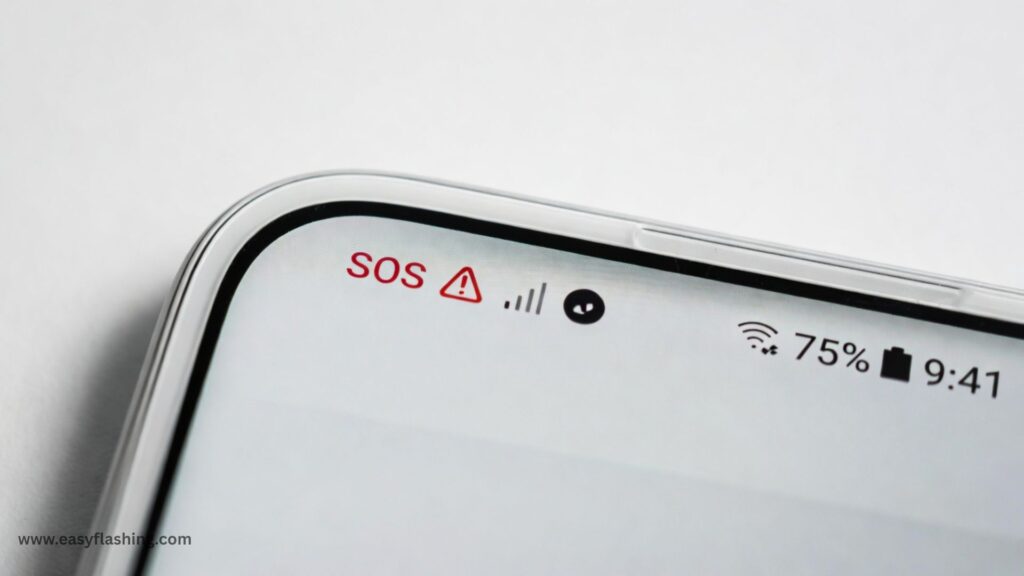
Why is my phone stuck in SOS mode? If your phone suddenly shows SOS or SOS Only instead of normal signal bars, you’re not alone. This issue usually means your device cannot connect to your carrier network.
In simple terms, SOS mode means your phone cannot connect to your regular cellular network, but it can still place emergency calls. In this article I will tell you that why your phone is stuck in OS (SOS) mode, How to do triggers it after a reset, how carriers like Verizon influence it, and most importantly how to fix it step by step.
What Is “OS Mode” or “SOS Mode”? (Plain English)
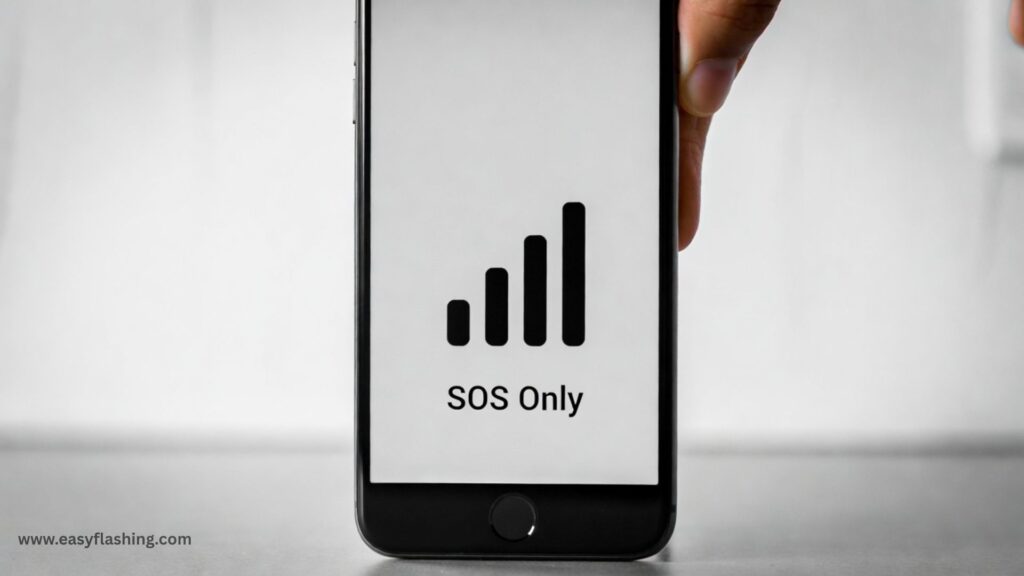
SOS Mode (sometimes misread or called OS mode) is a safety state on smartphones where:
- Your phone can’t register on your carrier’s network.
- Normal calls, texts, and data don’t work.
- Emergency calls still work.
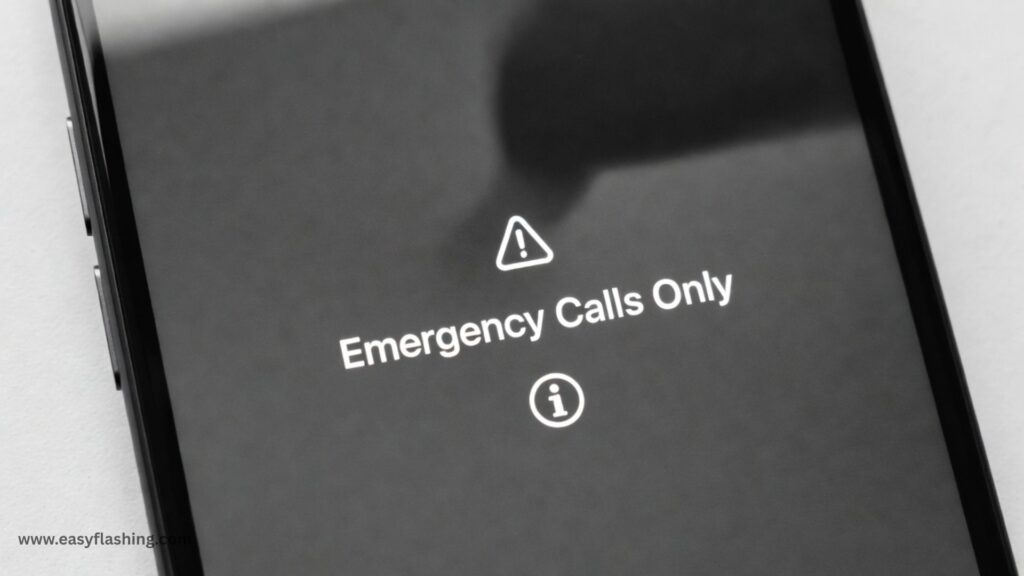
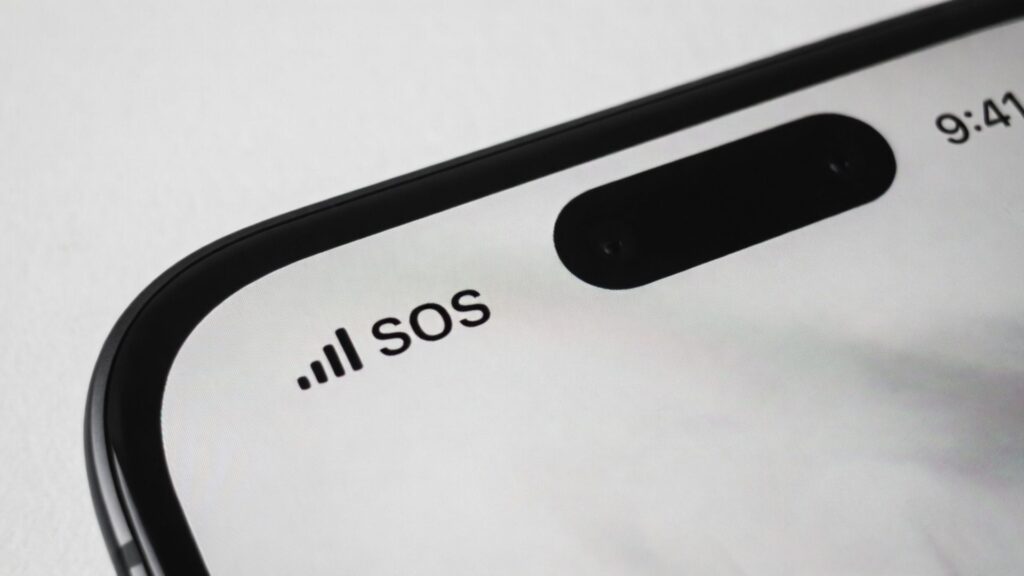
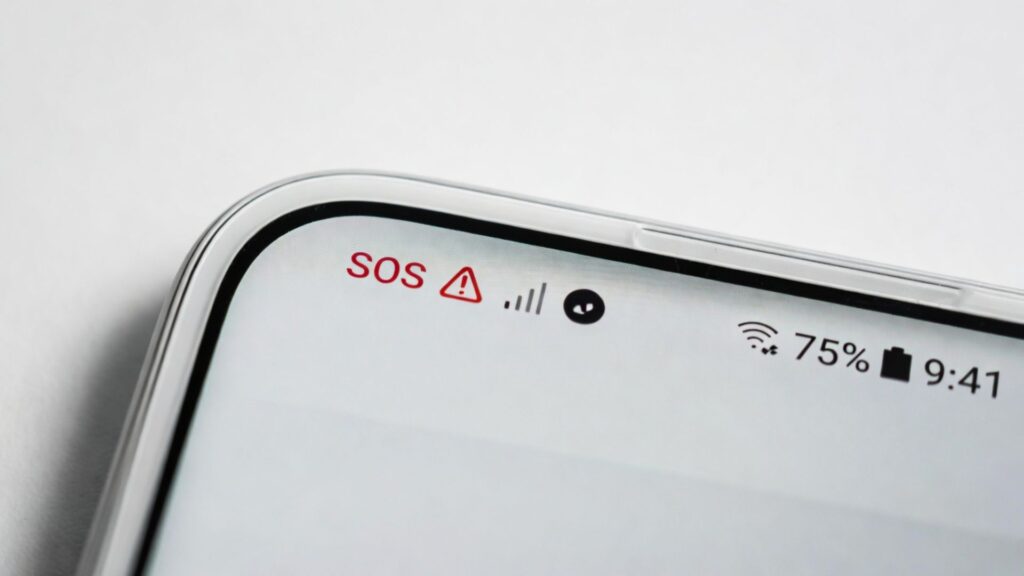
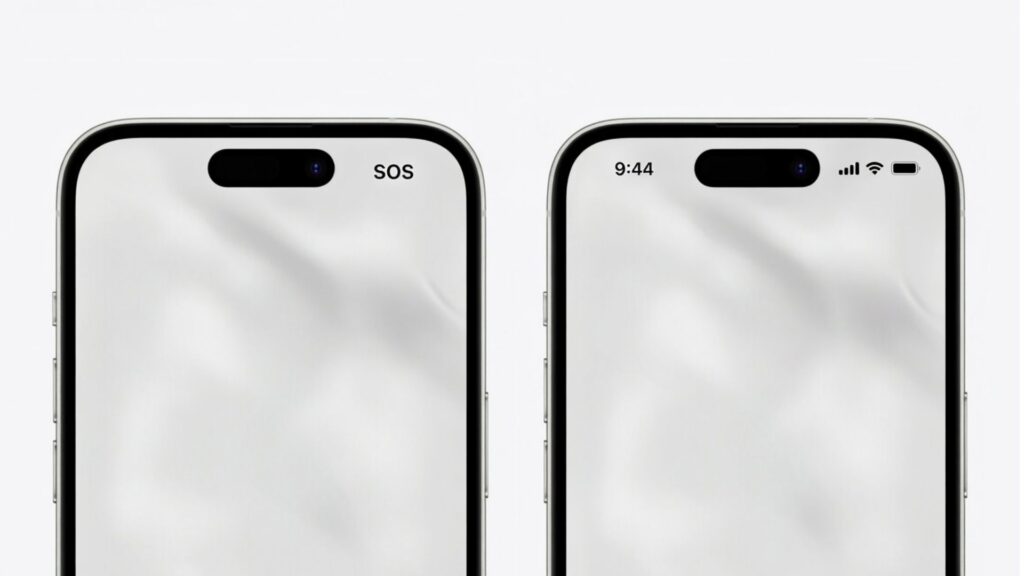
On iPhone, you’ll see “SOS” or “SOS Only” in the status bar. On Android, you may see “Emergency calls only” or “No service”.
Key idea:
Your phone is not broken. It’s protecting emergency access while something blocks normal network service.
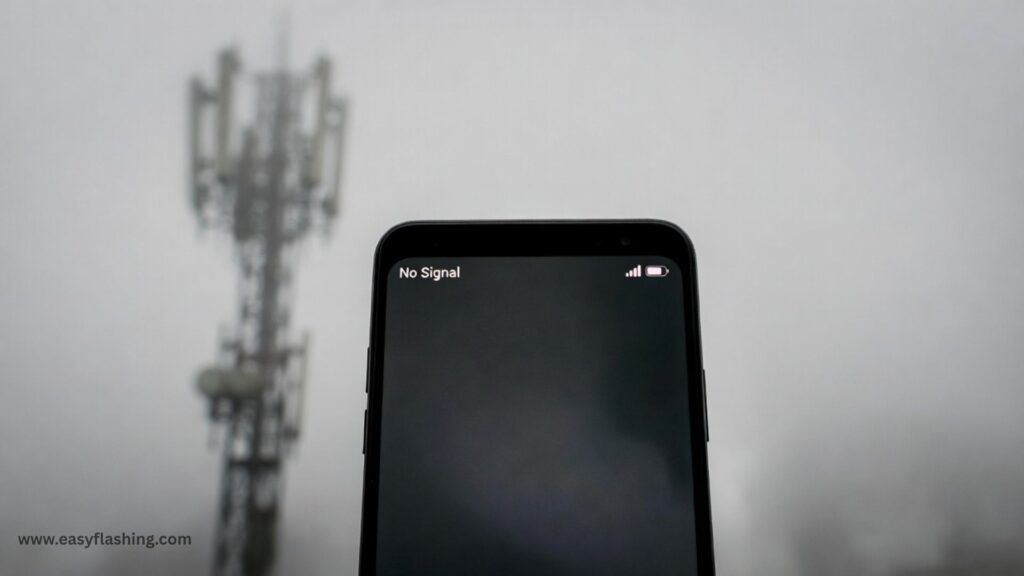
1. Weak or No Cellular Signal (Most Common Reason)
What’s happening:
Your phone can’t find a strong signal from your carrier.
Why it happens:
- You’re in a remote area, basement, elevator, or rural zone.
- Temporary tower outages or maintenance.
- Severe weather disrupting signal.
What to do:
- Move to an open area or near a window.
- Turn Airplane Mode ON for 30 seconds, then OFF.
- Restart your phone.
Benefit:
This refreshes the network connection and often exits SOS mode instantly.
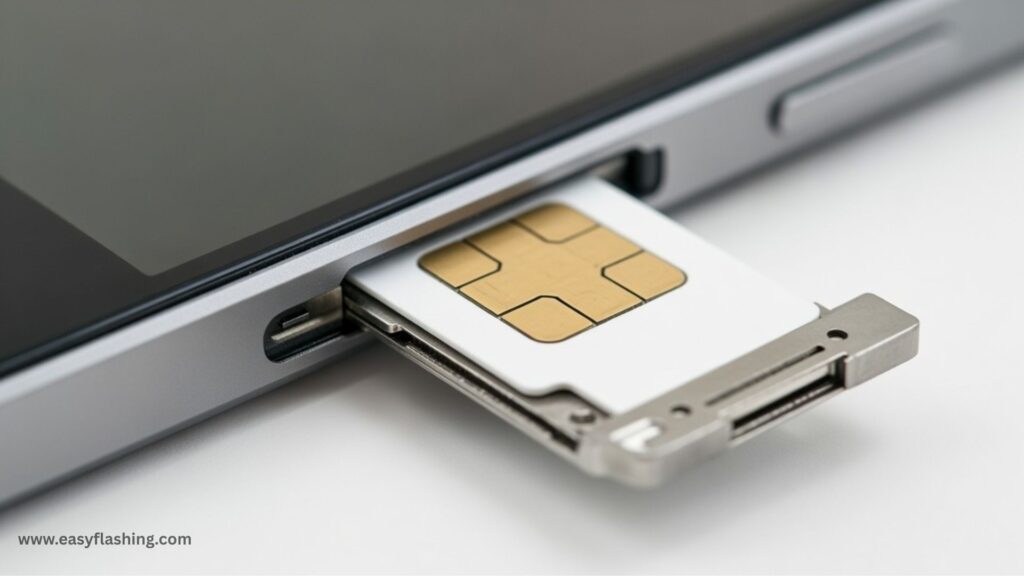
2. SIM Card Problems (Physical SIM Issues)
What’s happening:
Your phone can’t read the SIM card correctly.
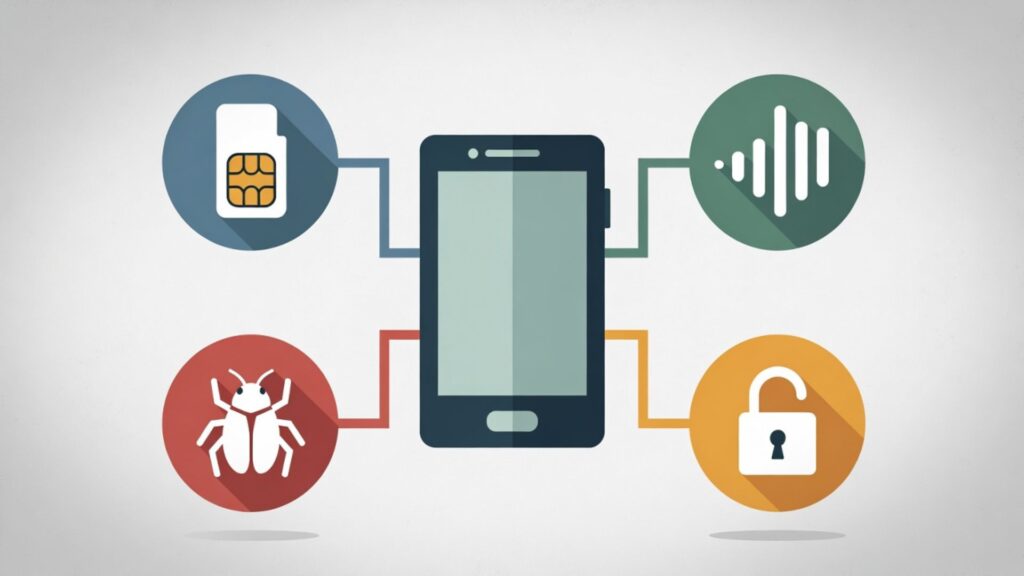
Common causes:
- Loose SIM card.
- Damaged or dirty SIM.
- SIM not activated properly.
How to fix:
- Power off your phone.
- Remove the SIM card.
- Clean it gently (dry cloth).
- Reinsert firmly and restart.
Example:
Many users report SOS mode after switching phones without reseating the SIM.
3. eSIM Activation Failure (Very Common on iPhone)
What’s happening:
Your eSIM didn’t activate or lost connection to the carrier profile.
Why it happens:
- Switching phones.
- Factory reset.
- iOS update interruption.
- Carrier profile sync failure.
Fix steps:
- Go to Settings → Cellular → Add eSIM.
- Scan your carrier QR code again.
- Contact your carrier to re-provision the eSIM.
Benefit:
Reactivating the eSIM often immediately restores service.
4. Phone Stuck in SOS Mode After Reset
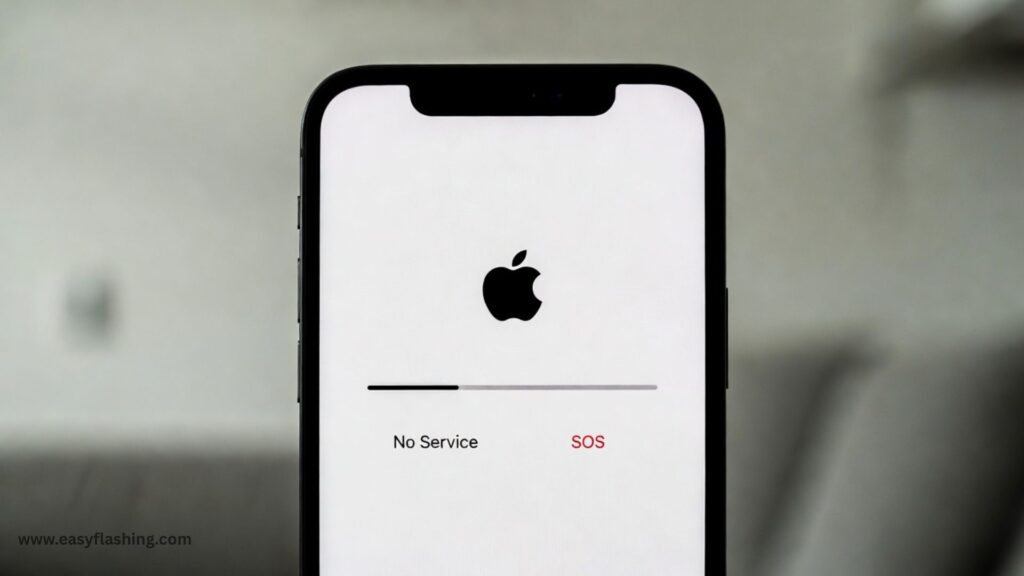
Why resets cause this:
- Factory reset wipes carrier settings.
- eSIM profile may not auto-restore.
- Network authentication must be renewed.
What to do after a reset:
- Reinsert SIM or re-add eSIM.
- Sign in to your Apple ID (iPhone).
- Update carrier settings (automatic prompt).
Important:
A reset doesn’t break your phone but it may require carrier reactivation.
5. Carrier Network Restrictions (Verizon, AT&T, T-Mobile)
Why carriers matter:
Your carrier decides if your phone can register on its network.
Why Verizon phones show SOS mode
- Line suspended for billing.
- IMEI not approved.
- Network maintenance in your area.
- Device not fully activated.
What to do:
- Check your carrier account.
- Confirm the line is active.
- Contact support to refresh network registration.
Tip:
Ask for a “network reprovision” or “line refresh.”
6. Outdated Carrier Settings
What’s happening:
Your phone uses old network rules that no longer work.
How to update (iPhone):
- Go to Settings → General → About.
- Wait 30 seconds.
- Accept carrier update if prompted.
Why it helps:
Carrier updates fix compatibility and signal registration issues.
7. iOS or Android Software Bugs
What’s happening:
A software glitch blocks network registration.
Common triggers:
- Interrupted OS updates.
- Early beta versions.
- Incomplete system files.
Fix steps:
- Restart the phone.
- Update to the latest stable OS.
- Avoid beta updates if stability matters.
Benefit:
Bug fixes often restore normal signal behavior.
8. Network Settings Are Corrupted
Symptoms:
- SOS mode persists across locations.
- SIM is fine.
- Carrier confirms line is active.
Fix (iPhone):
- Go to Settings → General → Transfer or Reset iPhone → Reset → Reset Network Settings.
What this does:
- Clears Wi-Fi, cellular, VPN settings.
- Keeps your personal data safe.
9. Incorrect Date & Time Settings
Why this matters:
Carrier authentication relies on accurate time sync.
Fix:
- Go to Settings → General → Date & Time.
- Enable Set Automatically.
Surprising fact:
Incorrect time can block network registration.
10. IMEI or Device Compatibility Issues
What’s happening:
- Your phone’s IMEI is blocked, blacklisted, or unsupported.
Reasons:
- Unpaid device.
- Reported lost/stolen.
- Imported device not supported by the carrier.
What to do:
- Check IMEI with your carrier.
- Confirm device compatibility for your network bands.
11. Roaming or International Issues
Why SOS mode appears abroad:
- Roaming disabled.
- No partner network available.
- Plan doesn’t support international access.
Fix:
- Enable Data Roaming.
- Manually select a network.
- Contact your carrier before travel.
12. Hardware Damage (Rare but Possible)
Signs:
- Phone shows SOS everywhere.
- Wi-Fi works, cellular never does.
- Recent drop or water exposure.
Likely cause:
- Antenna damage.
Solution:
- Professional repair or Apple Authorized Service Provider.
13. Emergency Mode vs SOS Mode (Important Difference)
Emergency Mode:
- User-enabled.
- Limits apps to save battery.
SOS Mode:
- Network-triggered.
- Indicates loss of carrier service.
Why this matters:
Confusing the two leads to wrong fixes.
Why is my phone stuck in SOS mode: Video How To Fix step by step
14. When to Contact Your Carrier (Best Time)
Contact support if:
- SIM/eSIM is correct.
- Software is updated.
- Network reset didn’t help.
Ask them to:
- Refresh the line.
- Re-activate SIM/eSIM.
- Confirm network coverage.
Trusted Resource
For official Apple guidance on SOS and emergency calling features:
👉https://support.apple.com
Asked Questions
Q1. Why is my phone stuck in OS mode after reset?
A reset often removes carrier settings or eSIM profiles. Re-activating your SIM or contacting your carrier usually fixes it.
Q2. Why is my iPhone stuck in SOS mode but Wi-Fi works?
Wi-Fi is separate from cellular. SOS mode means the phone can’t connect to your carrier, not the internet.
Q3. Why is my Verizon phone stuck in SOS mode?
Common reasons include account issues, incomplete activation, or network maintenance. A carrier line refresh usually resolves it.
Q4. Does SOS mode mean my phone is broken?
No. It means your phone cannot connect to your carrier—but the device itself is usually fine.
Q5. Can SOS mode be fixed without losing data?
Yes. Most fixes—restarts, network resets, SIM checks—do not delete personal data.
Final Thoughts
If you’re asking “why is my phone stuck in SOS mode”, the answer almost always involves network access, not device failure. In most cases, the solution is simple: refresh the connection, re-activate the SIM or eSIM, update settings, or contact your carrier.
Try it step by step, start with the easiest fixes, and your phone will usually return to normal quickly.