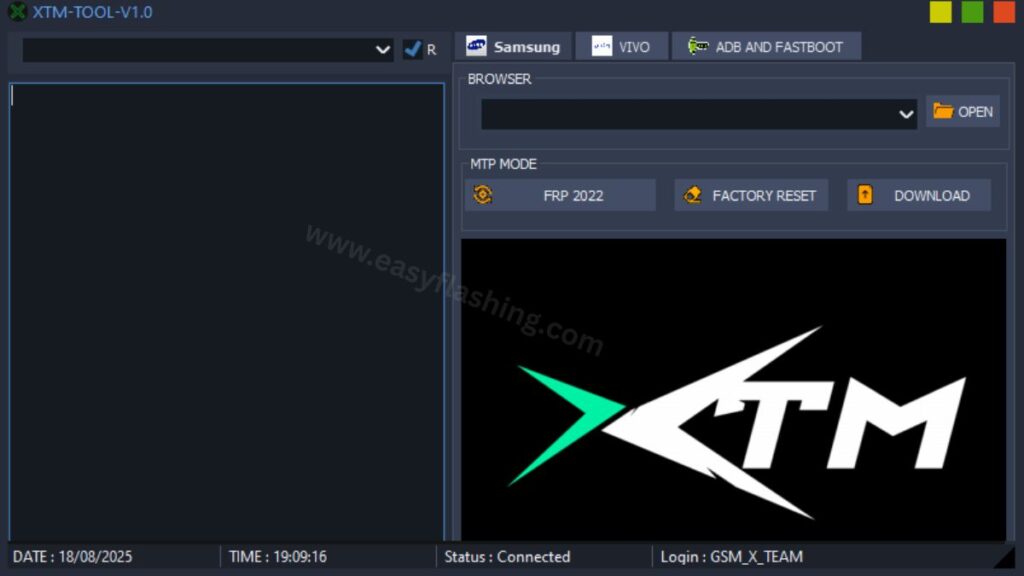
The XTM Tool is one of the most downloaded free Android repair utilities for Windows users in 2026. Developed by GSMXTEAM, this lightweight software helps you solve some of the most common Android device problems — including FRP lock, pattern lock, and factory reset — without paying a single cent.
Within this article, you will find a complete breakdown of every feature XTM Tool V1.0 offers, the supported devices and operating systems, step-by-step installation instructions, and expert tips to help you use the tool safely. By reading this article, you will understand exactly what the tool does, when to use it, and how to avoid common mistakes.
Those who are new to this topic do not need any prior technical experience. The guide is written to take you from zero knowledge to successfully using the XTM Tool on your Android device.
1. What Is the XTM Tool and Who Makes It?
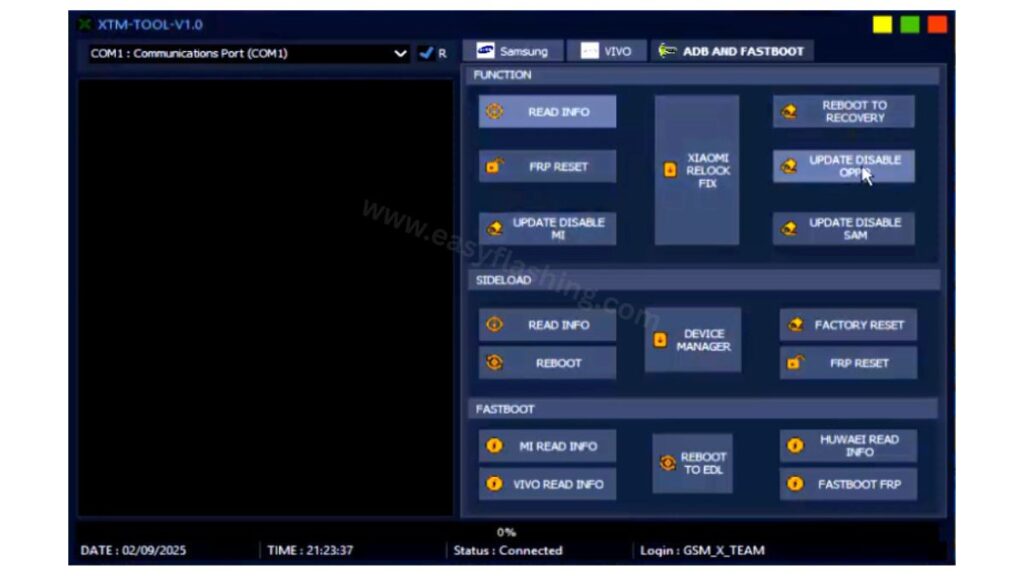
XTM Tool V1.0 is a free, Windows-based Android repair utility created by the GSMXTEAM developer community. The tool was built specifically to give mobile technicians and regular users a single dashboard for managing multiple Android repair tasks without needing paid software.
The name “XTM” comes from the GSM X Team developer group. Their goal was to release a compact, no-credit-required tool that covers the most common problems people face on Android devices, especially FRP locks triggered after a factory reset.
The software runs entirely offline after installation. No subscription, no activation code, and no recurring payment is required.
2. What Is FRP and Why Do You Need a Tool to Bypass It?
Factory Reset Protection (FRP) is a built-in Android security feature that activates automatically when a Google account is added to a device. [Android Factory Reset Protection — official Google guide]
When a device is reset through recovery mode or hardware buttons instead of the standard Settings menu, the FRP lock kicks in. The device then demands the original Google account credentials before it can be used again.
This is a useful anti-theft measure. However, legitimate owners regularly get locked out — after forgetting their account password, purchasing a second-hand device, or receiving a phone that was improperly reset by a previous owner. [What is Google FRP — Samsung official support ]
Tools like XTM Tool exist specifically to help legitimate device owners regain access to their own hardware. Use this tool only on devices you own or have explicit permission to service.
3. Key Features of XTM Tool V1.0
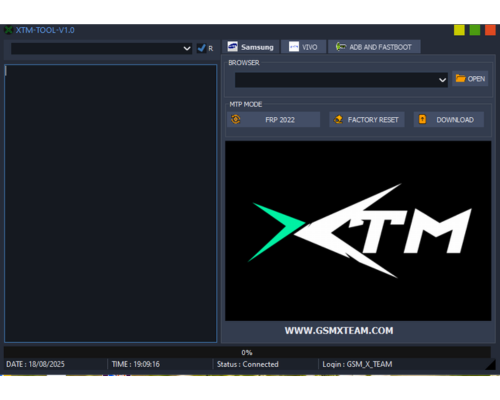
XTM Tool V1.0 packs a wide range of Android repair functions into a single, simple interface. The features are organized by connection mode, which makes it easy to choose the right option for your device.
Samsung (MTP Mode)
- FRP Remove via Test Mode (*#0*#)
- Factory Reset
Vivo (Fastboot Mode)
- Read Device Info
- Factory Reset
- FRP Reset
- Reboot to Normal
- Bootloader Unlock and Relock
- Reboot to EDL
ADB and Fastboot Mode
- Read Device Info
- FRP Reset
- Disable OTA Updates (Xiaomi, OPPO, Samsung)
- Xiaomi Relock Fix
- Reboot to Recovery
Sideload Mode
- Read Info
- Device Manager
- Reboot
- Factory Reset
- FRP Unlock
Fastboot Mode (Multi-Brand)
- Mi Read Info (Xiaomi)
- Vivo Read Info
- Huawei Read Info
- Reboot to EDL
- Fastboot FRP
This multi-brand, multi-mode support makes XTM Tool one of the most versatile free Android repair utilities available for Windows in 2026.
4. Supported Devices and Android Versions
XTM Tool V1.0 supports a wide range of Android smartphones powered by Qualcomm, MediaTek (MTK), and Spreadtrum chipsets.
Supported Brands:
- Samsung
- Xiaomi (including MIUI/Redmi series)
- Vivo
- OPPO
- Huawei
- Motorola (select models)
- Tecno and Infinix (via updated ADB tool variant)
Supported Android Versions:
The tool works on Android Lollipop 5.0 all the way through Android 14. This covers nearly every modern Android device still in use today.
Supported Windows Versions:
XTM Tool runs on Windows XP, Windows 7, Windows 8, Windows 8.1, Windows 10, and Windows 11 — both 32-bit and 64-bit architectures.
5. System Requirements
Before you download XTM Tool V1.0, confirm your PC meets these requirements:
| Requirement | Minimum Spec |
| Operating System | Windows 7, 8, 10, or 11 |
| Architecture | 32-bit or 64-bit |
| RAM | 4 GB (recommended) |
| Storage | 500 MB free space |
| Internet | Not required after installation |
| USB Drivers | Required (ADB, Qualcomm, or Samsung) |
The tool runs entirely offline once installed. Internet is only needed to download the initial setup file.
6. XTM Tool V1.0 File Information
Knowing the file details helps you verify you are downloading the correct, untampered version of the tool.
- File Name: XTMTool.zip
- File Size: Approximately 100 MB
- File Type: .exe (executable installer)
- Developer: GSMXTEAM (Rasheed.KS.587)
- Version: V1.0
- Cost: Free — no credits or license required
Always download the tool from a trusted source and scan the ZIP file with your antivirus before extracting. This protects your PC from potentially modified or bundled files circulating on unofficial pages.
7. How to Download and Install XTM Tool V1.0 (Step by Step)
Follow these steps carefully to install XTM Tool V1.0 on your Windows computer.
Step 1: Install USB Drivers First
Before running the tool, install the correct USB drivers for your device brand:
- Qualcomm USB Driver (for Xiaomi, OPPO, Vivo Qualcomm models)
- Samsung USB Driver (for Samsung devices)
- ADB/Fastboot Driver (for ADB and Fastboot mode operations)
Skipping driver installation is the most common reason the tool fails to detect your device.
Step 2: Download the ZIP File
Download XTM Tool V1.0 from a trusted source by (easyflashing.com Or xtmtool.com) . Save the ZIP file to a location on your PC you can easily find.
Step 3: Extract the ZIP File
Use WinRAR or 7-Zip to extract the contents. The archive may have a password — check the source page where you downloaded it for the extraction password.
Step 4: Run as Administrator
Right-click the XTMTool.exe installer and select Run as Administrator. This is required for the tool to interact with your system’s device drivers correctly.
Step 5: Complete Installation
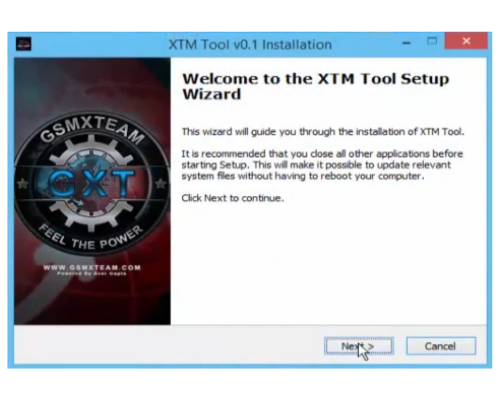
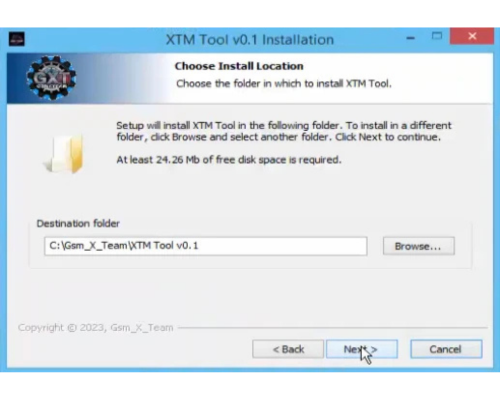
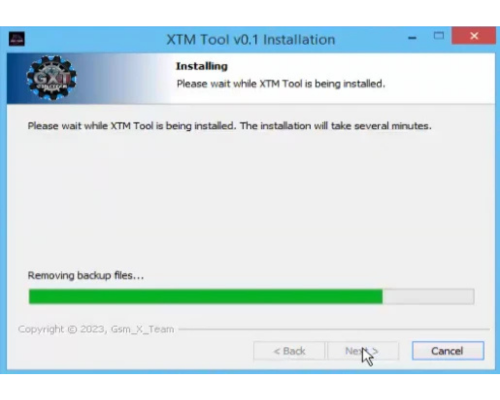
Follow the installation wizard. Click Next, accept any permissions, choose your installation directory, and click Install. The process takes under two minutes on most systems.
Step 6: Launch the Tool
Open XTM Tool from the Start menu or desktop shortcut. The main interface will display all available connection modes and functions.
Video Tutorial: How To Use guide (Step by Step)
8. How to Use XTM Tool to Remove FRP (Samsung Example)
This section walks through the most common use case: removing FRP from a Samsung device using MTP mode.
Before You Start
- Charge your phone to at least 70% battery
- Back up any recoverable data if possible — some operations erase device data
- Install Samsung USB drivers on your PC
Process
- Open XTM Tool on your computer
- Select the Samsung tab from the main interface
- On your Samsung device, dial *#0*# to enter Test Mode (MTP Mode)
- Connect the phone to your PC using a USB cable
- The tool will detect the device automatically
- Click FRP Remove and wait for the process to complete
- The device will reboot and the FRP lock will be cleared
The same general process applies to other brands — select the appropriate tab (Vivo, ADB/Fastboot, Sideload) and choose the correct mode for your device.
9. Connection Modes Explained for Beginners
One of the most confusing aspects for new users is understanding which connection mode to use. Here is a clear breakdown:
MTP Mode (Media Transfer Protocol): Used primarily for Samsung FRP removal. Your phone appears as a media device on your computer. Access it by dialing *#0*# on the phone keypad.
ADB Mode (Android Debug Bridge): A development-level connection that allows deep access to the Android system. Enable it by turning on USB Debugging in Developer Options on your phone.
Fastboot Mode: A low-level bootloader mode. Access it by holding the Power and Volume Down buttons simultaneously (varies by brand). Used for bootloader unlock/relock and Vivo operations.
Sideload Mode: Used primarily for Xiaomi Mi Account operations and recovery-level tasks. Accessed through the phone’s recovery menu.
Choosing the wrong mode will cause the tool to fail without error messages, so confirm your connection type before proceeding.
10. Troubleshooting Common Issues
Device not detected: Reinstall the correct USB driver for your device chipset (Qualcomm, MTK, or Samsung). Try a different USB cable and port.
Tool crashes on launch: Right-click the .exe and run as Administrator. If it still crashes, reinstall the tool on a clean Windows user account.
FRP removal fails midway: Ensure the phone is in the correct connection mode. For Samsung, the *#0*# method requires the phone to be in MTP mode, not charge-only mode.
Extraction password error: The correct password is printed on the download page of the trusted source. It is usually the site’s domain name or a stated keyword.
Windows Defender blocks installation: This is common with repair tools that interact with low-level device drivers. Add the tool folder as a temporary exception in Windows Defender, complete the installation, then re-enable full protection.
Expert Tips for Using XTM Tool Safely
These tips go beyond basic installation to help you get better results and avoid device damage.
Tip 1: Always back up before any operation. Factory Reset, FRP Remove, and Bootloader Unlock can erase all data on the device permanently. Even if a full backup is not possible, save contacts and important media to cloud storage first.
Tip 2: Match the driver to your chipset, not just your brand. A Samsung Galaxy A-series device on a Qualcomm chipset needs the Qualcomm USB driver, not just the Samsung USB driver. Mismatched drivers cause 90% of detection failures.
Tip 3: Disable OTA updates immediately after repair. After bypassing FRP or unlocking a bootloader, Android OTA updates can re-lock certain features. XTM Tool includes an OTA Disable function for Xiaomi, OPPO, and Samsung — use it right after completing your main task.
Tip 4: Use WinRAR or 7-Zip only. Windows’ built-in extractor does not always handle the RAR compression used in XTM Tool archives. WinRAR or 7-Zip handles these files reliably without corruption.
Tip 5: Relock the bootloader when you are finished. If your use case only required a temporary unlock, use the Bootloader Relock function within the tool. Leaving a bootloader unlocked on a device exposes it to security risks and may void the manufacturer’s warranty.
FAQs:
What is XTM Tool V1.0 used for?
XTM Tool V1.0 is a free Windows utility used to bypass FRP locks, perform factory resets, unlock bootloaders, remove pattern and user locks, and flash firmware on Android devices from brands including Samsung, Xiaomi, Vivo, and OPPO.
Which Android versions does XTM Tool support?
XTM Tool supports Android versions from Lollipop (5.0) through Android 14, covering nearly all active Android devices in use today.
Will using XTM Tool erase my phone data?
Operations like Factory Reset and FRP Remove will erase device data. Read Info and certain diagnostic functions do not erase data. Always back up your device before running any operation.
Do I need an internet connection to use XTM Tool?
No. XTM Tool works entirely offline once it is installed on your Windows computer. An internet connection is only needed to download the initial setup file.
What USB drivers do I need before using XTM Tool?
Install the USB driver that matches your device’s chipset: Qualcomm USB Driver for Qualcomm-based phones, Samsung USB Driver for Samsung devices, and ADB/Fastboot drivers for ADB and Fastboot mode operations.
Is it legal to use XTM Tool to bypass FRP?
Using FRP bypass tools on a device you own is legal in most regions. Using such tools on a device you do not own without authorization is illegal. Always confirm device ownership before proceeding with any FRP bypass operation.
Conclusion
XTM Tool V1.0 is a reliable, completely free Android repair utility that covers the most common device unlock and reset tasks most users and technicians face. Its support for Samsung, Xiaomi, Vivo, OPPO, and Huawei devices across multiple connection modes makes it one of the most practical tools you can keep on your Windows PC.
Download the tool from a trusted source, install the correct USB drivers before anything else, and always back up your device data before running any operation. Following these steps will give you a smooth, successful experience every time.
Ready to get started? Download XTM Tool V1.0 for free, follow the step-by-step guide above, and unlock your device in minutes.