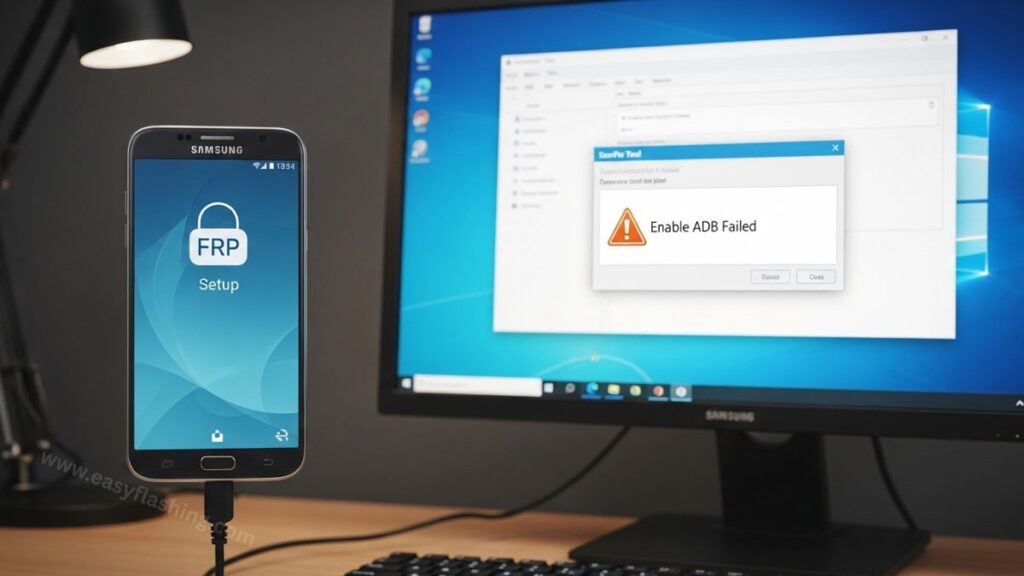
If you are seeing the Enable ADB Failed SamFw Tool error on your Samsung phone, you are not alone. Many users across the USA and globally report this issue, especially on newer Samsung devices running Android 14, Android 15, and early Android 16 builds.
I will tell you today what this error really means, why it appears, and most importantly, how to fix Enable ADB Failed using safe and legal methods. Within this article, I will try to explain everything in simple language so those who don’t know much about ADB, USB debugging, or Android security can understand clearly.
By reading this article, you will get complete information about:
- What “Enable ADB Failed” means
- Why SamFw Tool shows this error
- Safe troubleshooting steps
- Official Samsung and Android solutions
- Important security considerations in 2026
Let’s start from the basics.
1. What Does “Enable ADB Failed SamFw Tool” Actually Mean?
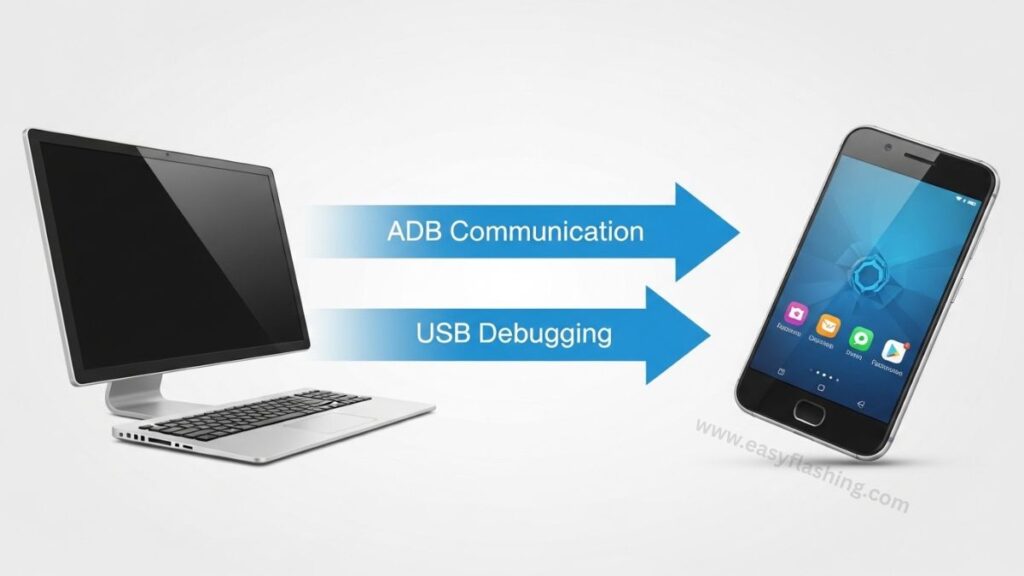
Before fixing anything, you must understand the error.
What Is ADB?
ADB stands for Android Debug Bridge. It is a developer tool that allows a computer to communicate with an Android device through USB or Wi-Fi.
It is used for:
- Installing apps manually
- Running system commands
- Debugging software
- Transferring data at advanced level
What Does “Enable ADB Failed” Mean?
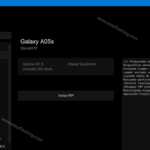
When SamFw Tool shows Enable ADB Failed, it means:
- The tool tried to activate ADB mode on your Samsung device.
- The device did not allow it.
- The connection between PC and phone failed.
In simple words:
Your phone refused or blocked ADB communication.
2. Why Does the Enable ADB Failed Error Happen in 2026?
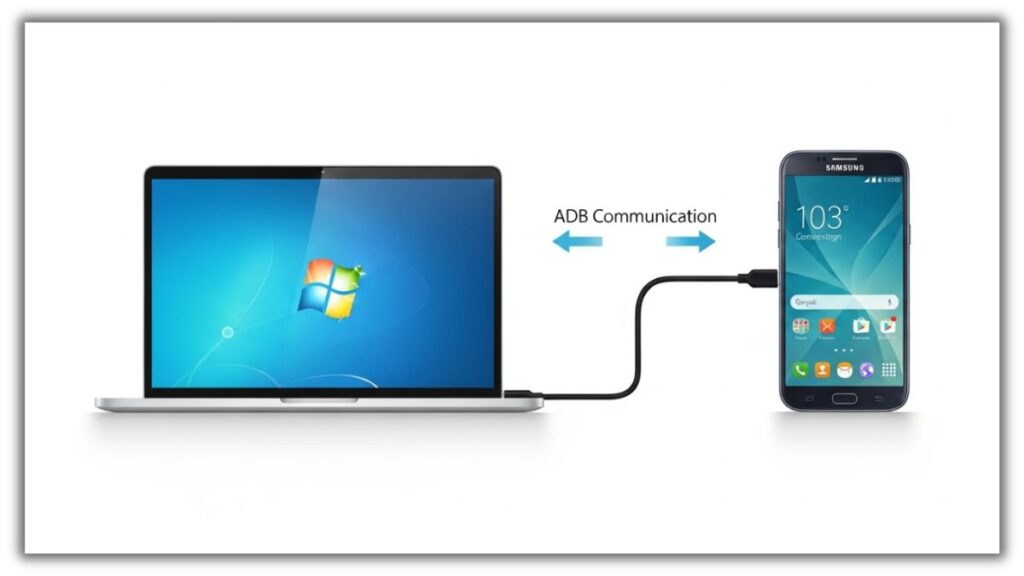
Modern Samsung devices have stronger security. Many top-ranking pages mention USB driver issues, outdated tools, and security patches — but most do not explain deeper technical reasons.
Here are the real causes in 2026:
1. USB Debugging Is Not Enabled
ADB only works if USB Debugging is turned on inside Developer Options.
If it is off, SamFw Tool cannot connect.
2. Missing Samsung USB Drivers
Your Windows PC needs proper Samsung USB drivers. Without them:
- Device shows as unknown
- ADB cannot detect the phone
- Communication fails
Official drivers are available from Samsung’s developer portal:
👉https://developer.samsung.com/android-usb-driver
When you connect your phone, Android shows:
“Allow USB debugging?”
If you do not tap “Allow,” ADB stays blocked.
4. Android Security Patch Restrictions
New security updates (2025–2026) limit automatic ADB enabling. Devices now require manual authorization.
5. Faulty USB Cable or Port
Low-quality cables cause unstable connections, which triggers Enable ADB Failed errors.
3. Safe & Legal Method 1 – Properly Enable USB Debugging
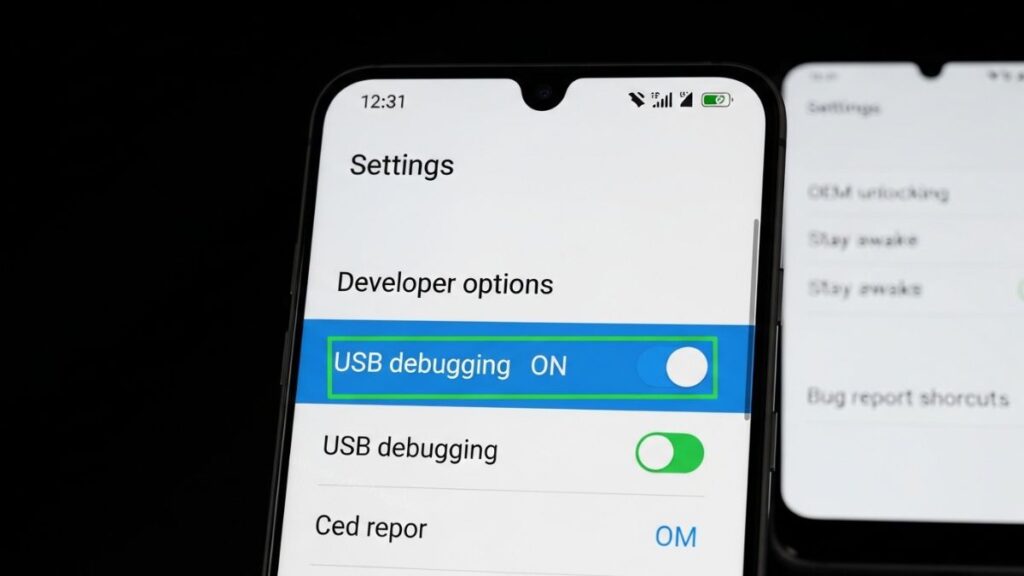
This is the most important step.
Step-by-Step:
- Go to Settings
- Tap About Phone
- Tap Build Number 7 times
- Enter your PIN
- Open Developer Options
- Turn on USB Debugging
Why this works:
ADB requires manual activation. No tool can bypass this legally without user permission.Practical Benefit:
You establish secure communication between device and PC.
4. Safe & Legal Method 2 – Install Official Samsung USB Drivers
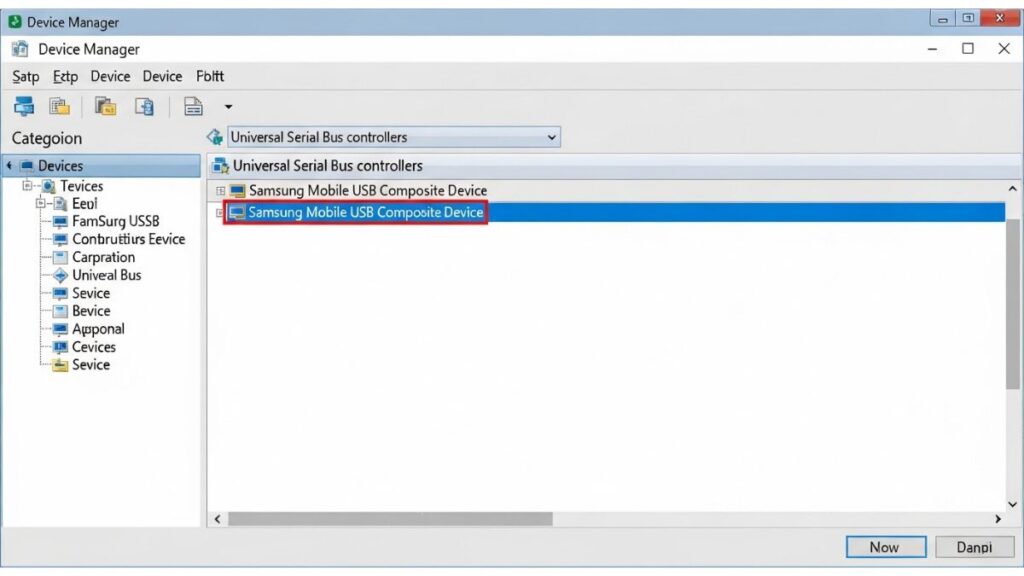
Many guides skip proper driver installation. Within this article, I will try to give you the correct method.
How to Install:
- Download official Samsung USB Driver.
- Uninstall old drivers first.
- Restart your PC.
- Install fresh driver package.
- Reconnect phone.
Check Device Manager:
- It should show “Samsung Mobile USB Composite Device.”
Benefit:
Stable ADB communication without detection failure.
5. Safe & Legal Method 3 – Verify ADB Connection via Command Prompt
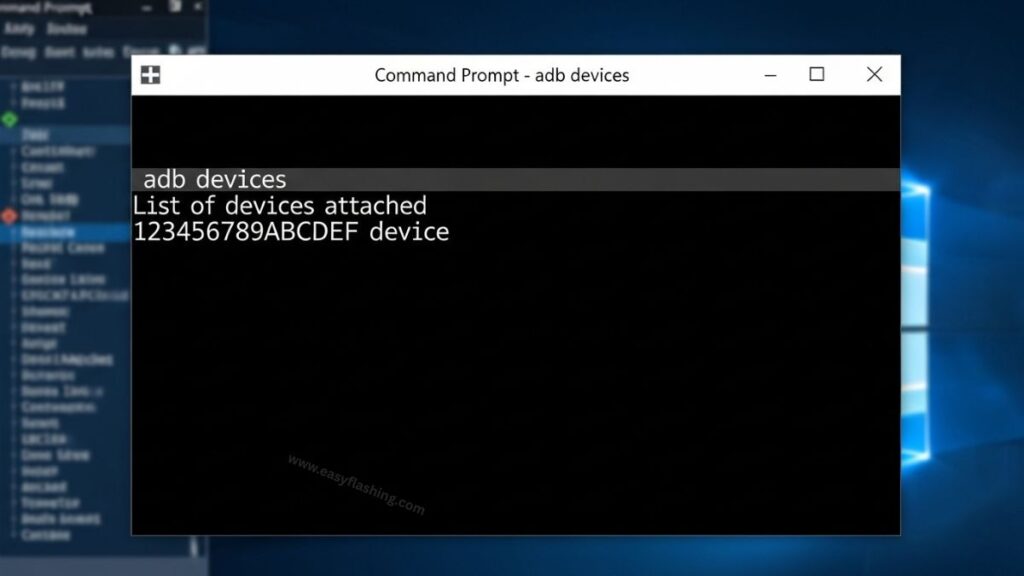
Instead of relying only on SamFw Tool, you can test ADB directly.
Steps:
- Install Android SDK Platform Tools.
- Open Command Prompt in platform-tools folder.
Type:
adb devices
If you see:
- Device serial number → ADB works
- “Unauthorized” → Accept debugging prompt on phone
- Blank → Driver issue
Benefit:
You isolate whether the issue is tool-related or system-related.
6. Safe & Legal Method 4 – Use Official Samsung Smart Switch
Many competitors do not mention this.
Samsung Smart Switch can repair software and restore device communication.
Why This Helps:
If firmware corruption blocks debugging services, Smart Switch can refresh system components safely.
Benefit:
You fix system-level communication errors without risky tools.
7. Safe & Legal Method 5 – Update or Reinstall SamFw Tool
Sometimes the problem is not your phone — it is the tool version.
In 2026:
- Older builds may not support latest Android versions.
- Security updates change internal permissions.
Always:
- Use latest official version.
- Run as Administrator.
- Disable conflicting background tools.
Benefit:
Improved compatibility with newer firmware.
Video Tutorial: How to Solve the Enable ADB Field Problem
Problems Fix (Tool )
8. Advanced Insight
Here are deeper 2026-level insights:
Windows Driver Signature Enforcement
Some Samsung drivers fail if Windows blocks unsigned components.
Solution:
- Ensure you use digitally signed drivers.
- Avoid modified driver packs.
USB Mode Settings
Set phone USB mode to:
- File Transfer (MTP)
Not: - Charge Only
Knox Security Layer
Samsung Knox adds enterprise-level security. If Knox policies restrict debugging, only official reset methods should be used.
9. Common Mistakes Beginners Make
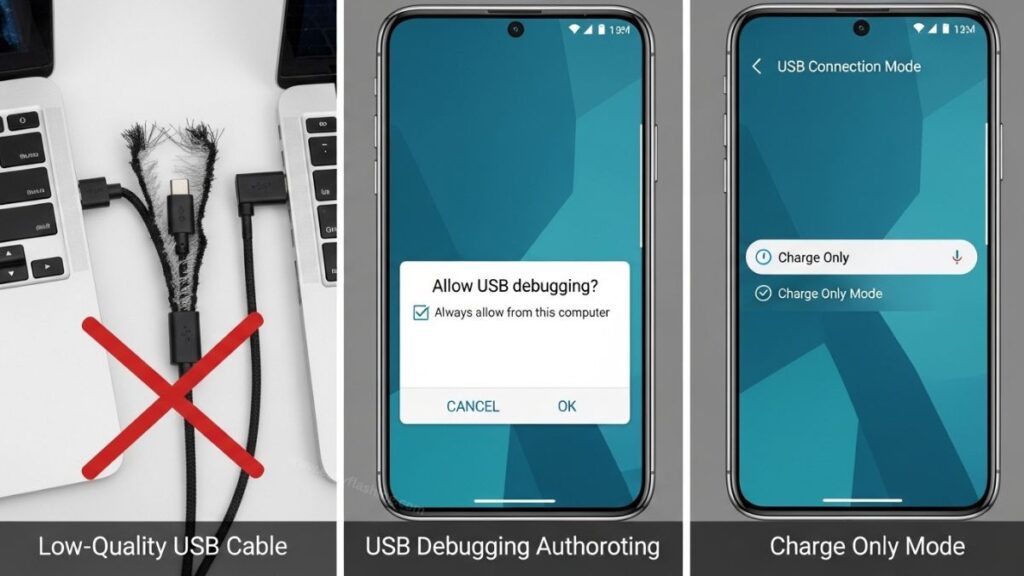
Those who don’t know much about ADB usually:
- Skip enabling Developer Options
- Use damaged cables
- Ignore authorization pop-up
- Install unofficial driver packs
- Use outdated Windows versions
Avoiding these mistakes increases success rate significantly.
10. When You Should NOT Try to Force ADB
It is important to clarify:
- ADB is a developer tool.
- Android security exists to protect user data.
- Forcing debugging on locked or restricted devices may violate terms or laws.
If your device is locked:
- Use official account recovery.
- Contact Samsung support.
- Visit authorized service center.
Professional ethics matter in 2026’s security-focused ecosystem.
(FAQ)
Q1: Why does SamFw Tool show Enable ADB Failed?
It shows this error when your Samsung device does not allow USB debugging or when drivers are not installed correctly.
Q2: How to fix Enable ADB Failed safely?
Enable USB Debugging manually, install official Samsung USB drivers, verify ADB connection using platform tools, and ensure cable stability.
Q3: Does Android 16 block ADB automatically?
No. Android 16 requires manual authorization. It does not block ADB but enforces stricter security confirmation.
Q4: Can antivirus cause Enable ADB Failed?
Yes. Some antivirus software may block ADB communication ports. Temporarily disabling protection can help test.
Q5: Is Enable ADB Failed a hardware issue?
Sometimes. Faulty USB cables or damaged ports can interrupt communication and trigger this error.
Final Thoughts
The Enable ADB Failed SamFw Tool error is not a mysterious problem. It usually comes from:
- Debugging disabled
- Driver conflicts
- Security authorization failure
- Cable instability
By reading this article, you now understand both the technical and practical sides of the issue.
In 2026, Android security is stronger than ever. The correct solution is not bypassing security but properly configuring communication between your device and PC.
If you follow the safe and legal methods explained above, you will solve most Enable ADB Failed errors without risking your device.
For official Android debugging documentation, visit:
👉 https://developer.android.com/tools/adb
2 thoughts on “Enable ADB Failed SamFw Tool Fix Problem 2026”