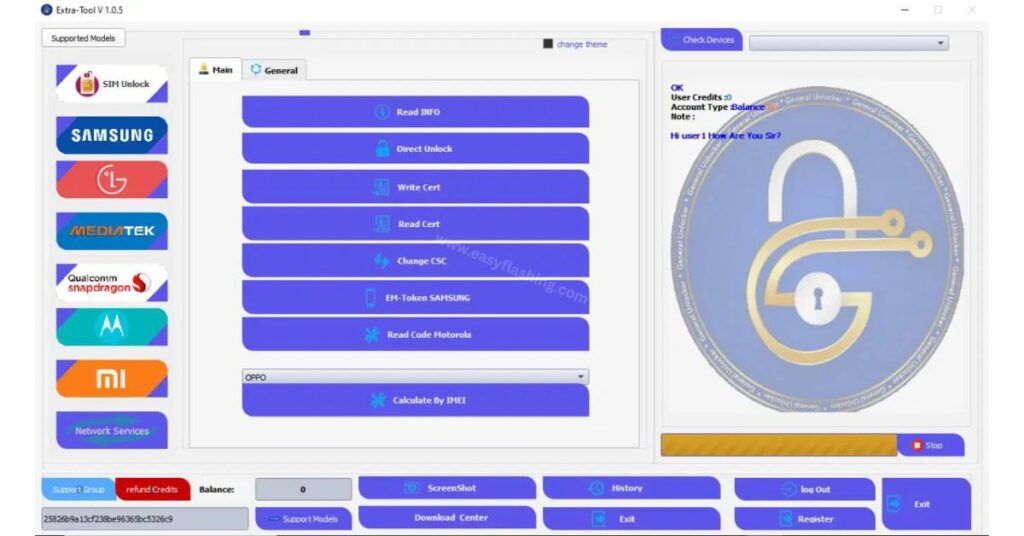
Extra Tool latest version gives mobile technicians and Android users one of the most capable free unlocking solutions available on Windows today. Within this article, I will tell you today everything you need to know about Extra Tool V1.4.5, including what it does, how to install it, how to log in for free, and how to use every major feature it offers. By reading this article, you will get complete information about this multi-functional Android tool without needing to search anywhere else.
Those who don’t know much about Android service tools often struggle to find a single program that handles unlocking, flashing, account removal, and IMEI repair together. Extra Tool solves that problem by combining all these functions under one free login. This guide covers the full picture from system requirements all the way through to advanced Samsung services.
What Is Extra Tool?
Extra Tool is a free Android unlocking tool and mobile repair tool designed for Windows PCs. It works as a multi-functional utility that handles FRP lock removal, MDM lock removal, KG lock removal (Knox Guard), password and PIN removal, IMEI repair, flash firmware operations, network unlock services, and account removal for Samsung, Xiaomi, Oppo, LG, and other brands.
The tool runs entirely on your PC. You connect your Android phone via USB, log in with the official free credentials, and then select whichever service you need. No hardware dongle is required for the free version.
System Requirements Before You Download Extra Tool
Before you extract the setup file, confirm your PC meets these requirements:
- Operating System: Windows 8, Windows 10, or Windows 11 (both 32-bit and 64-bit architectures are supported)
- USB Driver: Android USB drivers must be installed on your PC before connecting your device. Without the correct USB driver, the tool cannot detect your phone.
- Antivirus: Temporarily disable your antivirus software before installation. Many antivirus programs flag Android service tools as threats even when the files are clean, which can block the installation or delete key files.
- Internet connection: Required only during the login step.
Official Free Login Credentials for Extra Tool V1.4.5
The official password list for Extra Tool free login uses a shared account system. Each username follows the same format with the password set to 123456 for all free accounts.
Format: Username: FreeUser[number] | Password: 123456
Examples from the official free login list:| Username | Password |
| FreeUser1 | 123456 |
| FreeUser2 | 123456 |
| FreeUser3 | 123456 |
| FreeUser10 | 123456 |
| FreeUser25 | 123456 |
| FreeUser50 | 123456 |
| FreeUser99 | 123456 |
The full official login list runs from FreeUser1 through FreeUser99, all sharing the password 123456. If one account shows as in use, simply try the next number. The tool allows up to 99 simultaneous free sessions, so you will almost always find an available slot.
Important: These are official free credentials provided by the tool’s developers, not third-party cracks. You are using the tool within its own free access system.
How to Download and Install Extra Tool V1.4.5
Follow these steps to install the Extra Tool latest version correctly on your PC:
Step 1 – Download the Setup File
Download the Extra Tool V1.4.5 setup package from the official source. The file arrives as a compressed archive (RAR or ZIP format).
Step 2 – Extract the Setup File
Right-click the downloaded archive and select “Extract Here” or use a tool like WinRAR or 7-Zip to extract the setup file into a dedicated folder.
Step 3 – Disable Antivirus
Before proceeding, turn off your antivirus software. Re-enable it after the installation is complete.
Step 4 – Run the Installer
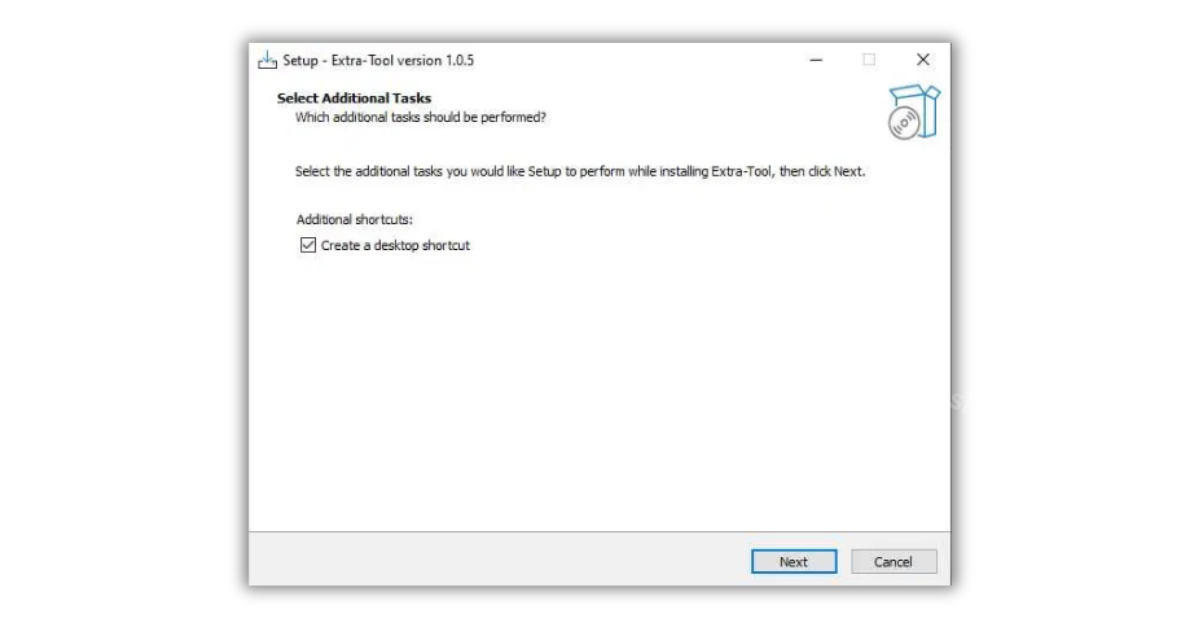
Double-click the setup file inside the extracted folder. A standard Windows installation wizard opens. Click Next to proceed through each screen.
Step 5 – Create a Desktop Shortcut
During installation, the wizard will ask whether you want a desktop shortcut. Accept this option so you can find the tool easily.
Step 6 – Complete the Installation
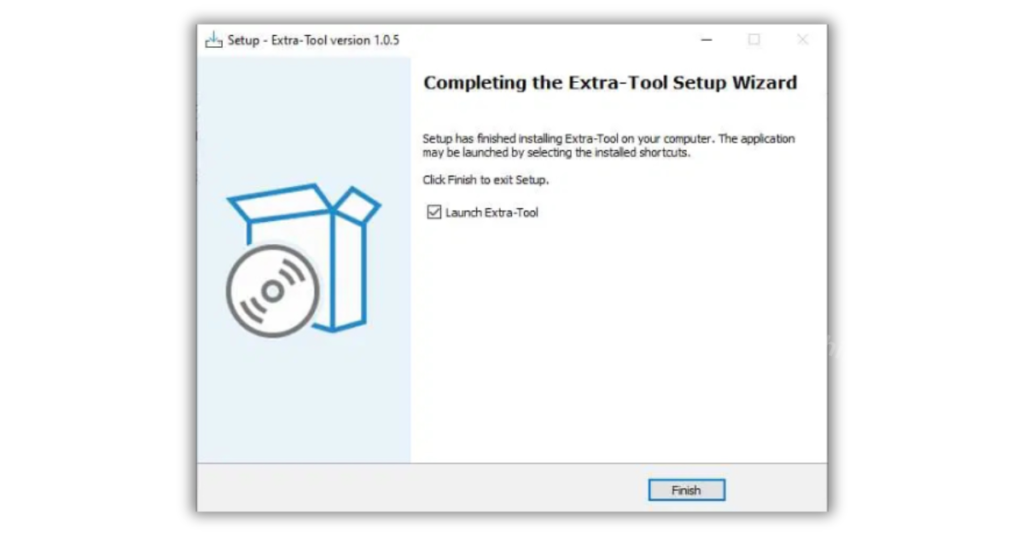
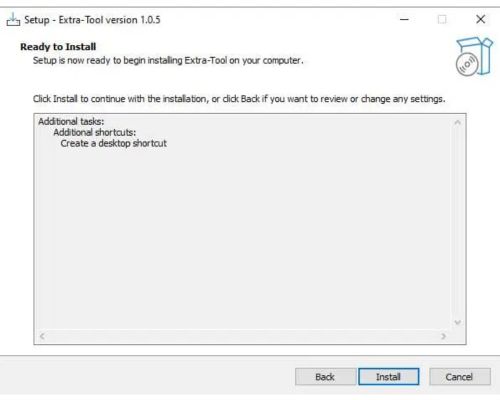
Click Install when prompted, then click Finish once the process ends.
Step 7 – Run as Administrator
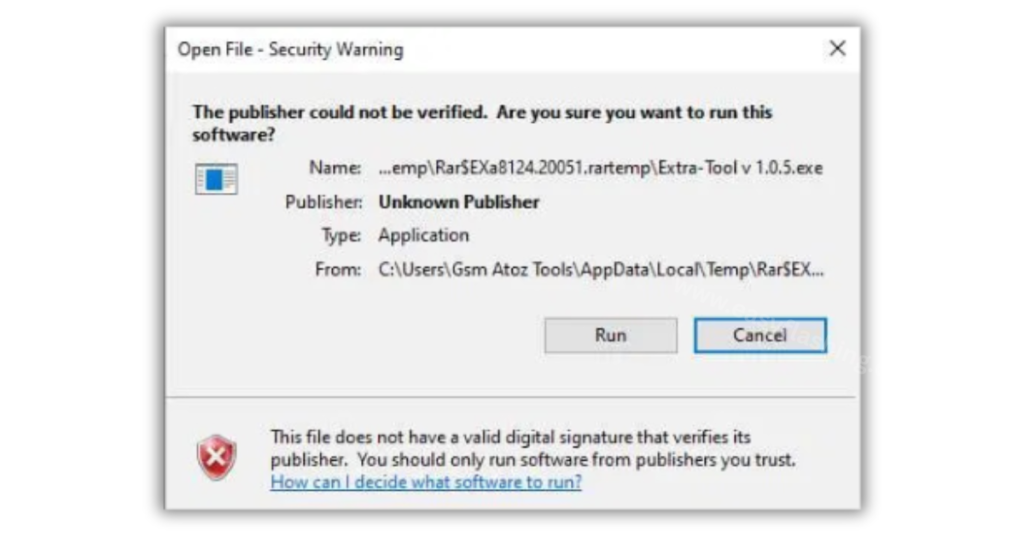
Right-click the Extra Tool icon on your desktop and select Run as Administrator. This is required for the tool to access USB and system-level functions on your PC.
Step 8 – Log In
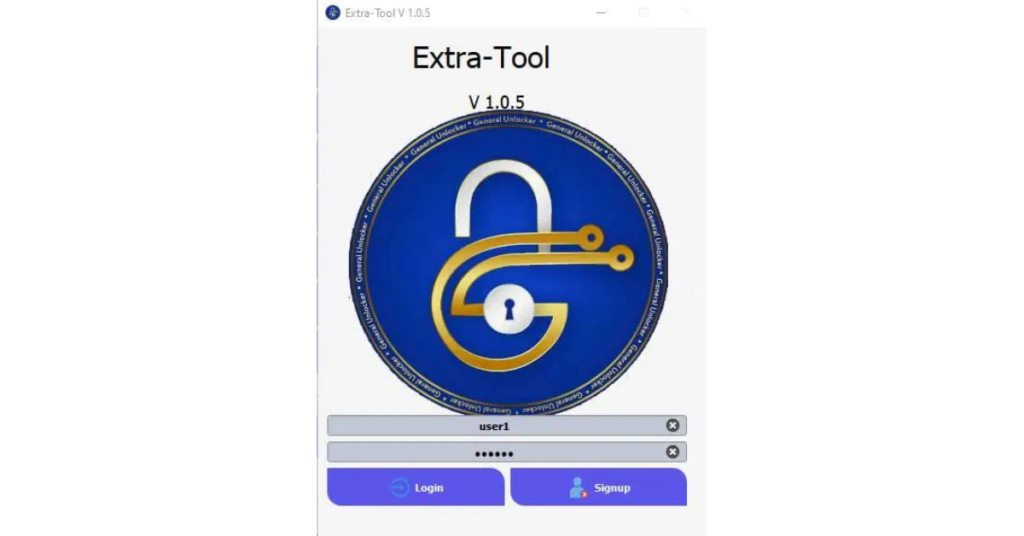
When the login screen appears, enter one of the free credentials listed above and click Login. The main dashboard opens immediately after a successful login.
How to Connect Your Phone to Extra Tool
Proper phone connection is critical. A failed connection is the most common reason the tool does not detect a device.
- Enable USB Debugging on your Android phone. Go to Settings > About Phone > tap Build Number seven times to unlock Developer Options, then turn on USB Debugging inside Developer Options.
- Connect your phone to your PC using a working data USB cable. Charge-only cables will not work.
- When prompted on your phone, select File Transfer or MTP as the USB connection type.
- Wait for the tool to detect your device. The device model and connection status appear in the Extra Tool interface.
Complete Features of Extra Tool V1.4.5
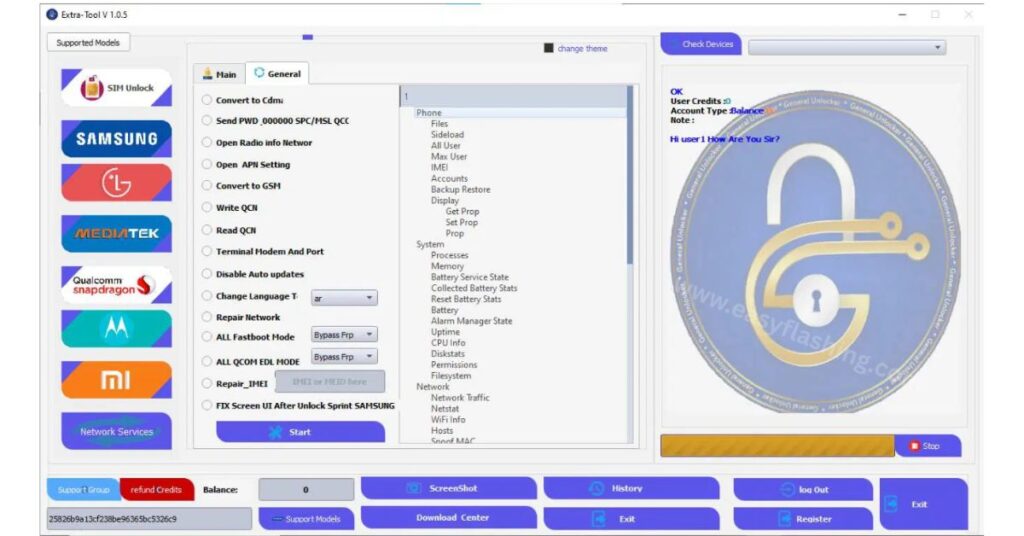
This section gives you complete information about every major feature category inside the Extra Tool latest version.
1. FRP Lock Removal (Bypass FRP)
FRP stands for Factory Reset Protection. Google introduced FRP in Android 5.1 as a security feature that locks a device to its previous Google account after a factory reset. If you buy a second-hand phone or forget your Google account details after a reset, FRP will block you from using the device.
Extra Tool removes the Google account lock on Samsung, LG, Xiaomi, Motorola, and MediaTek (MTK) devices. It supports Android 12, 13, 14, and 15. The tool connects in Test Mode or Emergency Mode depending on the device brand, then executes the FRP reset in a single operation.
Supported FRP methods:
- Samsung MTP mode FRP removal
- Samsung Test Mode FRP removal
- FRP bypass for LG MTK devices in DM mode
- Bypass FRP for all MediaTek (MTK) devices
- Remove Google account lock via ADB
2. MDM Lock Removal
MDM stands for Mobile Device Management. Companies use MDM software to manage and lock corporate phones. When a device is enrolled in an MDM system and then sold or reassigned without proper offboarding, the MDM lock prevents normal use.
Extra Tool handles MDM lock removal for supported Android devices, allowing the device to function as a standard consumer phone again.
3. KG Lock Removal (Knox Guard)
Knox Guard (KG lock) is Samsung’s device financing lock. Samsung activates it on carrier-subsidized phones to ensure payment compliance. A phone with an active KG lock displays a lock screen that blocks normal access.
Extra Tool V1.4.5 provides three KG-related operations:
- Remove KG completely from the device
- Set KG to Active (used when resetting KG security to a working state)
- Set KG to PreNormal, Completed, or Checking status as required
This is one area where the Extra Tool multi-functional tool stands above many basic FRP tools, since KG removal requires direct access to Samsung’s security partition.
4. Samsung Account Removal
Samsung Account lock activates when a device is reset while still linked to a Samsung account. Extra Tool removes the Samsung account association directly, restoring full access to the device.
5. Xiaomi Account Removal
Xiaomi account removal (also known as Mi Account removal) addresses the cloud-based activation lock that Xiaomi applies to its devices. Extra Tool handles Mi Account removal for supported Xiaomi and Redmi models.
6. Oppo ID Removal
Oppo ID is the account lock system used across Oppo and its sub-brands. Extra Tool supports Oppo ID removal for devices including the Oppo Find X series and Reno series.
7. Password, PIN, and Pattern Removal
Extra Tool removes screen lock credentials including PIN, password, and pattern locks on supported Android devices. This is separate from FRP removal and targets the local lock screen rather than the Google account layer.
8. Network Unlock Services
Direct Unlock removes carrier SIM restrictions from a device, allowing it to accept SIM cards from any network provider. This is also called a network unlock or SIM unlock.
Supported brands for direct unlock:
- Samsung (multiple models including SM-S367VL through SM-J330GD, plus ATT, CHA-AIO-CCT carrier variants)
- Motorola (including XT2128-1, XT2095-1, XT2159-2, and unlock code support for Sprint and Boost 8-digit and 16-digit formats)
- Alcatel (models 9009G, 6045O, 6062Z, and others)
- Vortex (HD65, Z22, V22, ZTAB10, T10M)
- Altice (S64, S11)
- TCL (5087, 5032)
- NUU (A9L)
- Stratus (C5 Elite, C5, C7)
- Google Pixel (Pixel 3 XL, Pixel 4, Pixel 6)
- Oppo (Find X, Reno series — region unlock codes)
- Xiaomi (Redmi 9, Redmi 10, Redmi 9C, Redmi 1A)
9. IMEI Repair
IMEI is the unique identification number assigned to every mobile device. A corrupted or null IMEI causes problems including no signal, inability to register on a network, and failed call attempts. Extra Tool includes IMEI repair functions for Qualcomm device support and MediaTek (MTK) devices services, restoring valid IMEI data from backed-up EFS partitions.
10. Flash Firmware and Write Firmware
The flash tool functionality inside Extra Tool allows technicians to flash firmware onto Samsung devices using Odin-compatible modes. Writing firmware corrects issues like bootloops, corrupted system partitions, and software failures. The tool supports one-click flash for compatible Samsung models.
Fix long booting is also addressed through firmware flashing, as this symptom commonly results from a corrupted boot partition that a fresh firmware write resolves.
11. Samsung-Specific Enhanced Services
The Extra Tool V1.4.5 update introduced an expanded set of Samsung services enhancements. These are designed for mobile technicians working on Samsung repair and configuration:
- Fix call not sent errors on CDMA models (S127DL, S326DL, and similar)
- Enable USB Debugging via QR Code (new security method)
- Change CSC for Samsung (used to switch region codes and carrier profiles)
- Enable All Network Bands (activates hidden LTE and CDMA bands)
- Open IMS (IP Multimedia Subsystem settings for VoLTE configuration)
- Access Hidden Menu and Hidden Services
- Reset MCK Code (Master Control Key reset for network lock clearing)
- Backup and restore security data from EFS partition
- Erase EFS (clears the security partition when a full rebuild is needed)
- Erase Backup Security data
- Fix network issues including radio off, airplane mode stuck, and CDMA network errors
- Enable LTE and CDMA network modes
- Rebuild NV Data (repairs corrupted non-volatile memory that stores network settings)
- Force EFS sync (forces synchronization between the active and backup EFS partitions)
- View and Edit SPC (Service Programming Code used by CDMA carriers)
- Access Programming Menu and Bands Menu
- Perform RTN and SCRTN (reset and factory reset operations for CDMA programming)
- Repair 3G and SMS for specific CDMA models
12. LG Services
Extra Tool provides dedicated LG services including:
- Wipe Security for LG in DM mode
- FRP bypass for LG MTK devices in DM mode
- Bootloader unlock for compatible LG models
13. MTK (MediaTek) Device Services
For MediaTek (MTK) devices services, the tool includes:
- MTK RPMB (Replay Protected Memory Block) Read, Write, and Erase
- MTK Network Services
- Unlock Bootloader for MTK models
- ReUnlock Bootloader
- Force Enter and Exit DM/Brom mode
- Erase UserData MTK
14. Qualcomm Device Support
Extra Tool covers Qualcomm-based Android devices for network services, IMEI repair, and EFS backup and restore operations. Qualcomm chipsets power the majority of mid-range and flagship Samsung and Motorola devices, making this capability essential for professional repair work.
15. Backup and Restore Security Data / Erase User Data
Technicians can back up EFS and security data before performing any destructive operations. This protects the IMEI and network credentials stored in the security partition. If something goes wrong during a repair, the restored backup recovers the original security data. Erase user data wipes the device’s personal data partition independently from the system firmware.
Supported Chipsets and Platform Overview
Extra Tool works across three major chipset platforms:
Samsung Qualcomm and Exynos Models receive the full range of Samsung services, FRP removal, network unlock, KG removal, IMEI repair, and Samsung account removal.
MediaTek (MTK) Devices get RPMB operations, network services, bootloader operations, and FRP bypass.
LG MTK and Qualcomm devices receive security wipe, FRP bypass, and bootloader operations.
The tool is primarily a Windows-based Android phone service tool and does not run on Mac or Linux. All operations require a PC running Windows 8, 10, or 11.
Expert Tips for Using Extra Tool Effectively
Always back up EFS before any unlock operation. The EFS partition stores your IMEI. If it gets corrupted during a failed unlock attempt, the phone loses its network identity permanently unless you have a prior backup. Use the Backup Security Data option inside Extra Tool before starting any network or IMEI-related service.
Use a quality USB cable. Cheap charge-only cables cause detection failures mid-operation, which can brick a device. Use the original cable that came with your phone whenever possible.
Run the tool as Administrator every single time. Some users forget this step after the first session and encounter errors when the tool cannot access USB-level functions. Always right-click and select Run as Administrator.
If FRP removal fails on the first attempt, switch connection modes. Some Samsung models respond to MTP mode while others need Test Mode. Try the alternate method if the first one does not complete.
Disable Samsung Smart Switch before connecting your device. Smart Switch auto-launches when a Samsung phone connects to a PC and can interfere with the tool’s USB communication.
Keep your Android USB drivers updated. Outdated drivers cause inconsistent device detection, especially on Windows 11. [Download Samsung USB drivers]
FAQ
Q1: Is Extra Tool V1.4.5 completely free to use? Yes, Extra Tool free download is available and the tool uses a shared free login system. You do not need to purchase credits or a dongle to access its core features.
Q2: What Android versions does Extra Tool support for FRP removal? The tool supports FRP lock removal on Android 12, 13, 14, and 15, covering the vast majority of devices currently in use.
Q3: Can Extra Tool work on a 32-bit Windows PC? Yes. The tool supports both 32-bit and 64-bit versions of Windows 8, 10, and 11.
Q4: What does Force EFS Sync do, and when should I use it? Force EFS sync pushes the current EFS data to the backup partition. Use it after a successful IMEI repair to make sure the backup reflects the corrected IMEI.
Q5: Why does my antivirus flag Extra Tool as a threat? Android service tools access low-level USB and system functions that trigger heuristic detection in antivirus software. The official Extra Tool download is not malware, but you must disable antivirus during installation to prevent it from quarantining necessary files.
Q6: Does Extra Tool support Xiaomi devices running HyperOS? The tool supports Mi Xiaomi account removal on listed Redmi models. HyperOS-specific compatibility depends on the firmware version; always check the latest release notes for confirmed model support.
Q7: What is the difference between Erase EFS and Erase Backup Security? Erase EFS wipes the entire primary security partition, while Erase Backup Security removes only the backup copy. Erase EFS is used when rebuilding from scratch; Erase Backup Security clears the redundant copy without touching the live partition.
Q8: Can Extra Tool repair a phone that is stuck in a bootloop? Yes, in many cases. Flashing fresh firmware through the tool’s flash firmware function resolves bootloops caused by corrupted system or boot partitions, particularly on Samsung devices.
Conclusion
Extra Tool V1.4.5 latest version delivers a genuinely comprehensive Android service tool at zero cost. From FRP lock removal and KG bypass to IMEI repair, firmware flashing, and multi-brand network unlocking, this free Android unlocking software covers tasks that typically require paid hardware dongles or expensive credits. The official free login system makes it accessible to anyone with a Windows PC and a USB cable.
Download Extra Tool V1.4.5 today, follow the installation steps in this guide, and use one of the official free login credentials to get started. If you found this guide useful, share it with your team or bookmark it for reference the next time you need a reliable mobile technician tool. For more free unlock tool guides and official login resources, explore the related articles on this site. [Free Android unlock tools complete list]