
The BFT Tool Latest Version is a powerful and beginner-friendly flash tool designed to help users manage, repair, and maintain Android smartphones. In 2026, this tool has become popular worldwide because it simplifies complex mobile software tasks into easy steps that anyone can follow.
If your Android phone is stuck on the logo, facing software errors, locked by FRP, or not responding properly, the BFT Tool V1.7 Latest Version Free 2026 can help you fix these problems without deep technical knowledge.
This article is written for beginners. Every technical term is explained in simple English. You do not need advanced experience to understand or use this tool.
What Is BFT Tool and Why It Matters in 2026
The BFT Tool is a Windows-based mobile utility that helps users perform important Android maintenance tasks. It works with many popular chipsets and phone brands, making it a reliable option for global users.
In 2026, Android security has become stricter. Devices now come with advanced protections like FRP lock, secure boot, and encrypted partitions. The Best Flash Tool Latest Version of BFT is updated to handle these modern challenges safely.
Why BFT Tool Is Important Today
- Android phones store critical personal data
- Software bugs can block normal phone usage
- Factory resets do not always fix problems
- Official tools are often complex for beginners
The BFT Tool solves these issues with a clean interface and guided options.
Supported Platforms and System Requirements
Before using the BFT Tool Latest Version, it is important to understand what systems it supports.
Supported Operating Systems
- Windows 10 (64-bit recommended)
- Windows 11
- Older Windows versions may work but are not recommended
Minimum System Requirements
- 4 GB RAM (8 GB recommended)
- Intel or AMD processor
- At least 2 GB free storage
- USB 2.0 or USB 3.0 port
The tool does not currently support macOS or Linux directly.
1. Flashing Android Firmware Safely
What This Feature Does
Flashing firmware means installing a fresh system file on your phone. The BFT Tool Latest Version allows you to flash stock firmware easily.
Why It Matters
Firmware flashing fixes many serious issues like:
- Boot loop problems
- System crashes
- Virus-infected software
- Failed updates
Best For
- Beginners fixing a dead or stuck phone
- Users restoring phones to factory software
This feature includes step-by-step options, reducing the risk of mistakes.
2. FRP Lock Removal for Android Devices
What Is FRP Lock?
FRP (Factory Reset Protection) is a Google security feature. It activates when a phone is reset without removing the Google account.
How BFT Tool Helps
The Best Flash Tool Latest Version includes a safe FRP bypass option for supported devices.
Why It Matters
- Helps users who forgot Google account details
- Useful after second-hand phone purchases
- Saves time and avoids service center visits
Best For
- Beginners facing Google verification lock
- Technicians handling used Android phones
3. Pattern, PIN, and Password Unlock
Feature Explanation
The BFT Tool can remove screen locks such as:
- Pattern lock
- PIN lock
- Password lock
Why This Is Useful
Many users forget their screen lock after long periods. This feature restores access without damaging hardware.
Best For
- Users locked out of their own phones
- Repair professionals handling customer devices
Note: Data loss may occur depending on device security.
4. Read and Write Device Information
What This Means
The BFT Tool Latest Version allows users to read and manage important device data such as:
- IMEI (supported models only)
- Software version
- Security patch level
Why It Matters
Accurate device information helps avoid flashing the wrong firmware and prevents serious errors.
Best For
- Beginners learning device diagnostics
- Repair centers verifying phone status
5. User-Friendly Interface for Beginners
Interface Overview
The tool features:
- Clean layout
- Simple buttons
- Clear instructions
You do not need command-line knowledge.
Why It Matters
Many flash tools are confusing. BFT Tool focuses on ease of use.
Best For
- First-time users
- Non-technical Android owners
6. Wide Device and Chipset Support
Supported Chipsets
The BFT Tool Latest Version Free 2026 supports multiple chipsets, including:
- Qualcomm
- MediaTek
- Spreadtrum (limited)
Supported Brands (Model-Dependent)
- Samsung
- Xiaomi
- OPPO
- Vivo
- Tecno
- Infinix
Why This Matters
Global users can use one tool for multiple devices.
7. One-Click Operations for Common Tasks
What One-Click Means
Tasks like FRP removal or rebooting into special modes require only one click.
Why It Matters
- Reduces human error
- Saves time
- Ideal for beginners
Best For
- Users who want quick solutions
- Small mobile repair shops
8. Safe and Google-Friendly Tool Design
No Harmful Modifications
The BFT Tool Latest Version focuses on repair and maintenance, not unsafe modifications.
Why Trust Matters
- Avoids malware risks
- Respects Android security frameworks
- Reduces chances of device damage
This makes it a Google-safe and user-trusted solution.
Supported Mobile Phone Brands
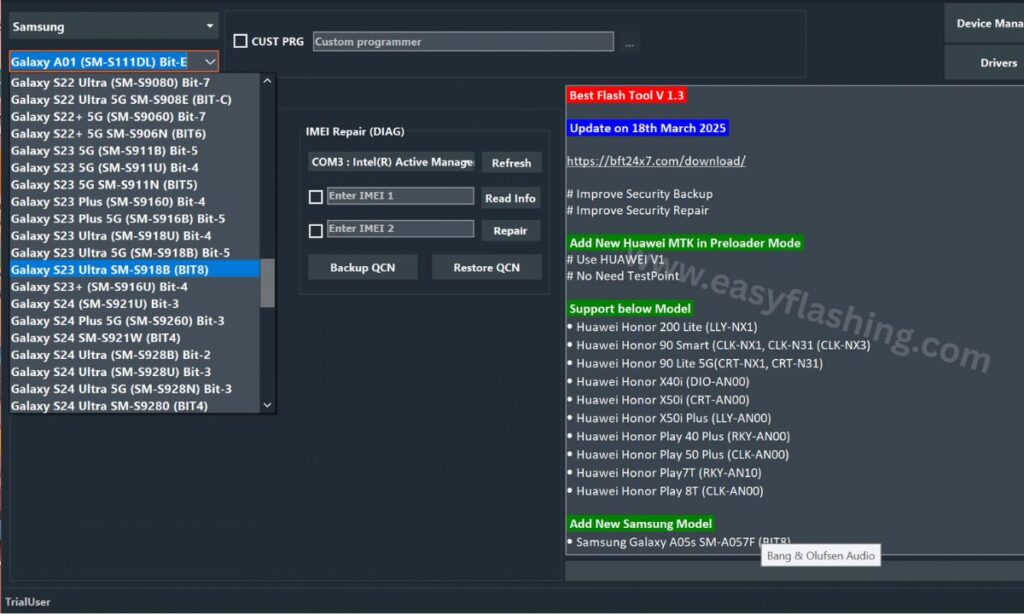
The BFT Tool Latest Version supports a wide range of Android smartphone brands. Device support mainly depends on the chipset and security patch level, but many popular models work smoothly with the tool.
Samsung Devices
BFT Tool supports many Samsung smartphones for software-level operations such as:
- Firmware flashing
- FRP lock removal (supported models only)
- Screen lock reset
Best compatibility is seen on Samsung devices powered by Qualcomm Snapdragon and selected Exynos processors.
Best for:
Users repairing boot issues, FRP locks, or software corruption on Samsung phones.
Xiaomi, Redmi, and POCO Devices
The tool works with multiple Xiaomi ecosystem brands, including:
- Xiaomi
- Redmi
- POCO
Supported features may include firmware flashing, FRP removal, and system repair depending on the model.
Best for:
Users fixing software issues on budget and mid-range Xiaomi-based phones.
OPPO Smartphones
BFT Tool provides partial to strong support for OPPO devices, especially those running on MediaTek chipsets.
Common supported functions include:
- FRP lock removal
- Software repair
- Boot issue fixing
Best for:
Users dealing with Google account locks or boot problems on OPPO phones.
Vivo Devices
Many Vivo smartphones are compatible with BFT Tool for basic repair tasks.
Supported operations may include:
- Pattern and PIN unlock
- FRP reset
- Software troubleshooting
Best for:
Beginners who forgot screen locks or are stuck on verification screens.
Tecno Mobile Devices
Tecno phones are widely supported, especially MediaTek-based models.
BFT Tool can help with:
- Firmware flashing
- FRP bypass
- Boot repair
Best for:
Users in global markets where Tecno devices are commonly used.
Infinix Smartphones
Infinix devices work well with BFT Tool for many standard repair tasks.
Supported features include:
- Screen lock removal
- FRP unlock
- System repair
Best for:
Entry-level and mid-range phone users needing fast software fixes.
Realme Devices (Limited Support)
Some Realme smartphones are supported depending on chipset type and Android version.
Features may vary by model and security update level.
Best for:
Users with older or mid-range Realme phones.
Supported CPU / Chipset Types (Beginner Explanation)
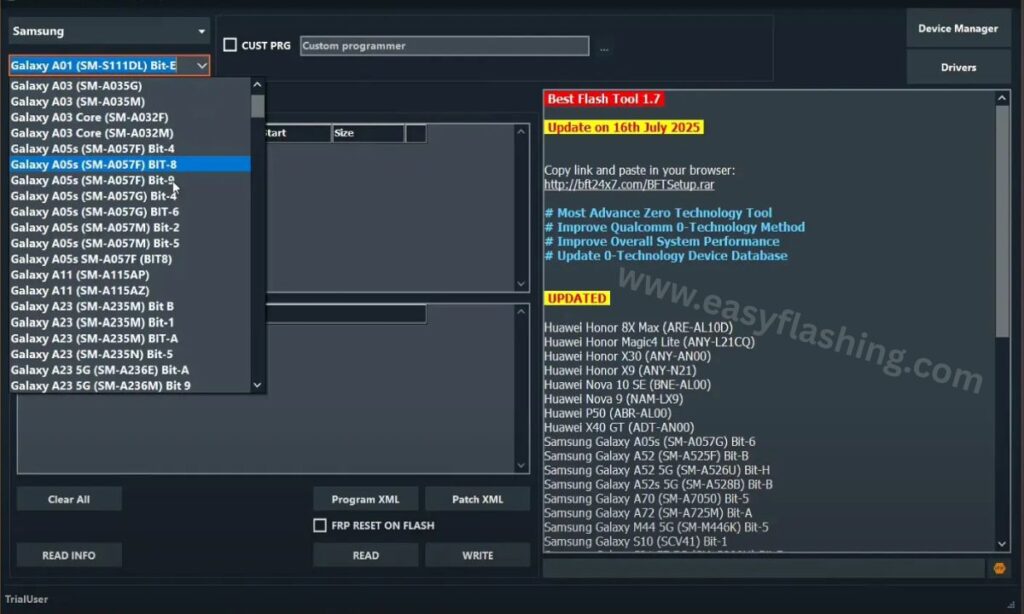
The BFT Tool Latest Version Free 2026 works mainly based on the phone’s processor. Understanding chipset support helps avoid errors.
Qualcomm Snapdragon Chipsets
Qualcomm-powered phones have strong compatibility with BFT Tool.
Supported operations often include:
- Firmware flashing
- FRP removal
- Boot repair
Why it matters:
Qualcomm devices are stable and widely used worldwide.
MediaTek (MTK) Chipsets
MediaTek support is one of the strongest areas of BFT Tool.
Common supported features:
- Flashing stock firmware
- FRP unlock
- Pattern and PIN reset
Why it matters:
Most budget and mid-range Android phones use MediaTek processors.
Unisoc / Spreadtrum Chipsets (Limited)
Some entry-level smartphones using Unisoc or Spreadtrum CPUs are supported.
Features may be limited depending on the model.
Why it matters:
Useful for older or low-cost Android devices.
Samsung Exynos Chipsets
Selected Samsung phones with Exynos processors have partial compatibility.
Supported tasks may include:
- Firmware flashing
- Basic system repair
Advanced security models may have restrictions.
Why it matters:
Exynos support expands usability for Samsung users.
Device Compatibility Notes (Important for Beginners)
- Not all models of a brand are supported
- New security patches may limit some functions
- Always match firmware with exact model number
- CPU compatibility is more important than brand name
Following these points helps avoid flashing errors.
When BFT Tool May Not Work
The BFT Tool may have limitations in cases such as:
- Very new Android versions with high security
- Encrypted bootloader devices
- Unsupported chipsets
In such cases, only basic diagnostic functions may work.
How to Use BFT Tool Latest Version (Step-by-Step Overview)
Step 1: Prepare Your Computer
- Install required USB drivers
- Disable unnecessary background programs
Step 2: Install the Tool
- Extract the tool files
- Run as administrator
Step 3: Connect Your Device
- Use original USB cable
- Power off the phone if required
Step 4: Select the Operation
- Flash firmware
- Remove FRP
- Unlock screen
Step 5: Start the Process
- Click the start button
- Wait until completion
- Do not disconnect the device
Video Tutorial: How To Use BFT Tool To Avoid Any Problems.
BFT TOOL LATEST VERSION FREE 2026
File Password: User Name: TrialUser Password: fj6Y732M7j4c703N
Important Safety Tips for Beginners
- Always backup data if possible
- Use correct firmware files
- Do not interrupt the process
- Read on-screen instructions carefully
These tips prevent device damage.
Common Mistakes to Avoid
- Flashing wrong model firmware
- Using low-quality USB cables
- Ignoring driver installation
- Running multiple tools together
Avoiding these ensures smooth operation.
Advantages of BFT Tool Latest Version Free 2026
- Beginner-friendly design
- Regular updates
- Wide device support
- No complex commands
- Global usability
Limitations You Should Know
- Windows-only support
- Some features are device-specific
- Advanced repairs may need experience
Understanding limits builds realistic expectations.
Frequently Asked Questions (Q&A)
1. What is BFT Tool Latest Version used for?
The BFT Tool V1.7 Latest Version is used to flash firmware, remove FRP locks, unlock screen locks, and repair Android software issues safely.
2. Is BFT Tool free to use in 2026?
Yes, the BFT Tool Latest Version Free 2026 is available for free use for supported features and devices.
3. Can beginners use BFT Tool without experience?
Yes. The tool is designed for beginners with simple buttons, clear options, and guided steps.
4. Does BFT Tool support all Android phones?
No tool supports all phones. BFT Tool supports many popular brands and chipsets, but support depends on the model.
5. Is using BFT Tool safe for my device?
Yes, when used correctly with proper firmware and instructions, the tool is safe and Google-friendly.
6. Will BFT Tool erase my data?
Some operations like flashing firmware or removing locks may erase data. Always backup if possible.
7. Do I need internet access to use BFT Tool?
Internet is usually required for setup or updates, but many operations work offline once installed.
Final Thoughts on BFT Tool Latest Version 2026
The BFT Tool Latest Version stands out as a reliable, beginner-friendly, and globally useful flash tool in 2026. It balances simplicity with powerful features, making it suitable for both personal users and entry-level technicians.
If you are looking for the Best Flash Tool Latest Version that explains tasks clearly, avoids unnecessary complexity, and follows safe Android practices, BFT Tool is a solid choice.
With careful use and basic understanding, this tool can help you solve many Android software problems confidently and safely.
Disclaimer
This article is published for educational and informational purposes only. The BFT Tool and related Android repair methods discussed here are intended to help users understand general software maintenance and troubleshooting processes.
Mobile software operations such as firmware flashing, FRP removal, or screen lock reset may carry risks if performed incorrectly. Device behavior can vary depending on model, chipset, Android version, and security updates. Users are advised to proceed carefully and ensure they understand each step before performing any action.
The author and publisher do not guarantee results and are not responsible for data loss, device damage, or misuse of the information provided. Always back up important data before attempting any software-related changes.
All product names, brand names, and trademarks mentioned belong to their respective owners and are used strictly for identification and informational purposes. This content does not promote bypassing security for unlawful purposes.
By using the information in this article, readers accept full responsibility for their actions.


1 thought on “BFT Tool V1.7 Latest Version Free 2026-FRP Powerful Tool ”