Haafedk GSM Tool V14 is one of the most powerful free mobile repair and unlock solutions available for Android and iOS devices in 2026. Within this article, I will tell you today everything you need to know about this tool — from its full feature set and system requirements to a clear, step-by-step installation process.
Those who don’t know much about mobile flashing tools will find this guide especially useful, because every section uses plain language. By reading this article, you will get complete information on what makes this version stand out, how to use it safely, and how to get the most from it on your Windows PC.
What Is Haafedk GSM Tool V14?
Haafedk GSM Tool is a free, all-in-one mobile software utility built for phone repairers and mobile technicians. The tool handles a wide range of tasks including FRP bypass, firmware flashing, IMEI repair, unlock bootloader operations, screen lock removal, and Android repair across multiple chipsets. The V14 line includes both the latest Haafedk GSM Free build and the upgraded HaaFedk iCloud Free V14 module for iOS device servicing.
The developer behind this platform, known in the GSM community as Haafedk, releases consistent updates that maintain compatibility with new Android security patches and iOS versions. The tool is completely free to download and use, making it a practical choice for both professional repair shops and independent technicians.
[Factory Reset Protection Bypass Samsung Method (2026]1. HaaFedk iCloud Free V14 — Full iOS Unlock Suite
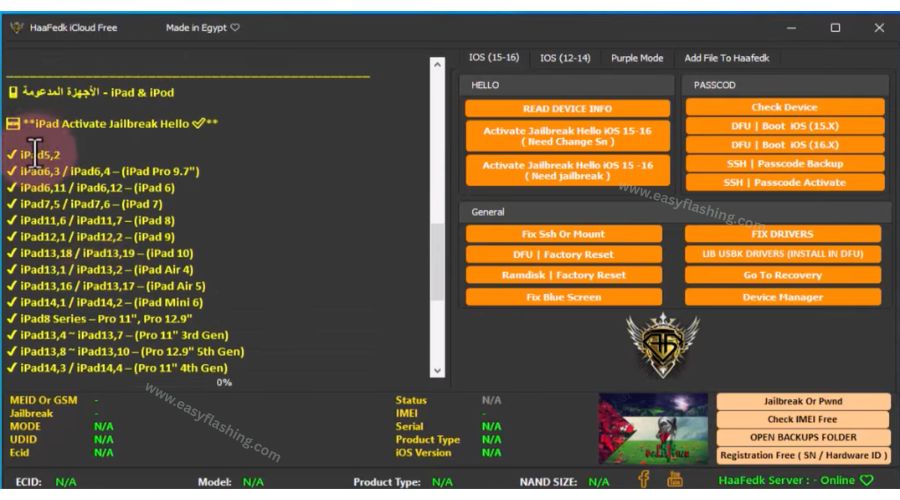
HaaFedk iCloud Free V14 is the dedicated iOS section of the Haafedk platform. This version expands on all previous iCloud Free releases and adds several new capabilities for iPhone and iPad servicing.
Key Features of HaaFedk iCloud Free V14
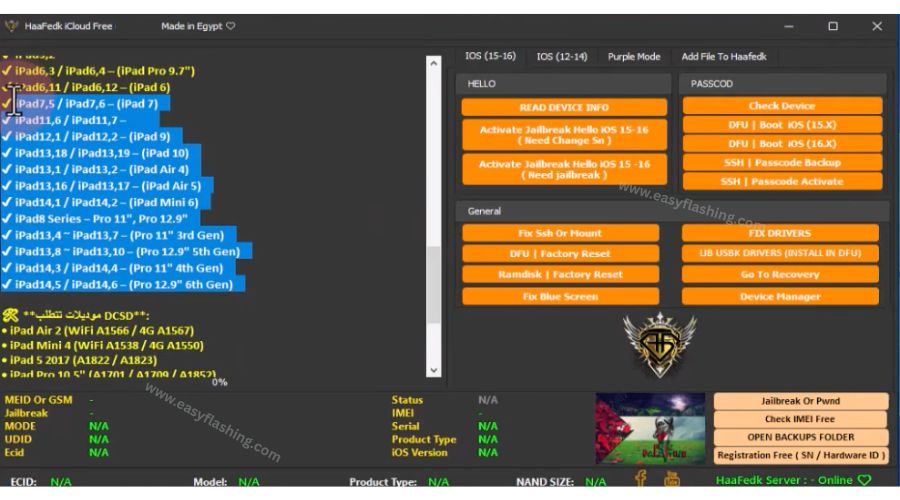
- iCloud bypass for iPhone and iPad devices running iOS 15 and iOS 16
- HWID bypass so you can log in and activate the tool without hardware restrictions
- Passcode removal directly from the tool interface, removing PIN and screen lock on supported models
- DFU mode entry with one click, sending the device into Device Firmware Update mode for deeper operations
- iPhone unlock support across multiple carrier-locked models
- iPad serial change for devices requiring identifier correction
- SSH passcode activate for ramdisk-based unlocking workflows
- Ramdisk factory reset to wipe device data cleanly without triggering activation lock
- Fix blue screen errors that occur during iOS restore or jailbreak operations
- Serial number write, WiFi MAC, Bluetooth MAC, and Ethernet MAC address tools for full hardware identifier management
- Purple mode activation for advanced diagnostics
- Auto activate and activation lock bypass via integrated ramdisk tools
- Checkra1n jailbreak integration for compatible devices
- FRP tools for cross-platform FRP erase workflows
Driver and Connection Requirements
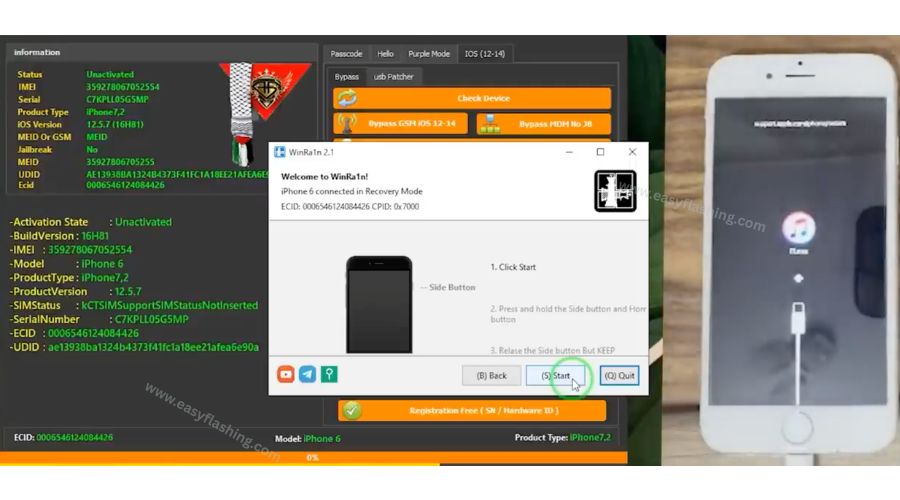
Before running any iCloud operation, you must install LIB USBK drivers on your Windows PC. Without these, the tool cannot communicate with iOS devices through USB. Open Device Manager after installation to confirm the driver registers correctly. The tool also requires you to enter recovery mode on the target iPhone or iPad before running most bypass functions.
The HWID login process works by copying your unique hardware ID from the main tool window and registering it on the Haafedk platform. Once registered, the tool grants full access to all iCloud Free V14 features with no subscription or payment required.
Pop-up ads removal is built into the setup so your workflow stays clean during use.
[SK Driver Tool — One Click USB Driver Installer]2. Haafedk GSM Free V14 — Android Repair and Unlock
The Android side of Haafedk GSM Tool V14 covers the broadest range of phone repair operations. This version supports devices running on MTK (MediaTek), Qualcomm, SPD (Unisoc Spreadtrum), and Kirin chipsets.
FRP Bypass and Factory Reset Protection Removal
FRP bypass is the most-used function in this tool. Factory Reset Protection locks a device after a hard reset if the original Google account credentials are not available. The Haafedk GSM Free module handles erase FRP on Samsung, Xiaomi, Huawei, Realme, Itel, Gionee, and Infinix devices with a straightforward process.
SPD auth bypass is available for Unisoc Spreadtrum chipset phones, which previously required paid server solutions. This tool handles it free of charge.
Mi account fix and Xiaomi free auth bypass remove the Xiaomi account lock from Redmi and Mi devices without needing paid credits. The tool also supports Xiaomi sideload for flashing via ADB sideload mode, and patch NV for IMEI restoration on Xiaomi devices.
Screen Lock and Password Removal
The tool removes pattern lock removal and password lock removal on all supported Android brands. This works across MediaTek, Qualcomm, and Unisoc platforms without requiring a full data wipe on many models.
MDM lock removal is supported for corporate-managed devices across Samsung, Tecno, and Infinix models. This allows technicians to restore full functionality to devices that were previously enrolled in enterprise management systems.
Samsung-Specific Features
- Samsung KNOX remove — clears Knox security flags from Samsung devices
- Samsung account remove — bypasses the Samsung account lock
- CSC change — modifies country-specific configuration settings for region unlocking
- Backup PIT — saves the partition information table before flashing
- Fix softbrick — recovers Samsung devices stuck in a boot loop
- Erase NAND — performs full memory wipe for heavily corrupted devices
- RPMB read/write — accesses the Replay Protected Memory Block for advanced repair
- Secure boot bypass — used for devices where standard flashing is blocked
LG and Other Brand Support
LG flashing is included in V14 with support for flashing stock firmware on LG devices that other free tools often skip. Support for Realme, Itel, Gionee, and Infinix is expanded in this version through the Unisoc section.
3. Firmware Flashing — MTK, Qualcomm, and SPD
Flash firmware operations are central to Haafedk GSM Tool V14. The tool supports three major chipset categories and handles everything from stock ROM flashing to scatter firmware and EMMC dump restoration.
MediaTek (MTK) Flashing
The MTK section handles scatter firmware for MediaTek-based Android phones. You can flash stock ROM files, apply GB firmware, and recover dead boot devices that no longer power on. The tool uses the standard download mode entry for MTK devices and guides you through port detection automatically.
Android 15 and Android 16 firmware files are supported in the latest Haafedk MTK Tool build included in V14.
Qualcomm Flashing
Qualcomm flashing supports both eMMC and UFS storage types. The tool integrates emergency download (EDL) mode entry and handles full partition flashing including GPT repair for corrupted partition tables. Secure boot bypass on Qualcomm devices is available through the advanced options panel.
Unisoc Spreadtrum (SPD) Flashing
The SPD section expands significantly in V14. You can flash firmware across Realme, Itel, Gionee, and Infinix devices running Unisoc chipsets. The tool handles MDM fixes for all three supported brands in a single click.
4. IMEI Repair and Network Issues Fix
IMEI repair is one of the most important features for professional repair shops. A lost or corrupted IMEI causes a phone to lose its network identity, making calls, texts, and mobile data impossible.
Haafedk GSM Tool V14 supports IMEI fix across MediaTek, Qualcomm, and Unisoc devices. The tool also includes a dedicated repair IMEI solution for Xiaomi devices that previously required expensive paid server connections.
Network issues fix covers problems caused by corrupted baseband firmware or broken NV data. The patch NV function restores NV partition data on Xiaomi and other MTK devices, correcting IMEI and network registration failures in one operation.
[Android Debug Bridge (ADB) Official Documentation]5. Bootloader and System Repair Tools
Unlock Bootloader
Unlock bootloader support covers ADB-based unlocking for devices where the manufacturer’s bootloader unlock option is available. For Xiaomi, the tool integrates with the official Xiaomi unlock process flow. For Samsung, it supports both unlock and relock bootloader operations.
System Repair and Recovery
The tool provides full Android repair capabilities including:
- System errors fix through ADB commands
- Device update management from the tool interface
- Recovery mode entry with one click
- Fastboot mode entry for advanced flashing operations
- Factory reset via ADB without needing the device’s screen to be functional
- Safe format for clearing device storage without risking permanent brick
- Unbricking support for devices stuck in bootloops or dead states
Data Recovery
Data recovery functions allow technicians to extract files from devices that no longer boot normally. The EMMC dump feature creates a full binary backup of the device’s storage, which can then be restored to another board of the same model.
6. Supported Chipsets and Brands
Haafedk GSM Tool V14 covers the widest brand and chipset list of any version released so far. Here is a complete breakdown:
Chipsets Supported:
- MediaTek (MTK) — all major series
- Qualcomm — Snapdragon-based devices
- Unisoc Spreadtrum (SPD)
- Kirin (Huawei) — via Haafedk Kirin module
Brands Supported:
- Samsung (all series including Galaxy A, M, S, and Tab)
- Xiaomi, Redmi, POCO
- Huawei, Honor
- Realme, OPPO, Vivo
- Infinix, Tecno, Itel
- Gionee
- LG
- Nokia, Lenovo, Meizu
- iPhone and iPad (via HaaFedk iCloud Free V14)
All models within these brands are covered across the tool’s MTK, Qualcomm, SPD, and iOS sections.
7. System Requirements and Compatibility
Before downloading, confirm your PC meets these requirements:
- Operating System: Windows 7, Windows 8, Windows 10, or Windows 11 (32-bit and 64-bit)
- USB Driver: LIB USBK drivers for iOS, Huawei driver for Huawei/Kirin devices, standard ADB/Fastboot drivers for Android
- Connection: USB cable (original cable recommended for stability)
- Account: Free registration on the Haafedk platform for HWID activation
- Administrator rights: Always run the tool as administrator
The tool is compatible with Windows 7/8/10/11 across all major builds. No macOS or Linux support is available for this version.
8. How to Download Haafedk GSM Tool V14
Follow these steps to get the free download safely:
- Visit the official Haafedk downloads page at haafedk2.com OR easyflashing.com
- Locate the latest V14 build under the downloads section
- Click the download link and wait for the instant download to complete
- Verify the file size matches the listed value on the download page to confirm a complete download
- Do not download from third-party sites — always use the official version from the developer’s page for a secure download
The download count and visit count on the official page confirm the file’s authenticity. High download numbers indicate the build has been widely tested by the community.
[ Haafedk Tool V14 New Update 2026 Download ]
Password: Haafedk
9. How to Install and Activate Haafedk GSM Tool V14
Installation Steps
- Locate the downloaded setup file on your computer
- Right-click the file and select Run as Administrator
- Follow the on-screen installation prompts
- Choose your installation directory and click Next until the process completes
- Once installed, open the tool
HWID Activation
- Open the tool — your unique HWID displays on the main window
- Copy this HWID
- Visit the Haafedk registration page and paste your HWID into the designated field
- Submit the form
- Close and reopen the tool
- Full access to all features activates automatically
USB Driver Installation
- Download the LIB USBK drivers for iOS devices from within the tool’s driver section
- For Android devices, install ADB/Fastboot drivers or brand-specific drivers (Huawei driver for Kirin models)
- Open Device Manager on Windows after installation
- Confirm the connected phone appears without error flags
10. How to Use Haafedk GSM Tool V14 — Step-by-Step
For FRP Bypass on Android
- Install USB drivers on your PC
- Open Haafedk GSM Tool as administrator
- Connect the phone to your PC using a USB cable
- Select your phone model from the device list
- Choose Erase FRP or FRP Bypass from the menu
- Follow the on-screen instructions — the tool completes the process automatically
- Reboot the device after the operation finishes
For iCloud Bypass (HaaFedk iCloud Free V14)
- Put the iPhone or iPad into DFU mode or recovery mode
- Connect the device to your PC via USB cable
- Open HaaFedk iCloud Free V14 and log in using your registered HWID
- Select the operation type — bypass, passcode removal, or activation lock fix
- Run the process and wait for completion
- Use SSH passcode activate if the device requires further activation after bypass
For Firmware Flashing
- Download the correct firmware file (stock ROM, scatter file, or GB firmware) for your exact phone model
- Connect the device in download mode (MTK), EDL mode (Qualcomm), or standard SPD mode
- Open the relevant section in Haafedk GSM Tool (MTK, Qualcomm, or SPD)
- Load the firmware file into the tool
- Start the flash process and wait — do not disconnect the USB cable during flashing
- The device reboots automatically after a successful flash
Expert Tips for Using Haafedk GSM Tool V14
Charge the battery above 50% before any flashing or unlock operation. A device that powers off mid-process can become permanently bricked.
Always back up data before flashing firmware. Stock ROM flashing typically wipes all user data from the device.
Use the original USB cable whenever possible. Low-quality cables cause connection drops during critical operations, which can corrupt the process.
Select the exact phone model from the tool’s dropdown list. Flashing wrong firmware on even a similar-looking model can permanently damage the device’s software partition.
Run the tool as administrator every time. Windows User Account Control blocks certain low-level operations if you open the tool with standard user permissions.
Reboot after flash — always allow the device to complete its first boot after a firmware flash before connecting it again. The first boot can take 5 to 10 minutes on some models.
Keep drivers updated. If a device fails to appear in the tool, reinstall USB drivers and check Device Manager for conflicts before retrying any operation.
[ MediaTek Official Developer Resources ](FAQ)
Q1: Is Haafedk GSM Tool V14 completely free to download and use?
Yes, Haafedk GSM Tool V14 is free. All features including FRP bypass, IMEI repair, firmware flashing, and iCloud bypass are accessible after a one-time free HWID registration on the official platform. No subscription or payment is required.
Q2: What is HWID and why does the tool need it for activation?
HWID stands for Hardware ID. It is a unique identifier generated from your PC’s hardware components. The tool uses it to link your installation to your specific computer, preventing unauthorized sharing of the software while keeping it free for legitimate users.
Q3: Can I use Haafedk GSM Tool V14 on Windows 11?
Yes, the tool is compatible with Windows 7, 8, 10, and 11 in both 32-bit and 64-bit versions. Always run the tool with administrator privileges on any Windows version to ensure all functions work correctly.
Q4: What should I do if my phone is not detected by the tool?
First, reinstall the USB drivers for your device’s chipset. For iOS devices, install LIB USBK drivers. For Android, use ADB/Fastboot drivers or the brand-specific driver such as the Huawei driver for Kirin phones. Then open Device Manager and confirm the device registers without errors before retrying.
Q5: Does HaaFedk iCloud Free V14 support the latest iOS versions?
HaaFedk iCloud Free V14 includes support for iOS 15 and iOS 16 compatible devices. Support for specific iPhone and iPad models depends on the device’s chipset. Checkra1n-compatible devices receive the broadest set of bypass and jailbreak options within this version.
Q6: Is it safe to use this tool on a device I own?
Using Haafedk GSM Tool on a device you own or have explicit permission to service is the correct and responsible way to use the software. Performing flashing or bypass operations on a device without authorization raises legal and ethical concerns. Always confirm ownership before proceeding with any operation.
Conclusion
Haafedk GSM Tool V14 gives phone repairers and mobile technicians a complete free toolkit for both Android and iOS device servicing in 2026. From FRP bypass and IMEI repair to iCloud activation lock removal and full firmware flashing across MTK, Qualcomm, Unisoc, and Kirin devices, this version covers more ground than any previous release.
The expanded HaaFedk iCloud Free V14 module makes iOS repair accessible without paid solutions, and the improved Android sections handle every major brand and chipset combination currently in service shops.
Download the tool from the official Haafedk platform, complete the free HWID registration, and start using it today. Follow the installation steps in this guide carefully, keep your drivers updated, and always verify your firmware file matches your exact device model. Those who work with mobile devices professionally will find this tool saves significant time and cost on daily repair tasks.