An android phone running slow fix without factory reset is completely achievable — and it’s what you should try before anything else. Wiping your phone clean sounds dramatic and final. It costs you hours of setup, risks losing data that didn’t back up correctly, and in most cases, solves a problem that didn’t require it.
Here’s what most guides won’t say plainly: factory resets are overused as a first response to slowness. The causes of lag are usually fixable without nuking everything. Background apps eating your RAM, storage pushed past its limit, cache files piling up invisibly for two years — none of those problems actually require a full wipe.
By the time you finish reading this, you’ll know which steps to take, in what order, and exactly why each one works. These fixes apply to most Android phones running Android 10 through Android 15, whether you’re on a flagship or a mid-range device.
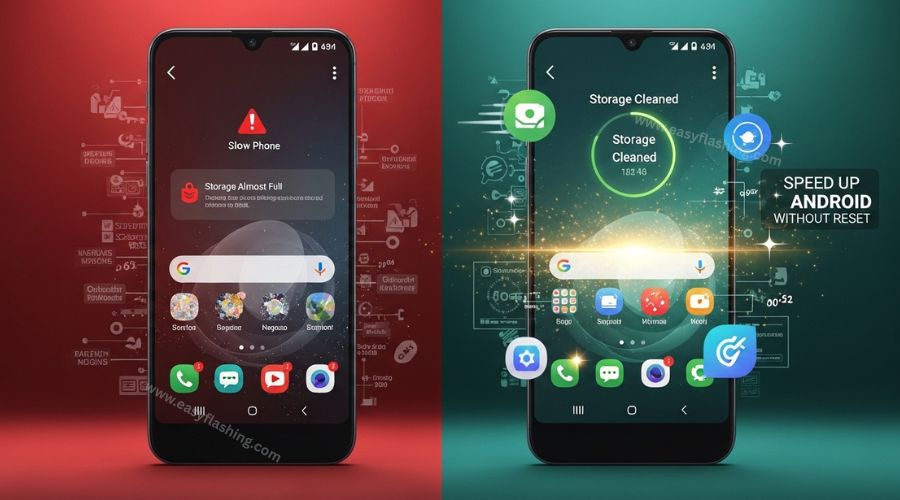
Why Android Phones Slow Down
There’s rarely one single cause. Slowdowns tend to stack.
Storage fills past the 85% mark, which forces Android to struggle with writing temporary system files. Apps update and grow heavier, but your phone’s hardware doesn’t get more powerful to match them. Background processes multiply quietly with every new install. Cache from apps you haven’t opened in months sits uselessly in memory.
One cause almost no guide mentions: thermal throttling. When a phone overheats — from direct sunlight, from charging while gaming, from a case that traps heat — the processor deliberately slows itself down to prevent damage. If your phone runs fine in the morning and drags by afternoon, temperature is a real suspect worth checking first.
Battery wear is another overlooked factor. A degraded battery can push the phone to reduce CPU output to protect itself. You’ll fix everything else on this list and still have lag if the battery is the actual culprit. But you need to rule out the software causes first, and there’s a lot to rule out.
Step 1: Restart Your Phone the Right Way
This is the step most people do wrong, if they do it at all. Pressing power and tapping Restart is fine. But if you haven’t restarted in days or weeks, a full power-off and cold boot does more. It clears RAM, kills rogue processes, and gives the system a genuinely clean starting point.
Restarting weekly prevents RAM accumulation from slowly degrading performance between deeper cleanups. Don’t confuse this with letting your phone sleep or putting it on Airplane Mode. Sleep doesn’t clear RAM. Restart does.
If your phone has been running continuously for more than three or four days, start right here. You might not need anything else.
Step 2: Free Up Storage Space
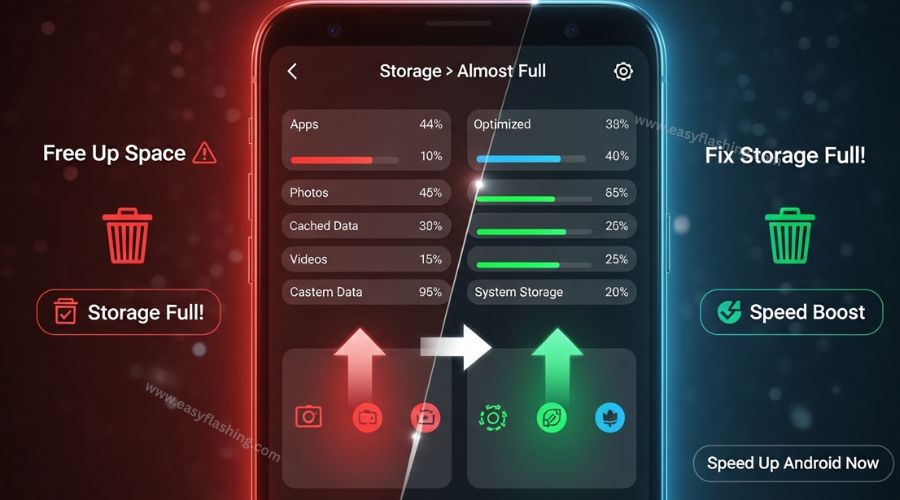
Android starts struggling when free storage drops below 15% of total capacity. On a 64GB phone, that’s less than 10GB free. Below that point, the operating system can’t write temporary files efficiently. App loading slows, camera capture lags, and the entire system feels sticky.
Go to Settings > Storage and look at what’s consuming space. Photos and videos are almost always the biggest offenders. Move them to a cloud backup service, then delete the local copies once you’ve confirmed they synced.
Downloaded files and offline audio from streaming apps pile up fast and get forgotten entirely. Check your Downloads folder. Clearing it out on a budget device with 32GB of storage can recover several gigabytes in minutes.
Fix App Store Download Issues After iCloud Bypass!
Learn how to fix App Store download issues after an iCloud bypass with proven steps for iPhone & iPad. .
👉 Read Full GuideStep 3: Clear App Cache the Smart Way
Here’s the part that surprises most people: clearing cache doesn’t delete your personal data. It removes temporary files the app stored to speed up loading. Over time, those files become bloated and outdated — and they actually slow things down instead of helping.
Clear cache for individual apps at Settings > Apps > [App name] > Storage > Clear Cache. Do not tap “Clear Data” unless you know exactly what you’re doing. That option resets the app to factory state, which logs you out and deletes any locally saved content.
The apps worth clearing most often are browsers, social media apps, and video streaming apps. These cache enormous amounts of content regularly. On a Redmi device running Android 12, a popular short-video app had accumulated over 800MB of cache after six months of use — all of it dead weight at that point.
Step 4: Disable Animations in Developer Options
This single change does more for how fast your phone feels than almost anything else on this list. And it’s the step nearly nobody takes.
Every time you open an app, switch screens, or go back to your home screen, Android plays an animation. By default, those animations run at 1x speed. Reducing them to 0.5x — or turning them off — makes every interaction feel instant.
Here’s how to get there:
- Go to Settings > About Phone
- Tap Build Number seven times in a row until you see “You are now a developer”
- Go back to Settings > System > Developer Options
- Find Window animation scale, Transition animation scale, and Animator duration scale
- Set all three to 0.5x or Off
This doesn’t boost your processor speed. It removes the visual delay between every single action on your screen. The difference on a Moto G Power running Android 13 was enough to make the phone feel like a different device. No hardware change. No data loss. Just instant responsiveness.
How to Stop Phone From Overheating!
Learn how to stop phone from overheating with simple, beginner-friendly steps. This complete guide explains causes, fixes, and prevention tips to keep your phone cool and safe.
👉 Read Full Guide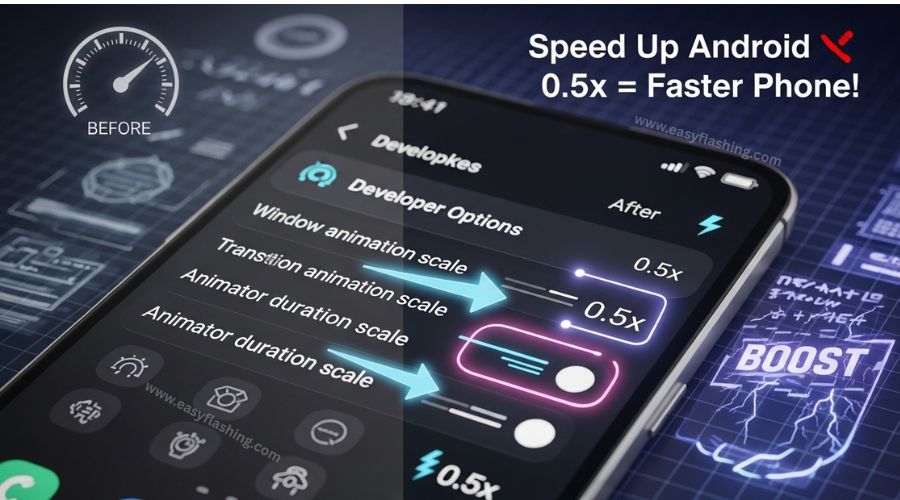
Step 5: Restrict Background Apps
Every app you’ve installed has some background activity. Some check for notifications. Others sync data on a schedule. A few keep a persistent process alive for no apparent reason.
According to Android’s official background optimization documentation, the system gives you direct control over how much background access each app gets. Set specific apps to “Restricted” mode at Settings > Apps > [App name] > Battery > Restrict. This stops the app from running in the background without uninstalling it.
Social media and news apps are the worst offenders. They maintain background processes even on days you don’t open them. Restrict anything you don’t need sending you live notifications. [ background optimization]
You can add another layer by disabling background data for specific apps at Settings > Apps > [App name] > Mobile data and Wi-Fi > Background data. Both switches together make a real difference on phones with 3GB or 4GB of RAM.
Step 6: Uninstall Bloatware and Dead Apps
Bloatware is pre-installed software that carriers and manufacturers put on your device before you’ve even touched it. Some runs silently in the background the moment you power on. None of it asked your permission to be there.
You often can’t uninstall these apps completely. But you can disable most of them. Go to Settings > Apps, find the app, and tap Disable. Disabling stops it from running, removes it from your app drawer, and blocks it from consuming resources. You can re-enable it anytime without losing anything.
While you’re there, delete apps you downloaded but don’t actually use. Unused apps still receive update pings, some maintain background activity, and they all contribute to storage bloat. I’ll tell you right now: apps you downloaded eight months ago and opened once can still have active background processes you’d never suspect.
Step 7: Update Android and Your Apps Carefully
Keeping apps updated prevents compatibility issues and closes performance gaps that developers have patched. Updating Android itself fixes bugs that directly cause slowdowns and lag spikes.
Here’s the nuance most articles skip: updates occasionally introduce new problems. If your phone slowed down noticeably right after a system update, that timing is meaningful. Check user forums for your specific model to see whether others reported the same slowdown from the same update. If they did, the next patch often resolves it.
For apps, go to Google Play Store > Profile icon > Manage apps and device > Update All. Always do this on Wi-Fi, not mobile data. Large updates on a slow connection can interrupt mid-install and cause app instability.
Step 8: Check Your Battery Health
A worn battery doesn’t just drain faster. It can directly limit processing speed. When a battery can no longer hold a stable voltage under load, the phone may throttle the CPU to protect the system.
Not all Android phones expose battery health in standard settings. Samsung devices on One UI 6 and later show it at Settings > Battery and Device Care > Battery > Battery Health. On stock Android, dialing *#*#4636#*#* in the phone app and opening Battery Information gives a raw health reading.
If the battery is significantly worn, software changes alone won’t recover full performance. A battery replacement at most phone repair shops runs between $30 and $80 and can add years of usable life to a device that felt ready for replacement. [Android background task battery optimization]
Step 9: Use Safe Mode to Find Problem Apps
Safe mode is an underused diagnostic tool. When you boot into it, all third-party apps are temporarily disabled. Only apps pre-installed on the phone by the manufacturer will run.
If your phone runs noticeably faster in safe mode, a downloaded app is causing the problem. Full stop.
To enter safe mode on most Android phones: hold the power button, then long-press “Power Off” until a safe mode prompt appears. Tap it. Your phone restarts with “Safe mode” displayed in the bottom corner. Restart normally to exit.
Once you’ve confirmed safe mode is faster, uninstall your most recently downloaded apps one at a time. Restart normally after each removal and test performance. It takes patience, but it’s the most reliable way to identify the specific culprit.
Step 10: Stop Auto-Sync from Running Wild
Auto-sync keeps your apps connected to server data in real time — email, contacts, calendar, photos, and more. Each one pings the network constantly in the background. On a phone with ten or more apps syncing simultaneously, this is a meaningful drain on both battery and performance.
Go to Settings > Accounts and review which services are syncing in the background. Disable it for anything that doesn’t need live updates. Your photo backup can run overnight on Wi-Fi. A news app doesn’t need to refresh its feed every fifteen minutes. Syncing less frequently frees up CPU cycles and network radio activity that add up throughout the day.
Pair this with trimming location permissions at Settings > Location > App permissions. Background location polling is one of the heavier silent drains on any Android device. Revoke it for apps that have no legitimate reason to know where you are when you’re not using them. [Google Android speed help ]
How to Fix a Slow Phone Without Factory Reset
Expert Tips to Keep Your Android Fast Long-Term
Set a weekly restart reminder. Your calendar app can do this in thirty seconds. A weekly reboot clears RAM buildup, kills stuck processes, and takes less than two minutes total. It’s the lowest-effort maintenance habit on this entire list.
Use browser tabs instead of dedicated app installs for heavy apps. Opening certain resource-heavy social platforms through your mobile browser instead of their native app removes all background processes that app would otherwise run. You lose the widget and notifications, but you gain back the system resources it was consuming twenty-four hours a day.
Keep storage below 80% at all times, not just when things feel slow. Storage write speed degrades measurably as space runs out, particularly on UFS 2.x flash storage found in most mid-range phones released between 2020 and 2024. Set a monthly calendar reminder to review and clear storage before the problem starts.
Count your home screen widgets. Every widget refreshes on a schedule. A weather widget, a news feed, a calendar widget, a photo widget, and a fitness summary can collectively create more background load than most people expect. Keep the home screen minimal and you’ll feel the difference even on idle performance.
Audit apps with both “Run at startup” and “Draw over other apps” permissions. These two permissions together allow an app to launch automatically and display content over your screen at any time. Most apps don’t legitimately need both. Check these at Settings > Apps > [App] > Permissions and revoke what doesn’t make sense for that specific app’s purpose.
FAQ
Does clearing cache permanently fix a slow Android phone? It helps, but it’s not a permanent solution on its own. Cache rebuilds over time as you use apps. Clearing it is maintenance, not a cure. Combine it with freeing up storage and restricting background apps for results that actually last. Think of it like clearing a drain — you’ve got to keep doing it.
Will turning off animations make my phone actually faster? Both faster and faster-feeling, honestly. Your processor speed doesn’t change, but removing the animation delay from every tap and screen transition makes the phone feel dramatically more responsive. Most people can’t believe the difference until they try it. Set animation scales to 0.5x in Developer Options and test it yourself.
Can low storage really make an Android phone this slow? Absolutely. Android needs free space to write temporary system files during normal operation. When you drop below 15% free storage, that process becomes inefficient. Apps take longer to load, the camera stutters, and basic actions lag. Keep at least 20% free and you’ll likely never run into this specific problem.
What’s the difference between clearing cache and clearing data? Clearing cache removes temporary files and won’t log you out or erase anything personal. Clearing data resets the app entirely, removing your login, local settings, and any locally stored content. They’re not interchangeable. Always clear cache first. Only clear data if the problem persists after cache clearing didn’t help.
How do I know if a specific app is making my phone slow? Boot into safe mode, which disables all third-party apps temporarily. If your phone runs faster in safe mode, one of your downloaded apps is causing the slowdown. Restart normally and uninstall recently added apps one at a time until performance recovers. It’s not instant, but it works every time.
Does auto-sync really affect phone performance that much? It can, especially on lower-RAM devices. Every background sync uses CPU, a network radio burst, and a slice of RAM. With ten apps syncing simultaneously, that adds up to a constant low-level performance drain. Disabling sync for non-critical apps cuts that load, and most people don’t notice any change in their daily experience.
Will restricting background apps break my notifications? For restricted apps, yes. When you restrict an app’s background activity, it can’t deliver push notifications while it’s closed. Keep background activity enabled for messaging apps and anything you need real-time alerts from. Restrict everything else and you’ve reclaimed resources without giving up anything you’d actually miss.
Can a worn battery actually cause Android slowdowns? Yes, and it’s more common than most people realize. A battery that can’t deliver stable power under load causes the CPU to throttle performance to protect the system. If your phone runs hot, drains unusually fast, and still lags after trying all software fixes, have the battery health checked. A replacement often solves what software couldn’t.
Conclusion
Your Android phone doesn’t need a full wipe to feel fast again. The real causes of lag — bloated storage, unchecked background apps, stale cache, and animations running at full speed for no reason — are all fixable without losing a single photo, message, or app.
Start with the steps that take under two minutes: restart your phone, disable animations in Developer Options, and clear cache on your heaviest apps. Those three alone can make a noticeable difference today. Work through the rest at a pace that suits you.
You know your phone’s behavior better than any guide can. If it’s slow in specific apps, safe mode will tell you whether it’s a software conflict. If it’s slow all day long, storage and battery health are worth checking first. The answers are usually there.
Give one or two of these fixes a try and share what worked for your device in the comments below — your Android model and version might be exactly the detail someone else needs to solve their own android phone running slow fix without factory reset challenge.


1 thought on “Fix Slow Android Without Factory Reset (2026)”