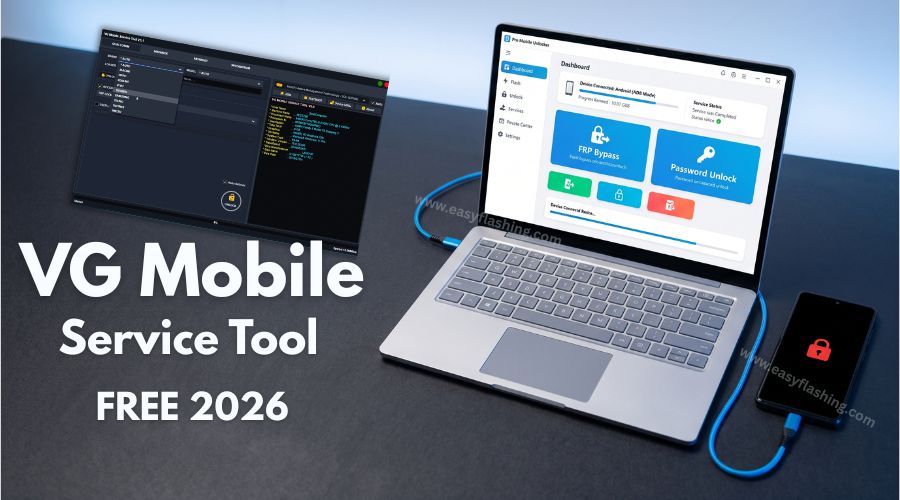
VG Mobile Service Tool is the free one click solution that phone technicians and everyday users across the globe rely on in 2026 to remove FRP locks, clear forgotten passwords, and restore locked Android phones to working order. Those who don’t know much about this topic often spend days searching for a way to unlock their mobile device, not realizing a single free tool handles it all. This tool changes that entirely.
Within this article, I will tell you today exactly what VG Mobile Service Tool is, what each of its major features does, how to download and install it safely, and how to use it step by step. You will also learn which Android brands and CPU types it supports, how Auto mode works when your phone model is not in the list, and what expert tips will help you avoid the most common mistakes. By reading this article, you will have complete information to use this tool with confidence from the very first session.
What Is VG Mobile Service Tool?
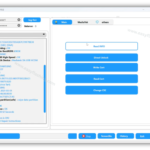
VG Mobile Service Tool is a free Windows-based mobile service utility that gives users direct access to critical Android repair and unlock functions. It works as a free FRP and password unlock tool that handles four core operations: FRP removal, screen password unlock, factory reset, and firmware flashing. All of these are included within the program under a clean, straightforward interface that beginners can use without prior technical training.
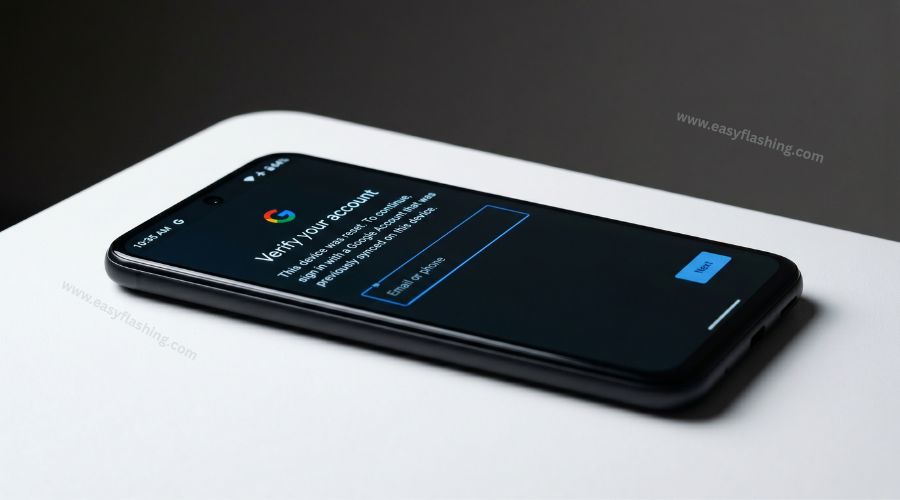
FRP stands for Factory Reset Protection. Google builds this feature into every modern Android phone. When a device gets factory reset and a user cannot provide the previously linked Google account credentials, that phone shows a lock screen with no way past it. VG Mobile Service Tool provides a free one click FRP bypass that removes this lock so the phone can be set up fresh with a new account.
When I first used a utility like this on a client’s locked Android phone, the entire FRP removal process that previously took close to an hour was complete in under five minutes. That kind of time saving is what makes this category of tool genuinely valuable for anyone working with Android devices regularly.
Android Utility V200 RV (Offline) Latest Version 2026
Android Utility PRO V200 RV (Offline) latest version 2026 explained for beginners.
👉 Read Full GuideKey Features of VG Mobile Service Tool
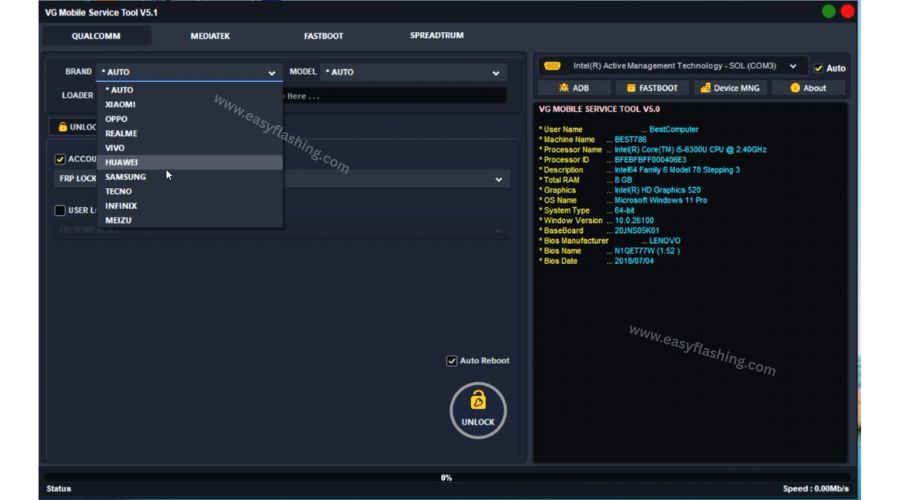
VG Mobile Service Tool covers a wide range of mobile service needs, making it a practical solution for both repair shops and personal use. Here is what you get:
- Free One Click FRP bypass: Remove the Google account lock from any compatible Android device with a single button press. No account credentials needed.
- One click unlock for screen passwords: Effortlessly unlock PIN locks, pattern locks, and alphanumeric passwords without needing a recovery code or original account.
- Factory reset / format mobile phone: Completely wipe the device and restore all settings to the manufacturer’s defaults. This is particularly useful for frozen or unresponsive phones.
- Flash your phone: Re-install or replace the Android firmware directly through the tool. This feature brings back phones stuck in boot loops or showing permanent black screens.
- Auto mode: When your specific phone model does not appear in the dropdown menu, Auto mode detects your mobile hardware automatically and proceeds with the chosen operation.
- Multi-brand and multi-CPU coverage: Access features across dozens of Android manufacturers, regardless of the processor type your device uses.
These capabilities come entirely free. The tool requires no subscription, no activation fee, and no dongle or hardware key. That is what separates VG Mobile Service Tool from many professional-grade tools in this space.
System Requirements and Compatible Devices
VG Mobile Service Tool runs only on Windows PCs. Before downloading, confirm your computer meets these requirements:
- Operating System: Windows 7, Windows 8, Windows 10, or Windows 11 (32-bit or 64-bit)
- RAM: At least 2 GB of available memory
- USB Port: One working USB port for connecting your mobile device
- USB Driver: The correct driver installed for your phone’s CPU or brand
- Data Cable: A working data cable, preferably the original cable from your phone’s manufacturer
The USB driver is often the most overlooked part of this setup. Without the correct driver, the tool cannot detect your mobile hardware at all. Install the appropriate driver for your phone’s CPU type before you do anything else.
I have run VG Mobile Service Tool on both Windows 10 and Windows 11 systems without any compatibility issues. On Windows 7, some older driver packages require a manual installation step before the phone gets recognized. Allow a few extra minutes for that on older machines.
How to Download VG Mobile Service Tool Free
Downloading and installing VG Mobile Service Tool is a simple process. Follow these steps in order:
- Navigate to the trusted download source where VG Mobile Service Tool is hosted.
- Click the download button to save the RAR archive file to your PC.
- Open the RAR file using WinRAR or 7-Zip. Enter the extraction password if prompted.
- Extract all files to a dedicated folder on your desktop or hard drive.
- Right-click the installer or executable file and select “Run as administrator.”
- Follow the on-screen installation steps and allow the process to finish completely.
- Launch VG Mobile Service Tool from the desktop shortcut or from the installation folder.
Never run the tool directly from inside the compressed RAR file. Always extract first. Running it from inside the archive causes missing file errors and prevents the tool from functioning correctly.
[Download WinRAR for file extraction](TOOL)

How to Use VG Mobile Service Tool: Step-by-Step Guide
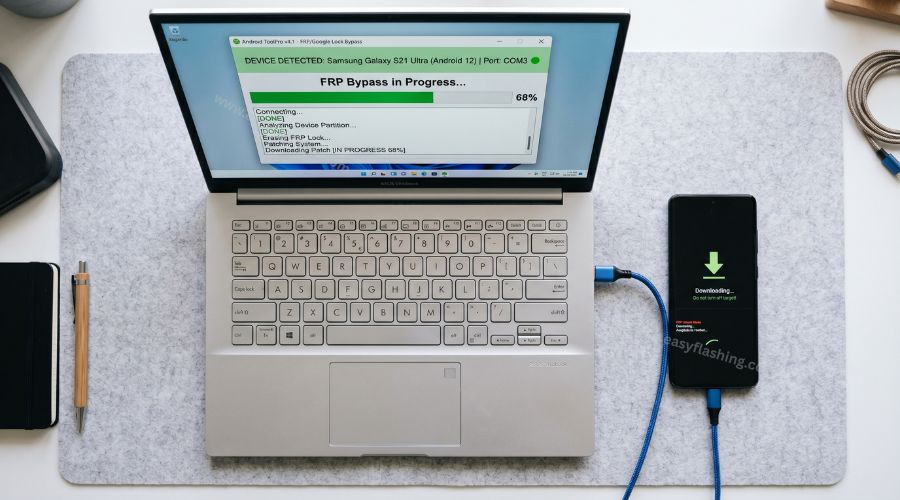
Once VG Mobile Service Tool is open on your PC, every operation follows a similar connection process. Always connect the phone before selecting any feature.
Method 1: Bypass FRP Lock
- Connect your Android phone to the PC using a data cable.
- Hold the Volume Up and Down buttons simultaneously while plugging in the cable.
- Select your phone’s brand or CPU type from the dropdown menu inside the tool.
- Click the FRP Bypass button.
- Wait for the process to run and complete. The tool displays a success message when done.
VG Mobile Service Tool includes two separate FRP bypass methods. If the first one does not work on your device, click the second method option within the same panel. Many Samsung and Xiaomi devices with newer Android versions respond to the second method when the first produces no result.
Method 2: Password Unlock
Removing a forgotten screen password follows nearly the same steps as the FRP process:
- Connect the locked mobile device to the PC via a data cable.
- Press and hold the Volume Up and Down buttons during the connection.
- Choose your phone’s manufacturer or CPU type from the list.
- Click the Password Unlock button.
- Allow the process to complete fully without disconnecting the phone.
Password unlocking almost always triggers a complete data wipe. Inform the phone owner of this before you proceed so they are not caught off guard.
Method 3: Factory Reset / Format Mobile Phone
A factory reset through VG Mobile Service Tool is the right choice when a phone is completely frozen, stuck in a crash loop, or needs to be prepared for resale:
- Connect the phone using a working data cable.
- Hold the Volume Up and Down buttons while the tool detects the device.
- Select the correct manufacturer and model from the menu.
- Click the Factory Reset or Format button.
- Confirm the action and wait for the process to finish.
I have used this specific method on phones that refused to enter Android recovery mode through the standard button combination. VG Mobile Service Tool handled the reset without requiring any on-screen input from the phone itself.
Method 4: Flash Your Phone
Flashing means reinstalling the phone’s firmware. Use this when the device is stuck on a logo, completely unresponsive, or damaged by a failed software update:
- Download the correct firmware file for your phone’s exact model from the phone manufacturer’s official website.
- Connect the phone via a data cable.
- Hold the Volume Up and Down buttons during the connection process.
- Load the firmware file into VG Mobile Service Tool through the file browser.
- Click the Flash button and do not touch or disconnect the phone until it finishes.
A power loss or accidental disconnection during flashing can permanently damage the device. Charge the battery to at least 60 percent before starting any flash operation.
Which Brands and CPU Types Does It Support?
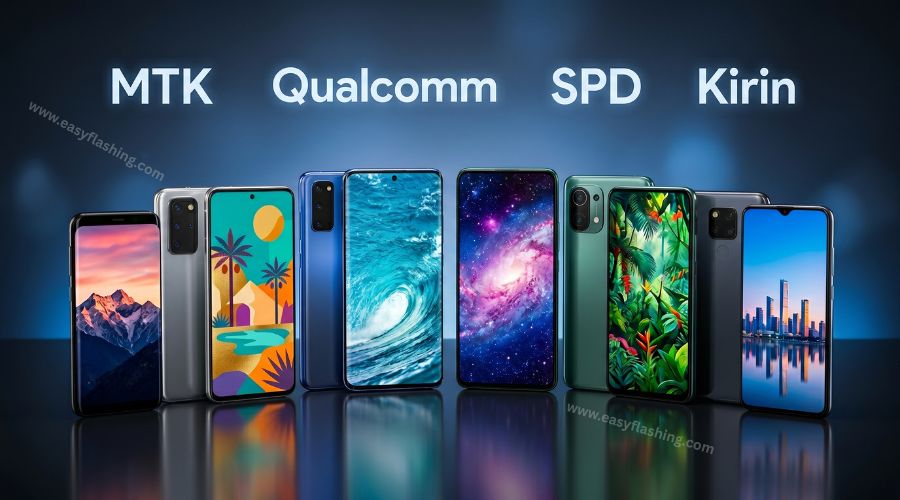
VG Mobile Service Tool supports a broad list of Android manufacturers. Regardless of your phone’s brand or the CPU inside it, the tool covers most combinations in active use today. Supported manufacturers include Samsung, Xiaomi, OPPO, Vivo, Huawei, Realme, Infinix, Tecno, Nokia, and many additional regional brands.
On the processor side, the tool works with:
- MediaTek (MTK): Found in the majority of budget and mid-range Android phones worldwide.
- Qualcomm Snapdragon: Powers flagship and upper mid-range devices from Samsung, Xiaomi, Realme, and others.
- Spreadtrum (SPD): Common in affordable entry-level phones from Tecno, Itel, and similar brands.
- HiSilicon Kirin: Used in Huawei and some Honor models.
You can find your phone’s CPU information inside Settings, then About Phone, then scroll to the Processor or Chipset field. Selecting the correct CPU type inside VG Mobile Service Tool ensures the unlock process runs on the right firmware pathway for your specific mobile hardware.
How Auto Mode Works When Your Model Is Not Listed
Not every phone model appears in the brand and CPU dropdown menus inside VG Mobile Service Tool. Newer releases, limited regional variants, and lesser-known manufacturers often fall into this gap. Auto mode exists specifically for these situations.
To use Auto mode on an unlisted mobile device:
- Open VG Mobile Service Tool and locate the device selection dropdown.
- Select Auto instead of choosing a specific brand or CPU.
- Connect the phone via a data cable while holding the Volume Up and Down buttons simultaneously.
- Allow the tool to scan and identify your mobile hardware automatically.
- Once detection completes, select the function you need, such as FRP bypass or password unlock.
- Click the action button and wait for the process to finish.
Auto mode works reliably for FRP bypass and password unlock on most detected devices. For the flash feature, some devices still require a manually specified model number because firmware files are model-specific. In that case, check the manufacturer’s support page or device specification sheet for the exact model string before proceeding.
Expert Tips for Getting the Best Results
These five tips come directly from hands-on use of VG Mobile Service Tool across a wide range of Android device models. Applying them before you start will prevent the most common errors beginners encounter.
Tip 1: Install the USB driver that matches your phone’s CPU before connecting anything. This is the single most important preparation step. A missing or mismatched USB driver is the reason most detection failures occur. Find the driver that matches your phone’s CPU type, install it completely, and then restart your PC before opening VG Mobile Service Tool.
Tip 2: Always use the original data cable from your phone’s box. Third-party cables frequently drop the data connection during unlock or flash operations. One disconnection during a flash process can render the phone permanently inoperable. The original cable provides a stable, manufacturer-tested connection that aftermarket options cannot always match.
Tip 3: Disable your Windows antivirus temporarily during installation. Many antivirus programs categorize mobile service tools as potentially unwanted software and block their installation. This is a false detection, not a real threat. Disable your antivirus for the duration of the installation only, then re-enable it immediately after the tool is set up.
Tip 4: Try both FRP methods on every device before giving up. VG Mobile Service Tool provides two FRP bypass pathways for a specific reason. Devices running newer Android security patches often fail on the first method but complete successfully on the second. Always test both before concluding the device is incompatible.
Tip 5: Run VG Mobile Service Tool as Administrator every time. Launching without Administrator rights causes permission errors that silently prevent the tool from communicating with connected devices. Right-click the shortcut and select “Run as administrator” as your standard practice every single session.
FAQ:
What is VG Mobile Service Tool used for? VG Mobile Service Tool is a free Windows utility for Android phones. It removes FRP locks, unlocks forgotten screen passwords, performs factory resets, and flashes firmware. It supports multiple brands and CPU types and connects to Android devices through a standard data cable with no hardware dongle required.
Is VG Mobile Service Tool completely free to download and use? Yes. VG Mobile Service Tool is available at no cost. There are no license fees, no monthly subscriptions, and no paid upgrade tiers. Download it once, extract the files, and all features are immediately available. Its functionality has been confirmed across a wide range of Android device models.
What does FRP bypass mean, and why would I need it? FRP stands for Factory Reset Protection. Google adds this security feature to all modern Android phones to prevent unauthorized access after a factory reset. When a phone gets wiped and the original Google account credentials are not available, the FRP lock activates. A free one click FRP bypass removes this lock so the phone can be configured with a new account.
Does VG Mobile Service Tool work on all Android phone brands? VG Mobile Service Tool supports Samsung, Xiaomi, OPPO, Vivo, Huawei, Realme, Infinix, Tecno, and many additional brands. If your exact model does not appear in the selection menu, set the tool to Auto mode. It will then scan and detect your mobile device automatically before proceeding.
What should I do if the tool cannot detect my phone? Start with the USB driver. Install the driver that matches your phone’s CPU, whether that is MTK, Qualcomm, SPD, or another type. Then switch to the original data cable if you are using a third-party one. Hold the Volume Up and Down buttons while connecting the phone. If detection still fails, restart both the PC and the phone and try again.
Will VG Mobile Service Tool delete all my data? Password unlock and FRP bypass operations almost always require a full data wipe to complete. Factory reset and flash operations permanently delete all user data by design. If the phone contains important files or contacts, attempt a backup through another method before proceeding with any of these functions.
Which Windows versions support VG Mobile Service Tool? The tool runs on Windows 7, Windows 8, Windows 10, and Windows 11 in both 32-bit and 64-bit configurations. Always launch the program using the “Run as administrator” option to prevent permission-related detection failures regardless of the Windows version you use.
What is Auto mode and when should I use it? Auto mode is VG Mobile Service Tool’s built-in device detection feature. Choose it when your phone’s brand or model does not appear in the standard dropdown list. The tool scans the connected mobile hardware, identifies the device on its own, and prepares it for the selected operation. It is most reliable for FRP bypass and password unlock tasks.
Conclusion
VG Mobile Service Tool puts professional-grade Android repair capabilities into a free, beginner-accessible package that actually delivers results. From free one click FRP removal to full firmware flashing, this password unlock software 2026 covers every major unlock and recovery scenario a mobile device user or technician will face. Its support for dozens of brands, multiple CPU architectures, and an intelligent Auto mode for unrecognized models makes it genuinely worth keeping in every phone service toolkit.
Download VG Mobile Service Tool today, follow every step in this guide, and put your locked Android device back into working condition without spending anything. If this guide helped you, share it with a friend or colleague dealing with an FRP lock or a forgotten password. A reliable, free solution this complete is worth passing on.