If you are flashing a Samsung phone and suddenly see an error like Odin Flash Failed, you are not alone. This problem is very common among beginners and even experienced users. Many users search for Odin Flash Failed? Solution for All Samsung Models because the phone stops booting, Odin shows FAIL, or the flashing process freezes.
In this article I will tell you that why Odin flash fails, what each error means, and how to fix Samsung flash failed issues step by step. The language is simple, the explanations are clear, and the solutions work for almost all Samsung Galaxy models worldwide.
What Is Odin Flash Tool?
Odin is a Samsung firmware flashing tool used on Windows computers. It helps install official Samsung firmware on Galaxy phones and tablets.
Odin is commonly used to:
- Reinstall stock firmware
- Fix boot loop issues
- Repair software crashes
- Update or downgrade Android
- Unbrick Samsung devices
When Odin works correctly, it shows a PASS message. When something goes wrong, you see FAIL, and the phone does not flash.
What Does “Odin Flash Failed” Mean?
Odin Flash Failed means the flashing process stopped before completion. Odin could not write firmware files to the phone.
This failure can happen due to:
- Wrong firmware
- Connection problems
- Driver issues
- Software mismatch
- Phone security restrictions
Understanding the exact cause helps fix the problem faster.
Common Symptoms of Odin Flash Failed Error
Before fixing the issue, identify the symptoms:
- Odin shows FAIL in red
- Flashing stops at setup connection
- Odin freezes during flashing
- Phone reboots to download mode
- Phone stuck on Samsung logo
- Flashing completes but phone does not boot
Each symptom points to a specific problem.
Main Reasons Why Odin Flash Fails on Samsung Phones
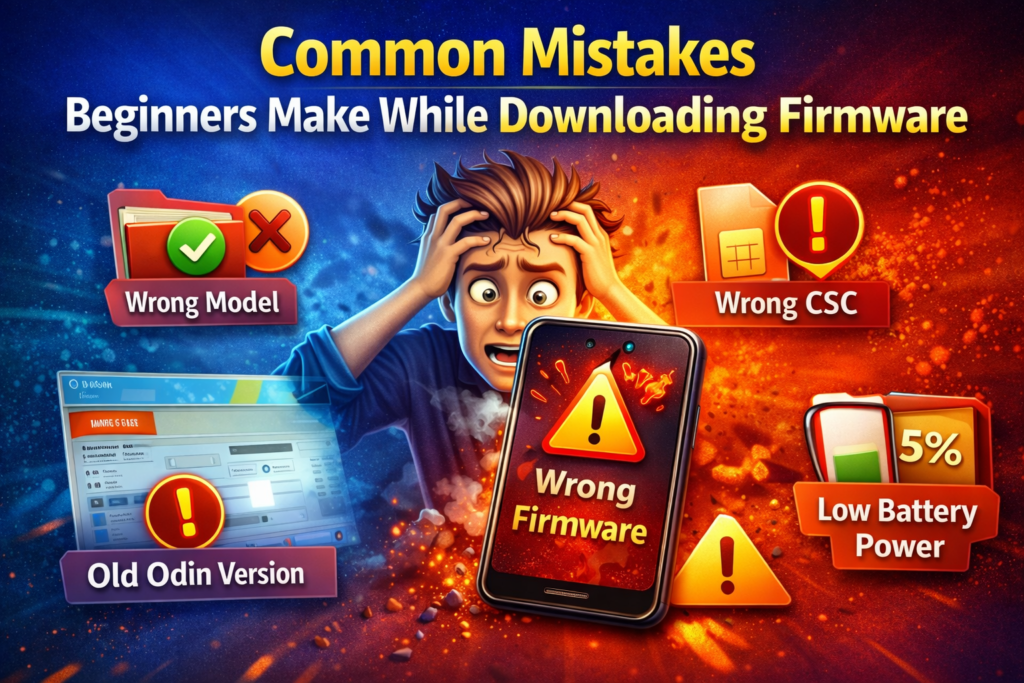
Odin flash failure does not happen randomly. There is always a reason behind it.
1. Wrong Firmware File (Most Common Cause)
Why This Causes Flash Failed
Samsung firmware is model-specific. Even small differences in model number can cause Odin to fail.
Examples:
- SM-A515F vs SM-A515U
- International vs carrier model
- Different chipset variants
If firmware does not match exactly, Odin rejects it.
Solution
- Check model number in download mode
- Download firmware for exact model
- Match CSC and region if possible
2. Incompatible Odin Version
Why Odin Version Matters
Older Odin versions may not support newer Samsung devices or firmware formats.
Solution
- Use latest stable Odin version
- Avoid modified or patched Odin tools
- Re-extract Odin files before use
3. Samsung USB Driver Not Installed Properly
Why Drivers Are Important
Without proper USB drivers, Odin cannot communicate with the phone.
Symptoms
- Odin does not detect device
- ID:COM stays empty
- Setup connection stuck
Solution
- Install official Samsung USB drivers
- Restart computer after installation
- Avoid third-party driver packages
4. USB Cable or Port Issues
How Cable Affects Flashing
Unstable USB connection interrupts data transfer, causing flash failure.
Solution
- Use original Samsung USB cable
- Avoid USB hubs
- Change USB port (prefer rear ports on PC)
5. Phone Not in Proper Download Mode
Why Download Mode Is Required
Odin only works when the phone is in Download Mode.
Solution
- Power off phone completely
- Use correct key combination
- Confirm download warning screen
- Press Volume Up to continue
6. Re-Partition Option Checked by Mistake
Why This Is Dangerous
Re-partition rewrites partition table. Using it incorrectly can brick the phone.
Solution
- Never check Re-Partition unless instructed
- Use default Odin settings
- Uncheck all advanced options
7. Corrupted Firmware Files
How Corruption Happens
Firmware files can become corrupted during download or extraction.
Solution
- Re-download firmware
- Use stable internet connection
- Extract files using updated software
8. Incorrect AP, BL, CP, CSC File Placement
Why File Placement Matters
Each firmware file has a specific slot in Odin.
Correct File Placement
- BL → BL
- AP → AP
- CP → CP
- CSC → CSC or HOME_CSC
Wrong placement causes flashing errors.
9. Device Bootloader Restriction
What Is Bootloader Protection?
Some Samsung models restrict firmware installation due to security.
Solution
- Use same or higher binary version firmware
- Check bootloader version
- Avoid downgrading restricted devices
10. Flashing Interrupted by Antivirus or Firewall
Why This Happens
Security software may block Odin’s communication.
Solution
- Temporarily disable antivirus
- Disable firewall during flashing
- Close unnecessary background apps
Step-by-Step Fix: Odin Flash Failed Solution for All Samsung Models
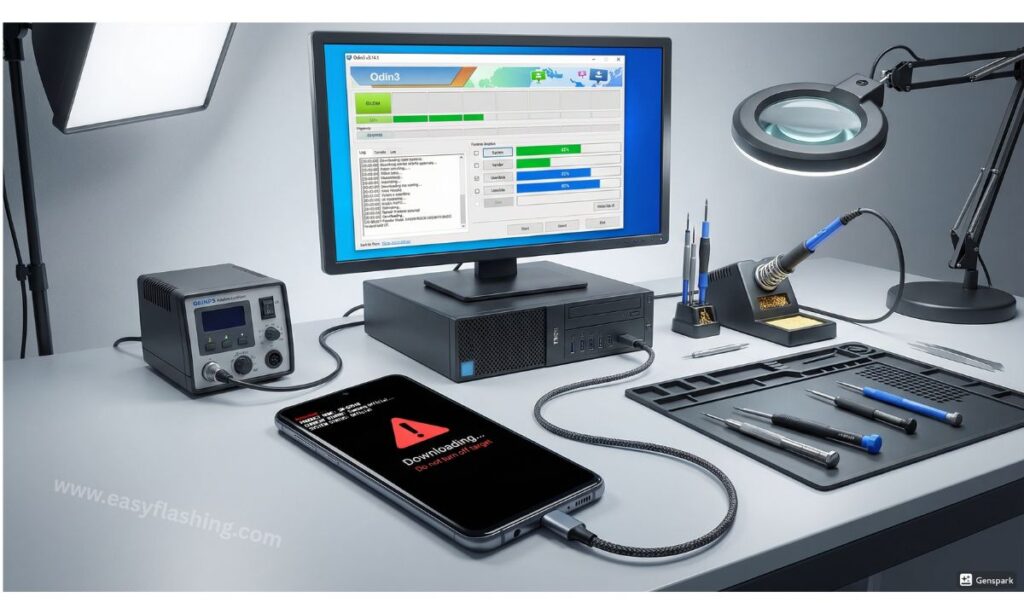
Follow this complete checklist to fix most Odin flash failed errors.
Step 1: Verify Samsung Model Number
- Check model in download mode
- Do not rely only on box or settings
- Match firmware exactly
Step 2: Download Correct Stock Firmware
- Choose correct region
- Match CSC if possible
- Avoid modified firmware files
Step 3: Install Samsung USB Drivers
- Uninstall old drivers
- Install official drivers
- Restart PC
Step 4: Use Latest Odin Tool
- Download stable Odin version
- Extract fresh copy
- Run as administrator
Step 5: Check Odin Settings
Correct settings:
- Auto Reboot: Checked
- F.Reset Time: Checked
- Re-Partition: Unchecked
Step 6: Connect Phone Properly
- Use original cable
- Connect directly to PC
- Confirm ID:COM turns blue
Step 7: Flash Firmware Again
- Load firmware files carefully
- Double-check file placement
- Click Start and wait patiently
Video tutorial: Step-by-Step Odin Flash Failed Fix
Odin Flash Failed Error Messages Explained
Understanding error messages helps identify the problem quickly.
“FAIL! SHA256 is invalid”
Meaning:
- Firmware file corrupted
- Odin version incompatible
Fix:
- Re-download firmware
- Use newer Odin version
“Complete(Write) Operation Failed”
Meaning:
- Connection interrupted
- USB or driver issue
Fix:
- Change cable
- Reinstall drivers
“Invalid Ext4 Image”
Meaning:
- Wrong firmware format
- Incomplete file
Fix:
- Download correct firmware package
“There is no PIT partition”
Meaning:
- Partition mismatch
Fix:
- Use correct CSC firmware
- Avoid re-partition unless necessary
Samsung Flash Failed But Odin Shows PASS
Sometimes Odin shows PASS, but phone still does not boot.
Reasons
- Data corruption
- Incompatible CSC
- Old cache conflict
Solution
- Boot into recovery
- Wipe data and cache
- Reboot system
Can Odin Flash Fail Damage My Phone?
In most cases:
- Odin flash failed does not damage hardware
- Phone remains recoverable
- Re-flashing usually fixes the issue
Permanent damage happens only if:
- Wrong PIT used
- Re-partition misused
- Flashing interrupted repeatedly
When You Should Stop Flashing and Seek Help
Stop flashing if:
- Phone not entering download mode
- Odin never detects device
- Phone shows no signs of life
In such cases, professional repair is safer.
Resources for Samsung Flashing Knowledge
- Samsung Official Support
https://www.samsung.com/support - Android Developers Documentation
https://developer.android.com - Samsung Knox Security Overview
https://www.samsungknox.com
These sources provide reliable and accurate information.
(Q&A)
Why does Odin say flash failed on Samsung phones?
Odin flash fails due to wrong firmware, driver issues, connection problems, or incompatible Odin version.
Can I fix Odin flash failed without data loss?
Usually no. Re-flashing stock firmware often erases data. Backup is recommended before flashing.
Is Odin flash failed common on new Samsung models?
Yes, especially if older Odin versions or incorrect firmware are used.
Does Samsung flash failed mean my phone is dead?
No. Most Samsung flash failed cases are recoverable with correct firmware and steps.
Which Odin version is best for all Samsung models?
The latest stable Odin version works best for most Samsung Galaxy devices.
Final Thoughts
The Odin Flash Failed? Complete Solution for All Samsung Models is not complicated when you understand the real cause. Most failures happen due to small mistakes like wrong firmware, missing drivers, or incorrect Odin settings.
By following the solutions in this guide, beginners can safely fix Samsung flash failed errors and restore their devices without panic. Odin remains one of the most reliable flashing tools for Samsung phones when used correctly, patiently, and carefully.



2 thoughts on “Odin Flash Failed? Complete Solution for All Samsung Models”