Bricking an Android phone feels scary, especially when your important photos, contacts, and files are still inside. Many beginners think that once a phone is bricked, data loss is guaranteed. That is not always true. With the right approach, tools, and patience, you can often fix the problem and keep your data safe.
In this article you will learn that how to unbrick Android phone without losing data using practical, beginner friendly methods. It covers all common situations, from boot loop issues to recovery mode errors, and explains technical terms in simple.
What Does “Bricked Android Phone” Mean?
A bricked Android phone is a device that does not work properly. It may not boot, may get stuck on the logo, or may not respond at all. The phone becomes as useful as a brick, which is why the term “bricked” is used.
Bricking usually happens because of software issues, not hardware damage. That is good news, because software problems are often fixable.
Common Signs of a Bricked Android Phone
- Phone stuck on boot logo
- Endless boot loop
- Black screen but phone vibrates or shows charging sign
- Recovery mode opens but system does not boot
- Error message after update or flashing
Types of Android Bricks (Important to Know)
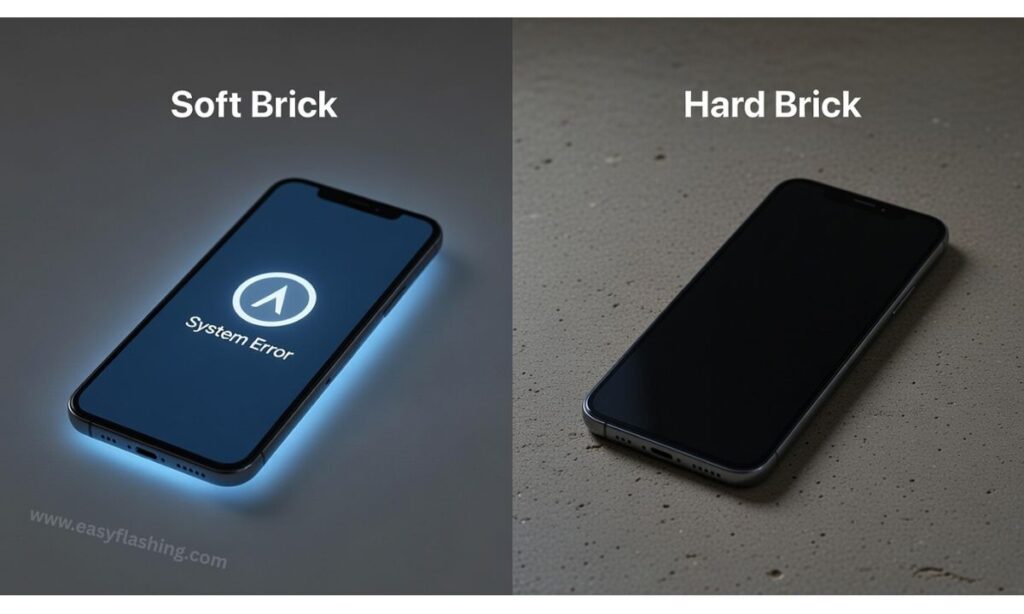
Before learning how to unbrick Android phone without losing data, you must understand the type of brick. The solution depends on it.
1. Soft Brick (Most Common)
A soft bricked phone still turns on but does not boot properly. Examples include:
- Boot loop
- Stuck on logo
- Crashes after update
Good news: Soft bricks are usually recoverable without data loss.
2. Hard Brick (Rare)
A hard bricked phone does not turn on at all. No logo, no vibration, no charging screen.
Important: Hard bricks often require professional repair. Data recovery is difficult but not always impossible.
Why Android Phones Get Bricked
Understanding the causes helps you avoid future problems.
Common Reasons for Android Bricking
- Failed software update
- Incorrect firmware flashing
- Interrupting flashing process
- Rooting mistakes
- Installing incompatible custom ROM
- Corrupted system files
- Low battery during update
Can You Unbrick an Android Phone Without Losing Data?
Yes, in many cases, especially with soft bricked Android phones, you can unbrick the device without deleting your data. The key is to avoid factory reset and full firmware flashing unless absolutely necessary.
Data safety depends on:
- Type of brick
- Android version
- Phone brand
- Recovery options available
Important Things to Do Before Trying Any Fix
Before applying any solution, follow these safety steps.
Basic Safety Checklist
- Charge battery to at least 50%
- Do not panic or rush
- Avoid factory reset unless no other option works
- Read instructions carefully
- Use original USB cable if possible
1. Restart and Soft Reboot (First and Safest Step)
Sometimes the issue is temporary.
How to Perform a Soft Reboot
- Press and hold Power + Volume Down for 10–15 seconds
- Wait for phone to restart
This method does not delete data and often fixes minor boot issues.
2. Boot into Safe Mode (Data Safe Method)
Safe Mode disables third party apps that may be causing the problem.
When Safe Mode Helps
- Phone boots but crashes
- Stuck after installing an app
- Performance issues after update
How to Enter Safe Mode
- Turn off the phone
- Turn it on and hold Volume Down when logo appears
- Release when Safe Mode shows
If phone works in Safe Mode, uninstall recently installed apps.
3. Use Android Recovery Mode Without Data Wipe
Recovery Mode is a powerful built in tool.
What You Can Safely Do in Recovery Mode
- Reboot system
- Apply update from cache
- Fix minor system errors
How to Enter Recovery Mode
- Power off phone
- Press Power + Volume Up (varies by brand)
- Release when Recovery menu appears
Avoid This Option (If You Want Data)
- Wipe data/factory reset
4. Clear Cache Partition (Safe for Data)
Clearing cache does not remove personal data.
Why Cache Causes Problems
- Old system files conflict with new updates
- Corrupted temporary files
Steps to Clear Cache Partition
- Enter Recovery Mode
- Select Wipe cache partition
- Confirm and reboot
This method often fixes boot loops.
5. Fix Boot Loop Without Losing Data
Boot loop is one of the most common soft brick problems.
Causes of Boot Loop
- Incomplete update
- App conflict
- Corrupted system cache
Safe Boot Loop Fix Methods
- Clear cache partition
- Boot into Safe Mode
- Remove problematic apps
Avoid flashing firmware unless nothing works.
6. Use ADB Commands (Advanced but Data Safe)
ADB (Android Debug Bridge) allows communication with your phone using a computer.
When ADB Works Best
- USB debugging enabled before brick
- Phone detected by computer
Common Safe ADB Commands
- Reboot system
- Remove faulty apps
- Restart services
ADB does not delete user data if used carefully.
7. Reinstall Stock Firmware Without Data Wipe
Some manufacturers allow firmware installation without wiping data.
Important Notes
- Choose correct firmware version
- Avoid “clean install” option
- Follow brand specific instructions
This method is risky for beginners but effective when done properly.
8. Use Official PC Tools (Brand Specific)
Many brands offer official repair tools that preserve data.
Examples of Official Tools
- Samsung Smart Switch (Recovery mode)
- Xiaomi recovery updater
- Google Pixel repair tool
These tools are safer than third party software.
9. Recover from Failed Android Update
Android updates sometimes fail mid process.
Safe Fix Steps
- Enter Recovery Mode
- Clear cache partition
- Reboot system
- Retry update if available
Avoid factory reset unless update corruption is severe.
10. When Factory Reset Is the Last Option
Sometimes, data safe methods do not work.
Before Choosing Factory Reset
- Try all other steps
- Check if phone is hard bricked
- Confirm no recovery access
Factory reset erases data but may restore phone usability.
Common Mistakes That Cause Data Loss

Avoid these beginner mistakes.
Data Risky Actions
- Flashing wrong firmware
- Using untrusted tools
- Interrupting flashing process
- Selecting wipe data option accidentally
- Panicking and rushing
How to Prevent Android Phone from Getting Bricked Again
Prevention saves time and stress.
Best Practices
- Keep battery charged during updates
- Avoid unofficial firmware unless experienced
- Backup data regularly
- Do not force shutdown during updates
- Install apps from trusted sources
Understanding Key Technical Terms (Beginner Friendly)
Bootloader
Controls how the phone starts. Unlocking it incorrectly can brick the phone.
Firmware
The operating system files that run your phone.
Recovery Mode
A built in repair environment in Android.
Boot Loop
Phone restarts continuously without loading Android.
Is Data Recovery Possible from a Bricked Phone?
Yes, data recovery is possible in many cases, especially with soft bricks. If the internal storage remains intact, data can often be accessed once the system boots or through advanced recovery methods.
Google Safe and Trustworthy Advice
Always prefer:
- Official tools
- Manufacturer instructions
- Well documented methods
Avoid shortcuts that promise instant fixes without risk.
(Q&A)
1. Can I unbrick my Android phone without losing data?
Yes, in most soft brick cases, you can unbrick an Android phone without losing data by using cache clearing, Safe Mode, recovery options, or official repair tools.
2. What is the safest way to fix a bricked Android phone?
The safest way is to start with a soft reboot, then try Safe Mode and Recovery Mode options that do not wipe data.
3. Does flashing firmware always delete data?
No. Some firmware installations allow data preservation if done correctly, but beginners should proceed carefully.
4. What causes Android phones to brick most often?
Failed updates, incorrect flashing, rooting mistakes, and corrupted system files are the most common causes.
5. Can a hard bricked phone be fixed without data loss?
Hard bricks are difficult to fix at home. Data recovery is sometimes possible through professional repair services.
Final Thoughts
Learning how to unbrick Android phone without losing data can save you from unnecessary panic and permanent data loss. Most Android bricks are software related and recoverable with the right steps. The key is patience, correct diagnosis, and using safe methods first.
Always start with data friendly solutions and move step by step. With proper care and knowledge, even beginners can fix many Android problems without wiping their valuable data.


1 thought on “How to Unbrick Android Phone Without Losing Data”