When you perform an iCloud bypass on an iPhone or iPad, App Store download issues often pop up — such as apps that won’t download, errors when tapping Get/Install, or simply seeing nothing happen when you try. By reading this article, I will try to Give you complete information about why this happens and how to resolve it using practical, easy‑to‑follow steps.
Those who don’t know much about this will find simple explanations and actionable fixes that work for beginners and experienced users alike.
Why App Store Download Issues Happen After iCloud Bypass
After an iCloud bypass, your device may be missing essential services that Apple normally provides when the phone is set up and authenticated properly. These can include:
- Broken Apple ID authentication — the App Store may not correctly recognize your Apple ID after the bypass.
- Partial system service configuration — bypass methods can disable or skew key services, leading to errors like unable to connect or App Store locked.
- Network or verification problems — even if you can log into the App Store, the device might not communicate reliably with Apple servers. User reports confirm issues like connection failures or errors when signing in to iCloud after bypass.
This article will try to explain all major reasons and give you practical ways to fix them, I will tell you today how these issues can be solved step by step.
Confirm Your Apple ID Status (Basic Check)
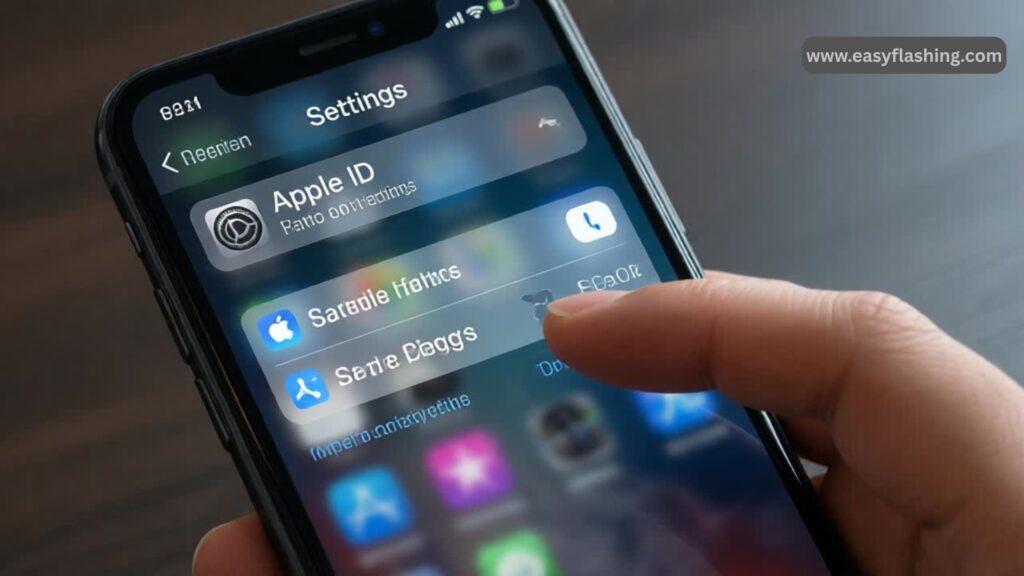
Most App Store download failures are caused by issues with the Apple ID’s authentication or verification status. To check:
- Open Settings → Tap your name at the top.
- Ensure you are signed into your Apple ID.
- If signed in, try logging out and logging in again.
- Go to Settings → Apple ID → Sign Out
- Wait a moment, then sign in again.
This refreshes the authentication tokens that allow App Store downloads.
Why this matters:
Sometimes after bypass, the Apple ID is stuck in a bad authentication state. Logging out and back in refreshes it.
Check Your Internet Connection (Wi‑Fi or Cellular)
Before doing technical fixes, make sure your gadget can properly reach Apple’s servers:
- Try loading a website in Safari.
- If Wi‑Fi isn’t reliable, switch to cellular data.
- Try toggling Airplane Mode ON and OFF to reset network services.
Pro Tip: If your Wi‑Fi requires a proxy or unusual settings (common in iCloud bypass situations), try connecting to a different network if possible.
Restart or Force Restart Your Device
A simple restart resolves many temporary glitches:
Restart iPhone (regular):
- Hold Power button (and volume button on newer iPhones).
- Slide to power off.
- Turn on again.
Force restart (for stubborn issues):
- iPhone 8 and newer: Press Volume Up → Volume Down → Hold Side button until Apple logo appears.
- Older models: Hold Home + Power until Apple logo.
Restarting refreshes network and system services essential for App Store downloads.
Reset Network Settings
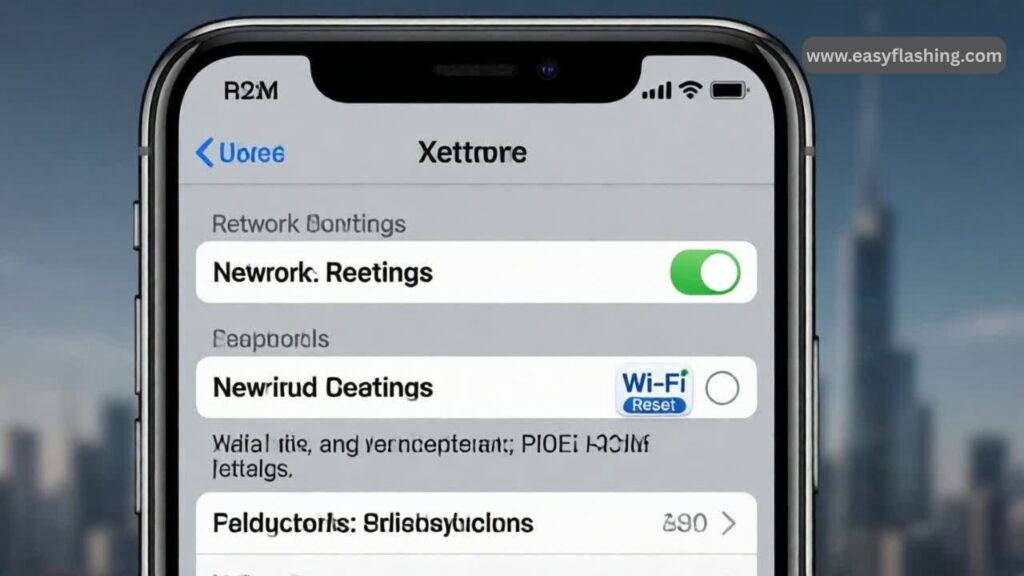
If your device can’t connect to App Store servers properly, resetting network settings often fixes it:
- Go to Settings → General → Transfer or Reset iPhone
- Tap Reset Network Settings
- Enter your passcode and confirm.
This resets Wi‑Fi passwords and networks but fixes deep network glitches that block App Store downloads.
Check Storage Space on Your Device
Even if your bypass was successful, iOS won’t download new apps if there’s not enough storage.
- Open Settings → General → iPhone Storage
- Check how much space is free.
- If you are low (under ~500MB), delete unused apps, photos, or videos.
Pro Tip: iOS often needs extra free space than the app size (for temporary unpacking), so having 1GB+ free is ideal.
Update Your iOS Software (If Possible)
An outdated iOS can also cause download errors — especially if the bypass was done on older software.
- Go to Settings → General → Software Update
- Update to the latest version supported by your device.
This can fix system bugs that disrupt the App Store.
Handle Verification Required or Payment Alerts
Sometimes the App Store blocks downloads if it needs account verification, even for free apps.
To fix this:
- Go to Settings → Apple ID → Payment & Shipping
- Update or set a valid payment method, or choose None if allowed.
This clears the Verification Required block that can stop downloads.
Important Considerations After iCloud Bypass
A. System Integrity and Bypass Tools
Some bypass methods modify core system files — and that can break App Store connectivity. If basic steps above don’t work, consider:
- Re‑executing the bypass using updated reputable tools
- Using proper certificates or tools designed to maintain App Store compatibility
Always use trusted methods that maintain Apple services intact.
B. iCloud vs. App Store Login
In some bypass cases, the device can login to the App Store but not iCloud. That’s because the bypass may only enable partial services. Logging into the App Store separately inside Settings often allows downloads even if iCloud services don’t fully work.
Video Tutorial: Fix iCloud Login Error After Bypass
Full Reset or Restore (Last Resort)
If all above fail and you’ve backed up everything:
- Back up to iCloud or iTunes
- Go to Settings → General → Transfer or Reset iPhone → Erase All Content and Settings
- Restore from backup
This wipes the device — only do this if nothing else works.
Q&A
Q1: Can I download apps without signing into iCloud after bypass?
A: Sometimes you can sign into App Store only and download apps, but many apps require an Apple ID verification linked to iCloud to update or re‑download.
Q2: Why does my App Store say “Verification Required”?
A: Apple may need valid payment info or account verification to authorize downloads, even for free apps — updating billing or choosing None often fixes this.
Q3: Is iCloud bypass legal or safe?
A: Bypassing activation locks can violate Apple terms and may lead to instability. Only proceed with caution and understand you might lose some services.
Q4: Will a network reset delete my photos?
A: No — resetting network settings only removes Wi‑Fi and VPN configurations.
Q5: My App Store still won’t download apps — what next?
A: Try re‑bypassing carefully or use official Apple Support if possible, as bypass methods vary in reliability.
Resource for Further Information:
Learn more about Apple support for download issues on the official Apple System Status page to check server status before troubleshooting:https://www.apple.com/support/systemstatus/


1 thought on “Fix App Store Download Issues After iCloud Bypass (Steps For IPhone & IPad)”